How to Start an Ad-hoc Direct Session
Last updated: August 26, 2026
Most sessions start from your Schedule, where they are already planned for you. But sometimes you need to run a session you did not schedule in advance. That is what an ad-hoc session is for. This guide walks you through starting an ad-hoc Direct Session and recording it in Text-Only mode, where audio transcription is turned off and you take written notes yourself.
Step 1 - Open the ad-hoc session screen
From your Homepage, look at the left-hand sidebar under the "Alpaca Assistant" heading and click "Start Ad-hoc Session" (the microphone icon).
Tip: You can also start one from the Homepage itself - in the "Your work today" card, click the "start an ad-hoc one" text next to "Start a scheduled session below."

Step 2 - Choose the session type
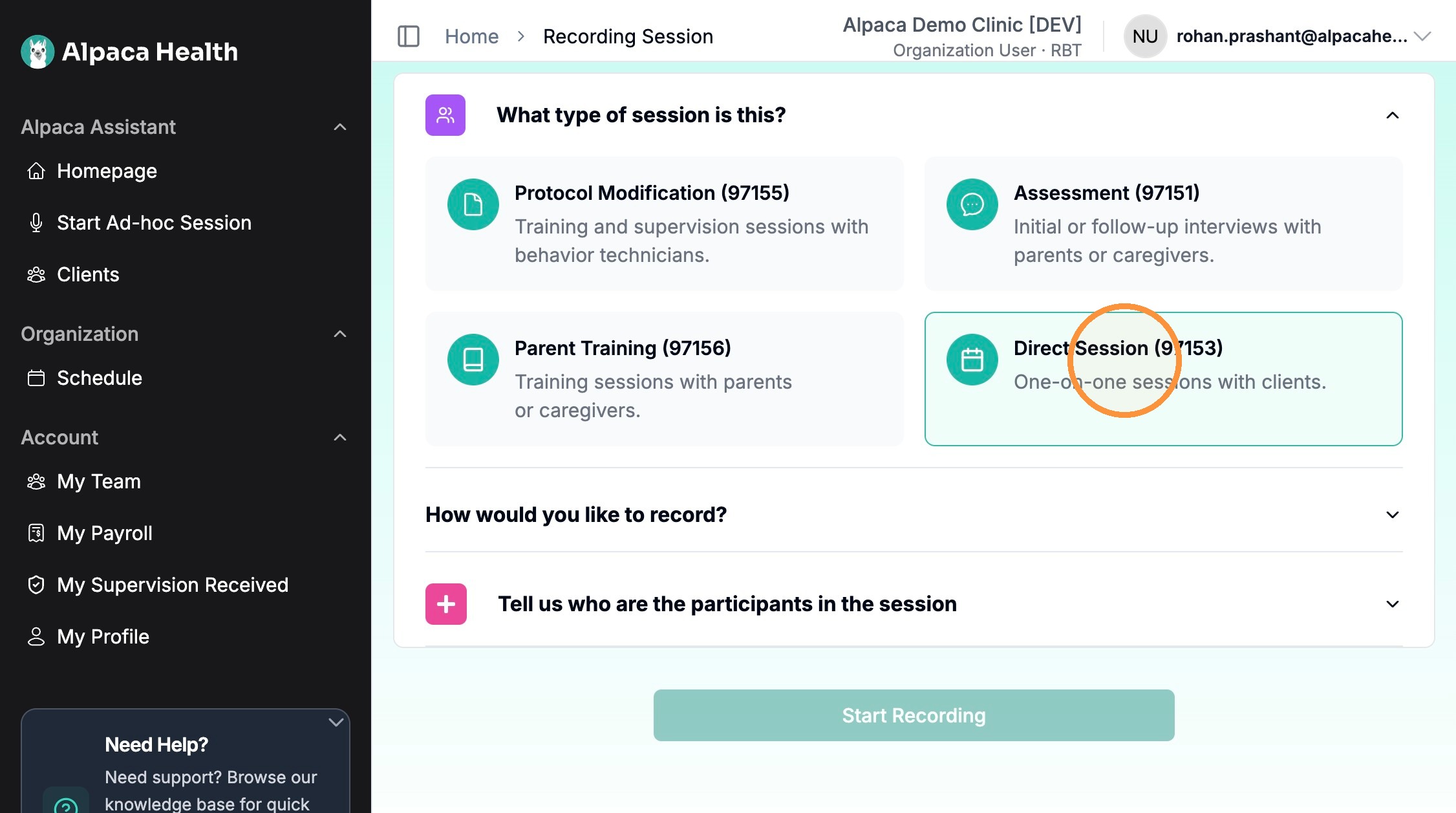
The "Recording Session" screen opens on the first question, "What type of session is this?" You will see four options, each labelled with its billing (CPT) code:
Protocol Modification (97155) - Training and supervision sessions with behavior technicians.
Assessment (97151) - Initial or follow-up interviews with parents or caregivers.
Parent Training (97156) - Training sessions with parents or caregivers.
Direct Session (97153) - One-on-one sessions with clients.
Click the "Direct Session (97153)" tile. It becomes highlighted once selected.
Watch out: The four tiles look alike and their codes are easy to mix up. Pick the one that matches the service you are actually delivering. Direct Session (97153) is the one-on-one session with the client - not a training or assessment session.
Step 3 - Choose how to record: Text-Only mode
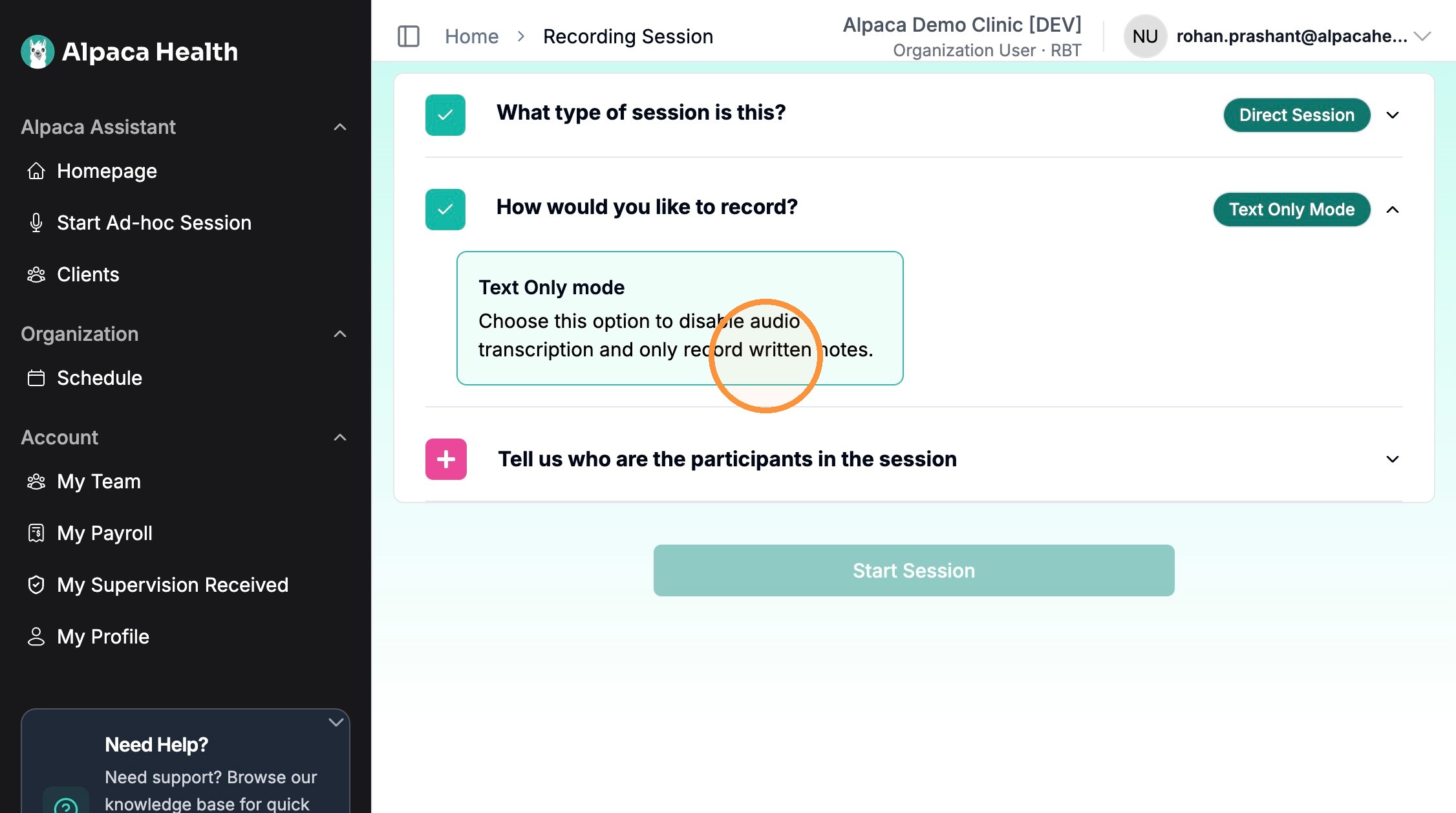
Below the session type, open the "How would you like to record?" question and choose "Text Only Mode." A short description confirms what it does: it disables audio transcription and records only your written notes.
What this changes: In Text-Only mode nothing is recorded or transcribed from audio - you type all of your notes by hand. This is different from the default recording mode, which listens in and drafts notes for you. Choose Text-Only when you do not want audio captured or when recording is not possible.
Once you select Text Only Mode, the green button at the bottom of the screen changes its label from "Start Recording" to "Start Session."
Step 4 - Add the participant
Open the "Tell us who are the participants in the session" section. Here you set who the session is with and a few recording details:
Client name - the client this session is for (you will pick this in the next step).
Language - defaults to "Transcribing: English." Leave it unless the session is in another language.
Is this a telehealth session? - leave this toggle off for an in-person session.
Note: Turn the telehealth toggle on only for a video session. When it is on, Alpaca Assistant joins your video meeting (Google Meet, Microsoft Teams, or Zoom) so it can listen in, and you have to admit it into the call. For an in-person Text-Only session, keep it off.

Step 5 - Select the client
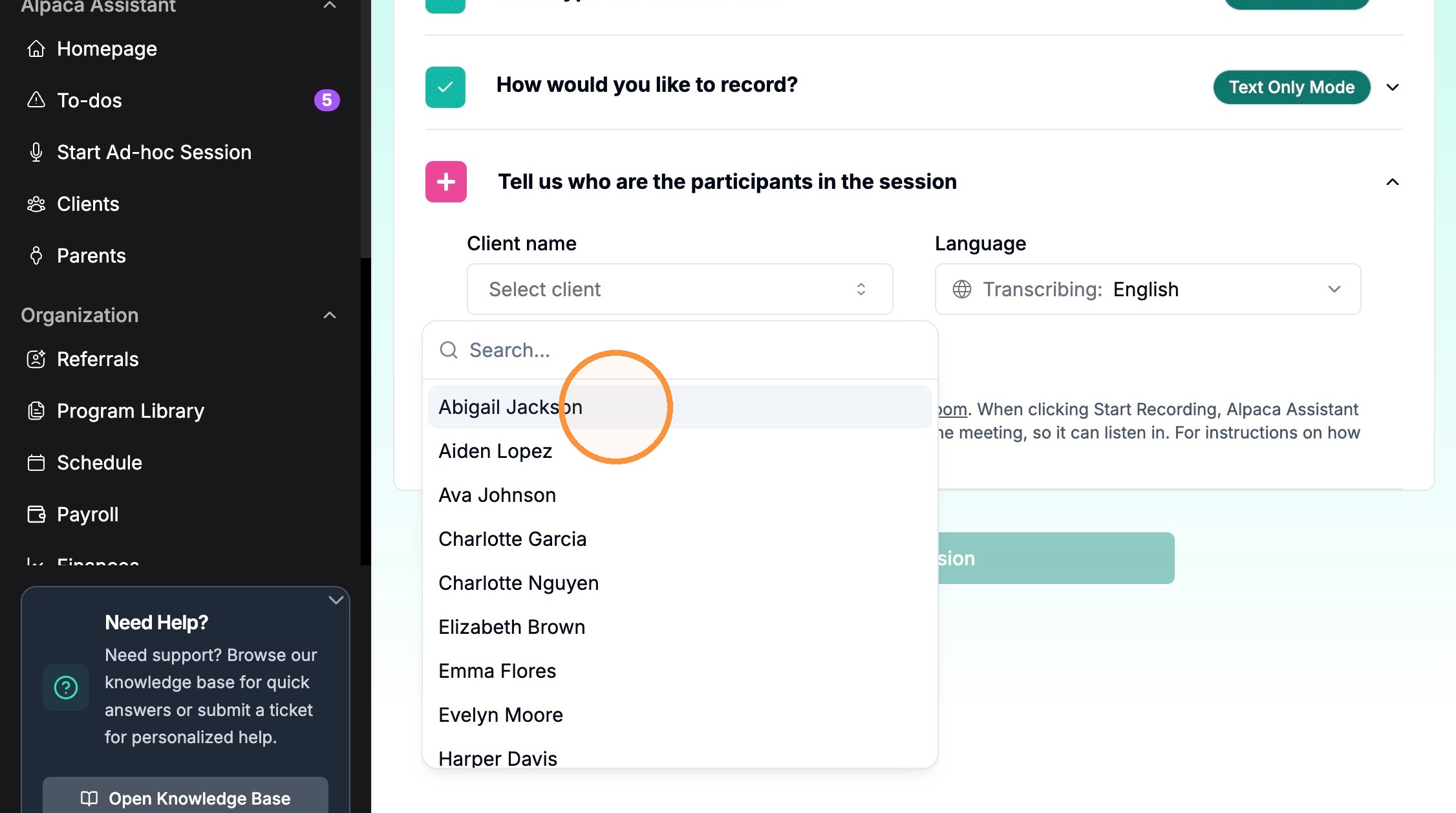
Click the "Select client" dropdown. A search box appears with a list of your clients. Start typing a name to narrow the list, then click the client you want (for example, "Abigail Jackson").
Step 6 - Start the session
With the client selected, click the green "Start Session" button at the bottom of the screen.
Heads up: This does not immediately drop you into the session. One more short form appears first, covered in the next step.
Step 7 - Fill in the Start of Session information
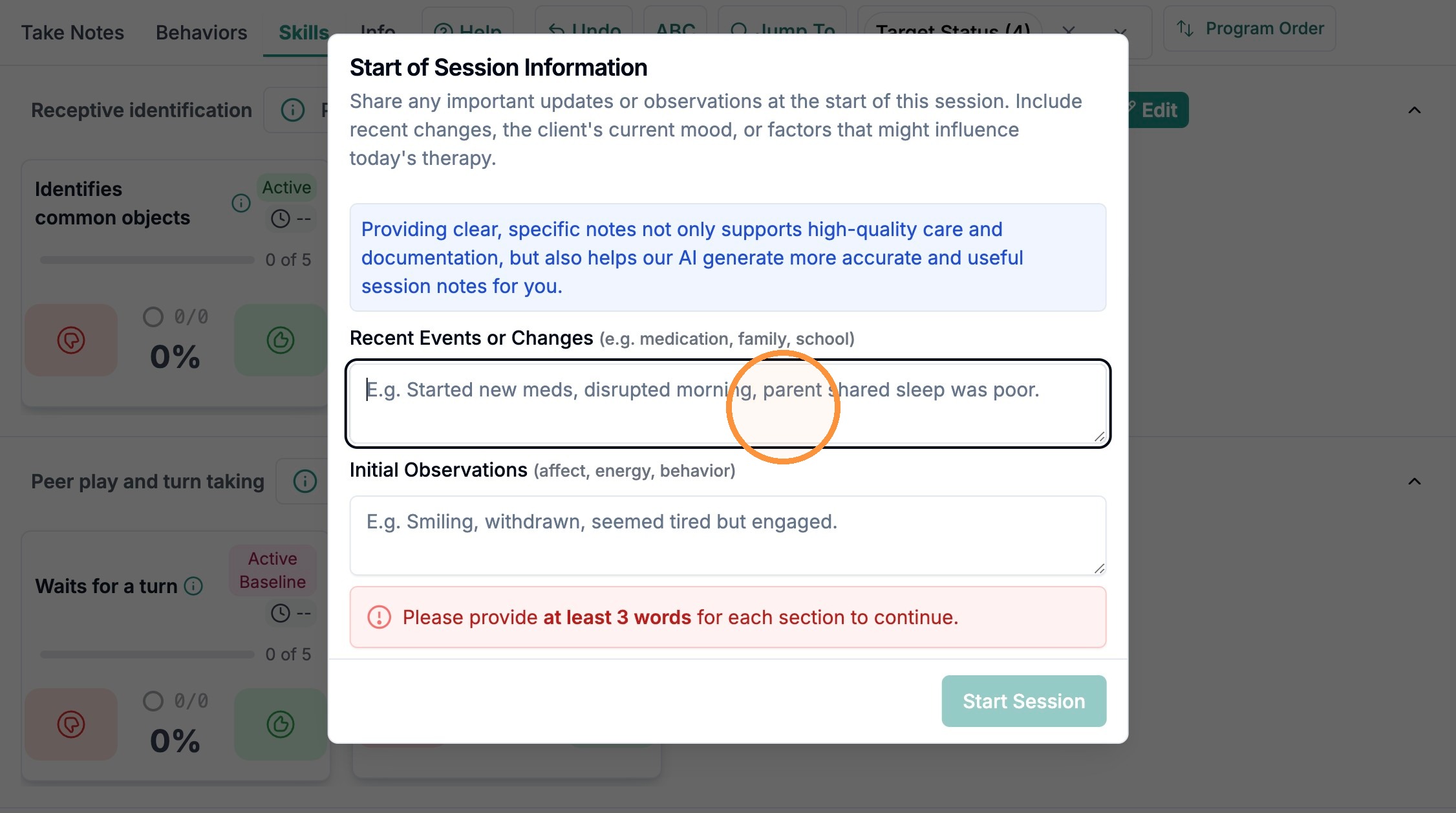
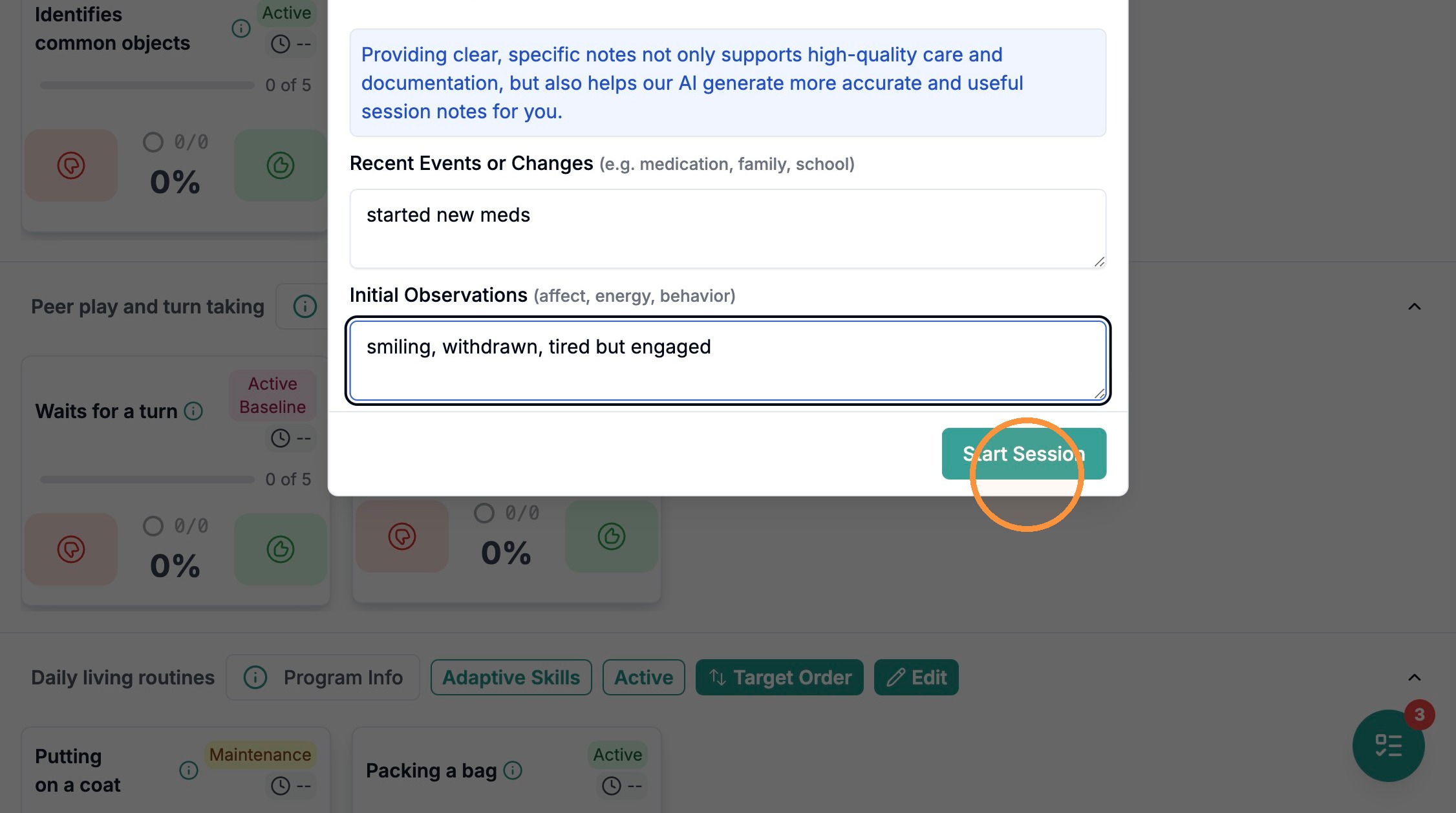
A "Start of Session Information" window opens over the data-collection screen. It asks you to note anything important before therapy begins. There are two fields:
Recent Events or Changes (for example: medication, family, or school changes).
Initial Observations (the client's affect, energy, and behavior right now).
Required: You must enter at least 3 words in each field. Until you do, the "Start Session" button in this window stays greyed out and you cannot continue. Clear, specific notes also help Alpaca's AI generate more accurate session notes.
Step 8 - Enter your notes and begin
Type a short note into each field - for example, "started new meds" under Recent Events or Changes, and "smiling, withdrawn, tired but engaged" under Initial Observations. Once both fields have at least 3 words, the "Start Session" button turns solid green. Click it to begin.
The window closes and your ad-hoc Direct Session is now live. Because you chose Text-Only mode, no audio is being recorded - take your notes directly on the data-collection screen throughout the session.