Payroll adjustments and extras
Last updated: August 25, 2026
Beyond hours and rates, a pay period often needs one-off or repeating additions and subtractions — a mileage reimbursement, a bonus, a repayment plan, a retirement contribution. This article covers all of them, and they all live on Payroll → Payroll Details for the selected pay period.
Reimbursements, stipends and bonuses
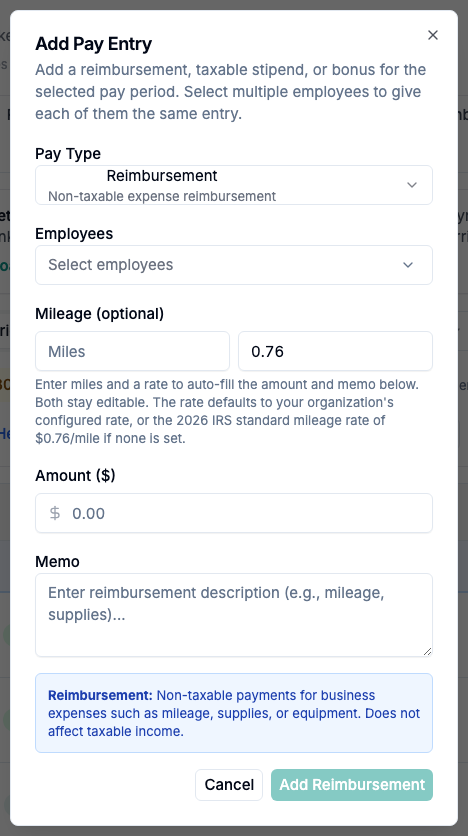
The Add Pay Entry dialog, with the mileage calculator.
Use Add Pay Entry. The dialog asks for a Pay Type:
Pay type | Use it for | Taxed? |
|---|---|---|
Reimbursement | Expenses the worker paid out of pocket. | No |
Taxable Stipend | An allowance or stipend. | Yes |
Bonus | Performance or discretionary bonuses. | Yes |
You can select multiple employees and give each of them the same entry — useful for a team-wide bonus. Each person gets their own entry for the full amount; it is not split between them.
The mileage calculator
For a reimbursement, entering a number of miles auto-fills the amount (miles × your organization's mileage rate) and pre-fills a memo showing the exact rate used. Alpaca falls back to the IRS standard rate (for 2026, $0.76/mile) if your organization has not set its own.
Both the amount and the memo stay editable. Alpaca only overwrites them while they still match what it auto-filled, so a manual edit is never clobbered.
Recurring payroll entries
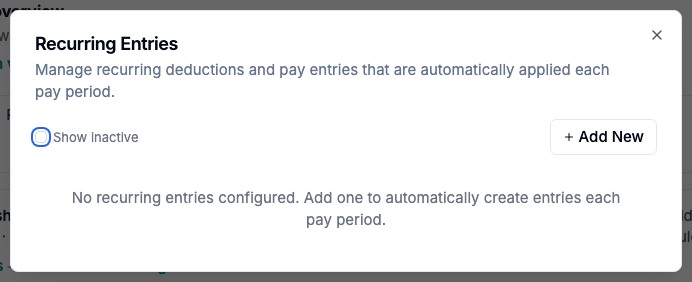
Recurring Entries — deductions and pay entries applied automatically each period.
Open Recurring Entries to manage entries that are applied automatically every pay period. Each one is either a Deduction or a Pay Entry (reimbursement / stipend / bonus), and you set:
The employee
The amount per period
An effective from period (inclusive)
An end period (inclusive), or Ongoing (no end)
To stop one, use Deactivate Recurring Entry rather than deleting it — deactivated entries stay visible behind the Show inactive checkbox, which is what lets you explain a deduction that appeared on an old paycheck.
Always set an end period on a fixed-total arrangement. An ongoing entry keeps deducting until someone notices.
Scheduled deductions
A one-off deduction for a single period. Pick the employee, the deduction type, the amount, and an optional memo. The memo matters more than it looks: the payroll run itself only carries the deduction type name, so the memo is the only record of why the deduction happened. Write something a colleague could act on in six months.
Pending scheduled deductions are listed on the page before they are applied, so you can cancel one that has not gone out yet.
Savings and retirement contributions
Open Savings Contributions to enrol a worker in contributing a percentage of their gross pay each period. You set:
The savings plan
The contribution rate — a percentage of gross pay, entered as a number (5 means 5%)
The post-tax deduction type configured for the contribution
The deduction is created automatically when payroll is synced each period — you do not add it manually. Use Unenroll Worker to stop it.
Moving work to a different pay period
Occasionally an appointment lands in the wrong pay period — a note signed at the wrong moment, or a correction made after the fact. An appointment can be moved to another period, and moved appointments carry an amber Moved badge on the Payroll Details table with the reason on hover. There is also a Revert to Original Pay Period action.
Moving an appointment between pay periods is restricted to Alpaca.
This is deliberate: it moves work into or out of a period that has often already been reported and paid. Email support with the worker, the client, the service date and the period it should be in. Neither move nor revert is possible once the appointment has been finalized for payroll.
The three-day lock
For three days after a period ends, none of the above can be added to that closed period by a clinic admin — Alpaca is processing the paychecks. You will see "Payroll is under processing and can no longer be manually updated. Contact Alpaca for changes.", and Alpaca will offer to move your entry into the next period instead. See Pay periods and check dates.
Still stuck? Email support@alpacahealth.io and we will take a look.