Offer Letter and Onboarding Guide
Last updated: September 24, 2026
Use this guide to send an offer letter, help a new hire complete account setup, and prepare for their first day. It explains what your clinic does in My Team and what the candidate sees on their own screen.
You can start with a candidate hired through RBT Requisitions, or invite someone directly from My Team.
The starting point matters. For every clinical hire, My Team also tracks pre-start onboarding and the Mark ready / Mark started milestones. A direct My Team offer does not add the person to a requisition pipeline.
How the candidate and clinic views connect
Stage | What the candidate does | What your clinic does |
|---|---|---|
Invitation or offer | Opens the email from your clinic. | Reviews the person's details and sends an invitation or offer letter. Recording a hire in a requisition does not send either one. |
Signing, if using a letter | Reviews the terms and signs the offer. | Follows the letter's status in My Team. Sent does not mean signed. |
Account setup | Selects Set up your Alpaca account after signing, or follows the standard invitation email. | Checks that account registration is complete. A signature does not complete registration. |
Pre-start onboarding — clinical hires | Completes payroll information, uploads the documents your clinic requests, and completes their background check. | Reviews Onboarding progress and the person's profile in My Team. |
First day — clinical hires | Begins using the work tools available to their role. | Records the Actual start date and selects Mark started. |
For a clinical hire, the pre-start page is the new hire's personal checklist. My Team is your clinic's view of that person's progress. Completing the checklist does not automatically mark them started.
1. Start from your hiring workflow
You need permission to invite team members. Hiring from a requisition also requires permission to manage hiring. Have the person's work email, agreed employment terms, pay rates, start date, and payroll location ready.
A candidate hired through RBT Requisitions
Open the requisition and find the candidate.
After the interview takes place, select Interview Completed if it has not already been recorded.
Select Hire candidate. The requisition needs an available position.
In Candidate hired, select Finish setup in My Team.
Under Hires to finish, find the person and select Invite. This is also where you resume if you selected I'll do it later.
Someone you are inviting directly
Open My Team.
Select Invite Team Member.
Enter the person's details. You do not need to create a requisition first.
Both routes use the same five invitation steps: Person, Employment, Compensation, Details, and Review. Check every section, including any prefilled values. Use Edit on the Review step to correct a section before sending.
For help completing those fields, see Add New Team Members (including RBTs and BCBAs).
2. Choose an invitation or an offer letter
Send a standard invitation
Leave Send an offer letter first off and select Send invite. Use this when you handle the offer agreement separately or do not need an Alpaca offer letter.
The person receives an account invitation. This path does not record a signed offer in Alpaca.
Send an offer letter first
On Review, turn on Send an offer letter first, then select Review offer letter.
Complete the reporting-manager, work-location, and benefits details requested.
Review the Offer letter text and edit it for this person. If you see Save these edits as the clinic default, use it only when the wording should apply to future hires too.
Select Generate preview and read the Candidate preview. After making changes, regenerate the preview.
Confirm the compensation and select Send offer letter.
Read the complete letter before sending, including any changes to standard wording. If you use Restore Alpaca default, generate and check the preview again.

Clinic view: review the person's details, then choose whether to send an offer letter before account setup.
3. Help the candidate sign and register
The candidate opens the offer link in their email. They can review the role, clinic, signing deadline, and letter. A printable PDF link appears when available. If the terms are wrong, ask them to contact your clinic before signing.
To accept, they enter their Legal name, draw their Electronic signature, accept the electronic-signature consent, and select Sign offer letter.
The confirmation says Offer letter signed. The candidate then selects Set up your Alpaca account to continue. They can proceed from that page without waiting for a second invitation email.
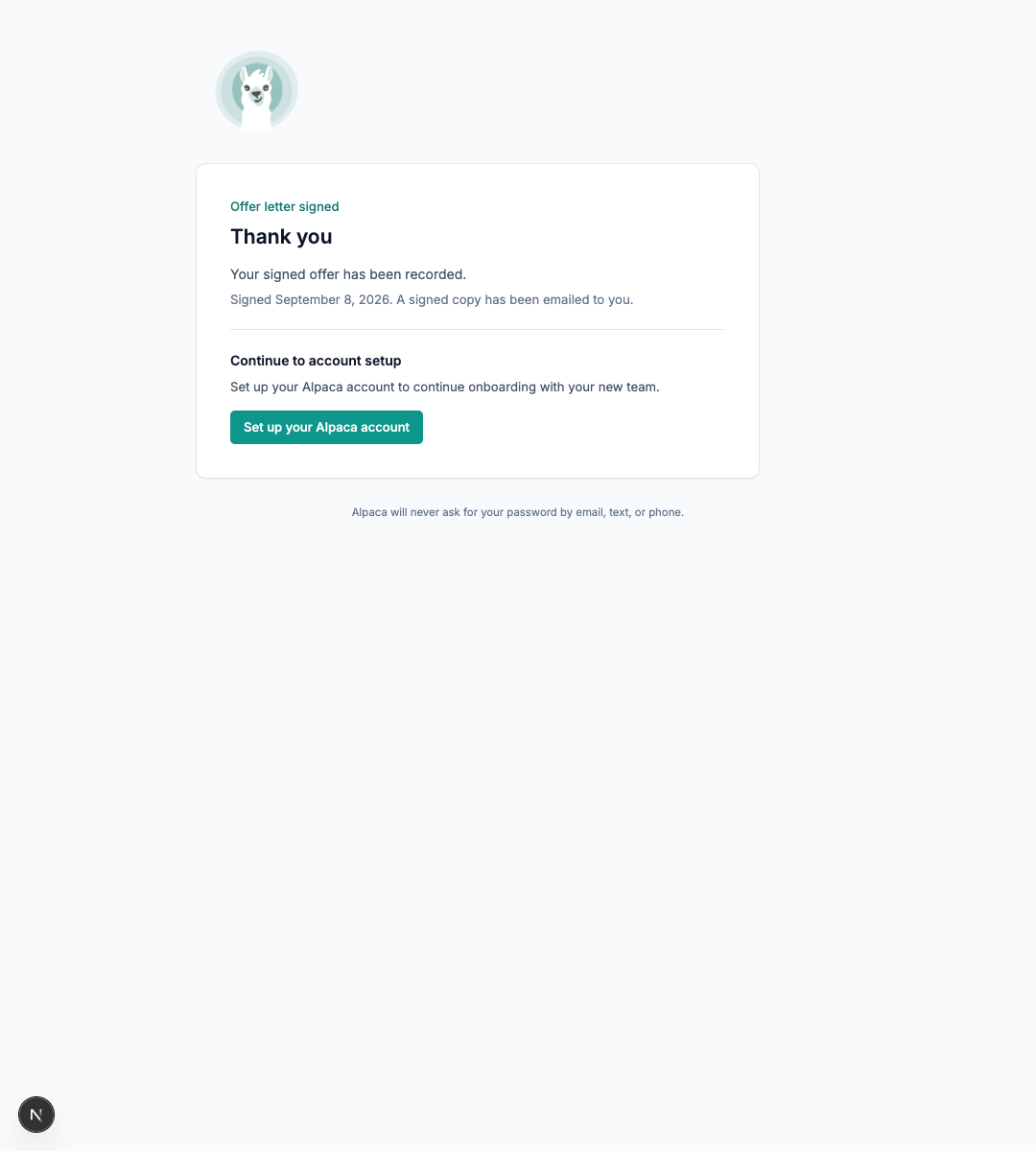
Candidate view: signing saves the offer acceptance. Account setup is the next step.
If the page says the signature is saved but account setup needs attention, the candidate should contact your clinic. Use Retry account setup in My Team when shown. Do not ask them to sign again simply because registration is incomplete.
4. Pre-start onboarding for clinical hires
The remaining sections apply to every clinical hire, whether hired through RBT Requisitions or invited directly from My Team.
After registering, a clinical hire sees a Getting started checklist on their homepage. It covers account creation, payroll setup (when your clinic runs payroll in Alpaca), document uploads, and their background check.
Set up payroll (optional for now) opens My Payroll so they can complete their payroll forms. Payroll can wait until after their first day, but it must be complete before they can be paid.
Upload documents opens the Documents tab of their profile.
Client, schedule, and clinical tools stay unavailable until your clinic marks them started.

Candidate view: only account creation is checked off in this example. Payroll, documents, and the background check are still open.
Tell the hire which documents your clinic needs. An upload checkmark means documents were uploaded; it does not confirm that every required document has been reviewed or accepted.
5. Review a clinical hire’s progress in My Team
Open My Team → Onboarding, then expand the person's row or select View onboarding when shown.
Check the offer status, account registration, payroll, and background check separately. If registration is pending, ask the person to finish account setup. If payroll is waiting, check what they still need to complete. Payroll may show Not required when your clinic does not use it.
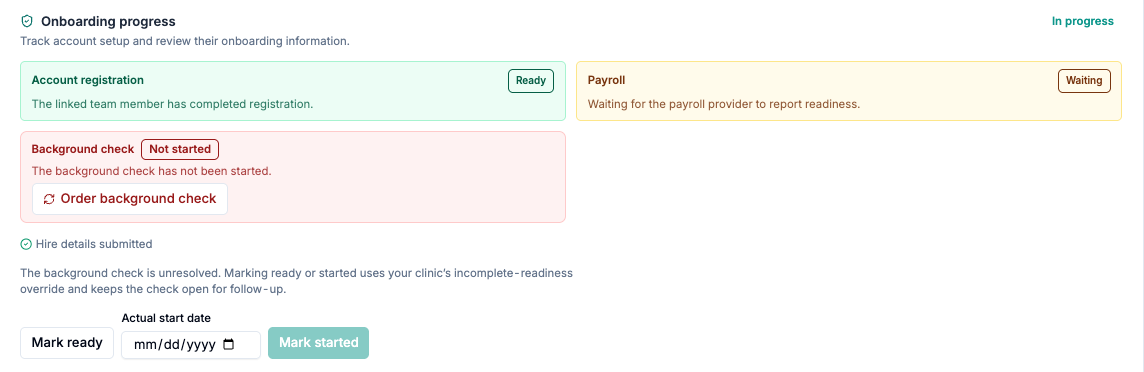
Clinic view: registration is complete, while payroll is still waiting. Review the person's information before recording readiness or their first day.
Review uploaded documents on the person's profile. Their checklist helps them finish tasks; your clinic remains responsible for checking the information and deciding when they are ready.
The Onboarding documents card shows up to two filenames. Select View all documents to open the complete, scrollable list.
6. Record a clinical hire’s readiness and actual start
Account registration must be complete before either action is available.
Select Mark ready when your clinic considers the hire ready for their first day. Read the confirmation and select Confirm ready. Their account stays in pre-start onboarding.
When they actually begin work, enter Actual start date using today or a past date.
Select Mark started, review the confirmation, and select Confirm started. This ends the pre-start restriction. Their access still depends on permissions and assignments.
If some onboarding information is incomplete, review it before confirming. If the background check isn't complete, confirming uses your clinic's incomplete-readiness override and the check stays open for follow-up. Marking someone ready or started does not complete their payroll forms or review their documents for them.
A planned start date does not mark the person started automatically. After the list refreshes, a started hire leaves Hires to finish and remains in My Team.
Common questions
Question | What to do |
|---|---|
The offer is signed. Why is registration still pending? | Ask the person to select Set up your Alpaca account and finish registration. Signing and registering are separate steps. |
The candidate needs the letter again. | Use Resend letter when shown and check the resulting status. |
The offer link expired or cannot be opened. | Check the letter status in My Team. Contact Alpaca support if no suitable recovery action is available. |
We want to send a standard invitation instead. | Send plain invite instead, when available, voids the unsigned letter and sends an account invitation. |
The account invitation needs to be sent again. | Use the invitation resend action in My Team. This is different from resending an offer letter. |
The new hire cannot see clients or their schedule. | For a clinical hire, this is expected before Mark started. Afterward, check their permissions and assignments. |
The new hire says they finished, but progress has not updated. | Refresh and reopen onboarding. Check the individual items before treating setup as complete. |
Can we mark a clinical hire started before they register? | No. Account registration is required. |
For an unresolved error, contact Alpaca support with the step and error shown. Do not include passwords, signing links, or onboarding documents.