Requisition Creation
Last updated: September 10, 2026
This guide is for clinic owners and admins creating RBT openings for their clinic. Use RBT Requisitions to describe who you need, where and when they will work, and how many positions you need to fill.
Keep the requisition up to date as your staffing needs change. For candidate interviews, see Candidate Pipeline and Interviews. For offers and onboarding, see Offer Letter and Onboarding Guide.
Before you start
You need permission to view hiring information to open the page, and hiring-management permission to create or change requisitions. If the page or an action is missing, ask your organization administrator to check your access.
Have the hiring location, schedule, approved pay range, and number of openings ready. For a client-specific opening, confirm which client needs staffing.
Open the requisition list
Select RBT Requisitions in the navigation.
Use the status filters to review Open, Paused, Filled, or Closed requisitions.
Open a requisition row to view its positions and candidates.
The list shows each requisition's location, status, capacity, and candidate pipeline. Open requisitions can receive candidates. Paused, filled, and closed requisitions are visible for tracking, but some matching or candidate actions may be limited.
Create a requisition
Select Create Requisition on the RBT Requisitions page.
Choose Open for a general hiring need or Linked to a client for a specific client's staffing need. A client-linked requisition creates one dedicated opening. An open requisition can contain up to 10 openings with the same requirements.
For a linked requisition, select the Client and enter the Needed-by / start date if known.
Enter a clear Title, such as “RBT — Phoenix, afternoon shifts,” and a Description with the work setting and responsibilities candidates should understand.
Complete the requirements below.
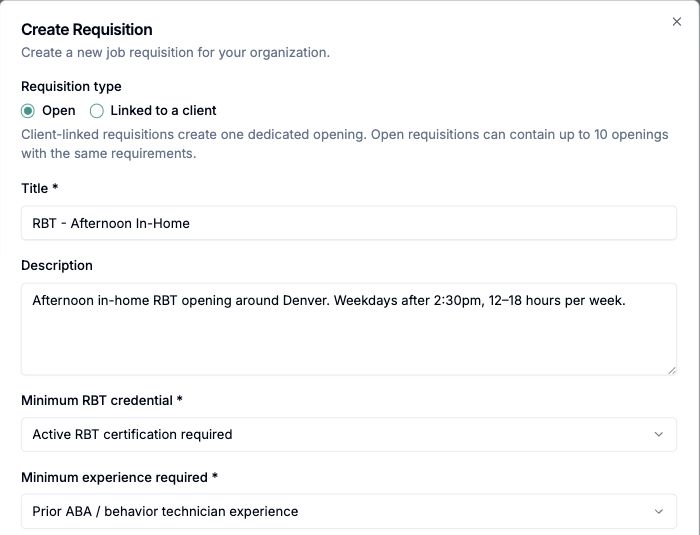
Start with the hiring need and minimum requirements for your clinic's opening.
Field | What to enter |
|---|---|
Minimum RBT credential | Whether an active credential is required, an in-process or expired credential is acceptable, or you are willing to train. |
Minimum experience required | The minimum relevant experience for this opening. |
Gender Preference | Any applicable preference; otherwise leave no preference. |
Required additional language | A required language, or No additional language. |
BCBA trainee or recent graduate required | Turn on only if the role requires enrollment in or recent graduation from a BCBA-qualifying master's program. |
Openings for | Full-time, part-time, or either. |
Shifts needed and Shift details | The required shifts and specific days, hours, setting, or service location. |
Minimum hourly rate and Maximum hourly rate | The approved pay range. |
Number of openings | For an open requisition, the number of positions to fill. |
States and Cities | The hiring locations. Review the location information for a client-linked opening as well. |
Set Book Interview Automatically. When it is on, Alpaca coordinates interview booking. When it is off, your clinic is responsible for contacting candidates and scheduling promptly.
Select Create. Check that the requisition appears with the correct location, requirements, and number of openings.
Creating a requisition records the hiring need. It does not guarantee an immediate match or a confirmed interview.
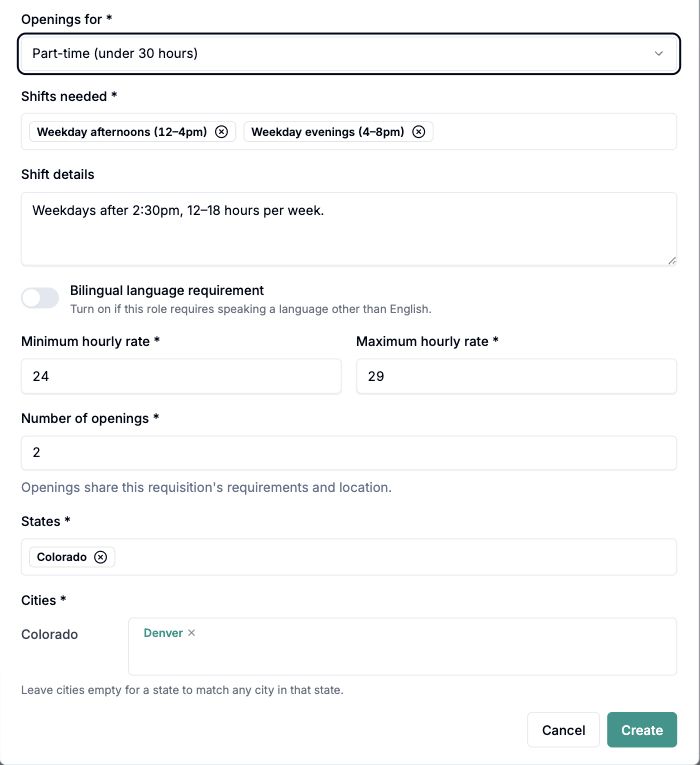
Use the agreed shifts, pay range, and location. Openings in one requisition share these requirements.
Manage capacity
A requisition can represent more than one opening. Capacity is tracked by positions.
Add positions when the clinic needs more hires for the same requisition.
Remove an open position when the requisition no longer needs that slot.
Hiring a candidate fills one position.
A filled requisition has no remaining open positions.
Do not add capacity just to keep a closed search visible. Use status filters to review older requisitions.
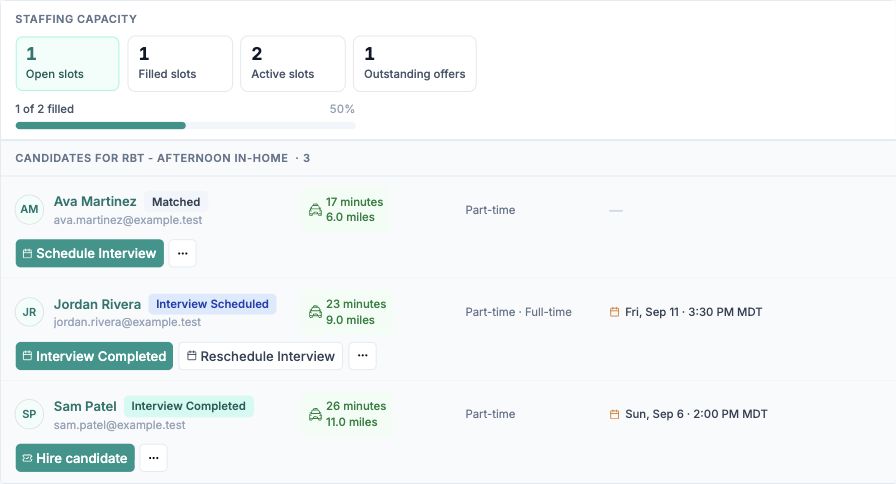
The expanded opening shows staffing capacity above the candidate list.
Manage requisition status
Available status actions depend on the current status.
Status | Meaning |
|---|---|
Open | The requisition is active and can receive candidate activity. |
Paused | The requisition is visible but temporarily inactive. |
Filled | All needed positions are filled. |
Closed | The requisition is no longer active. |
Open More actions and choose Pause, Unpause, Reopen, or Close when available, then read and complete the confirmation. To change the opening's details, select Edit and save with Update. Use Duplicate to start a similar opening, reviewing the copied details before creating it.
Review candidates for the opening
Expand the requisition to see the candidates assigned to it. Use Candidate Pipeline and Interviews to schedule interviews and record a decision.
When you hire someone, select Finish setup in My Team to prepare their invitation and onboarding. The Offer Letter and Onboarding Guide explains what your clinic and the new hire each do next.
Common issues
I cannot edit or close a requisition. Your role may be view-only, or the requisition may be in a state that blocks that transition.
Paused requisitions are still visible. Paused means temporarily inactive, not hidden. Use the status filters to include or exclude them.
A candidate action is missing. Actions depend on candidate status, requisition status, capacity, and permissions. For example, Hire candidate appears after the interview is complete.
The requisition says it is filled. A filled requisition has no remaining open positions. Add capacity only if you need another hire for the same requisition.
The candidate is hired but not active in My Team. Hiring fills the requisition position. The team member still needs My Team setup and onboarding readiness before they are started.