Excluding a worker from payroll
Last updated: August 25, 2026
Some people on your team should never appear on a payroll run — an owner who pays themselves elsewhere, a volunteer, a worker paid by another entity. Alpaca handles this with a per-worker Does Not Need Payroll marker. This article covers how to set it, what it actually does, and the one case where it does not do what you expect.
Setting it
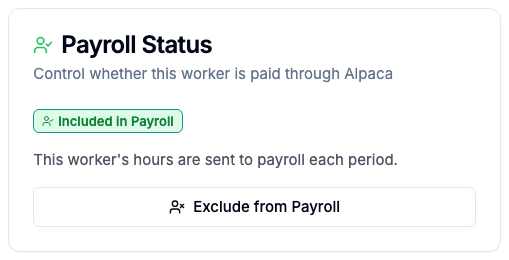
The Payroll Status card on a worker's profile.
Open the worker's profile from My Team.
Find the Payroll Status card.
Click Exclude from Payroll and enter a reason. The reason is required — it is what tells the next admin why this person is off the run.
Confirm. The card switches to a Does Not Need Payroll badge showing who excluded them and when.
To undo it, click Include in Payroll on the same card. The worker goes back onto future runs immediately.
This control needs payroll admin access. Clinic admins have it; directors, who can terminate a worker, do not — taking someone off payroll belongs to whoever runs payroll.
What excluding actually does
The worker's hours are not sent to payroll.
They are no longer flagged for missing hours, unsigned notes or missing pay rates, so they stop blocking your payroll checks.
They still appear as a row on the Payroll Details page with their hours visible — they are just subtracted from the totals, the sync and the readiness checks. This is deliberate: a hidden worker is a worker nobody notices is wrong.
The caveat that generates support tickets
"Does Not Need Payroll" only zeroes the pay Alpaca sends. It cannot zero pay that already lives on the payroll provider's side.
Alpaca zeroes the wage entries it pushes for an excluded worker. But if that worker has a recurring compensation set up directly in the payroll system — most often a salary — that entry is not Alpaca's to remove, and it survives. The draft payroll run will keep showing gross pay for a worker you thought you had excluded.
In practice this means: excluding a salaried worker is not enough on its own. Their recurring salary has to be removed or ended on the payroll side too. If you exclude a salaried worker and still see them carrying pay on the run, that is what is happening — email support and we will clear it.
The regular payroll confirmation does drop excluded workers from the run, so this usually shows up as an unexplained gap between the Gross figure and the Table figure on the Payroll Details page rather than as an actual overpayment. It is still worth resolving rather than ignoring.
One more exception: final paychecks
A worker who is excluded but is owed a final paycheck is deliberately spared from the zeroing, and that final payment goes out on an off-cycle run which is confirmed without exclusions. So an excluded worker can legitimately be paid once more after being excluded. See Suspending vs terminating a worker and Off-cycle payroll runs.
When not to use this
A worker who is leaving — terminate them instead, so the final paycheck, unused PTO and access cut-off are handled properly.
A worker who is temporarily not working — no action needed. A worker with no signed notes and no approved non-billable time simply has nothing to pay.
A worker with a rate problem — fix the rate. Excluding them hides the warning without paying them.
Still stuck? Email support@alpacahealth.io and we will take a look.