Candidate Pipeline and Interviews
Last updated: September 10, 2026
This guide is for clinic owners and admins managing interviews for their clinic's RBT openings. Use RBT Requisitions to review the candidates assigned to an opening, arrange interviews, and record your hiring decision. After hiring, continue in My Team.
To create or change an opening, see Requisition Creation.
Open the candidate pipeline
Select RBT Requisitions in the navigation.
Find the requisition and expand it to see its candidates and staffing capacity.
Review the candidate's details, interview information, and current status before choosing an action. Keep your decision tied to the correct opening if your clinic has several requisitions.
You need hiring-view access to see the page and hiring-management access to change candidates or requisitions. Read-only access does not include these actions. If the page shows Access Restricted, ask your organization administrator to check your permissions.
Requisition status and candidate status answer different questions: Open, Paused, Filled, and Closed describe the opening; interview and hiring statuses describe a person's application. Check your filters if a requisition or candidate seems to be missing.
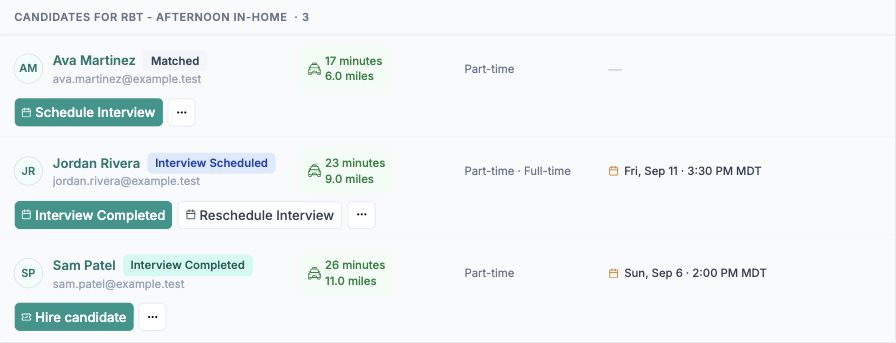
Each row shows the person's progress for this opening. Check the saved interview time before taking the next action.
Schedule an interview
Find the candidate and select Schedule Interview.
Review the scheduling information and use the available Cal.com booking flow to select and confirm a time.
Return to the candidate row and confirm the saved interview date and time.
When Book Interview Automatically is on for the requisition, Alpaca coordinates interview booking. When it is off, your clinic is responsible for contacting candidates and scheduling promptly. An assigned candidate is not evidence that an interview has already been booked.
Always check the timezone shown in the scheduling panel. Do not assume it matches your computer's timezone or the candidate's timezone.
Record an interview already booked outside the panel
Open Schedule Interview and find Set interview date manually.
Enter the confirmed date and time in the scheduling timezone displayed beneath the fields.
Select Save interview date and check the updated candidate row.
Manual entry records the interview in Alpaca. It does not send a new candidate email. Coordinate the appointment and any changes with the candidate separately; saving a date is not a substitute for confirming the booking.
If the clinic's Cal.com link is unavailable, ask the person who manages your clinic's scheduling setup for help. Once you have arranged the interview directly, record the confirmed time here.
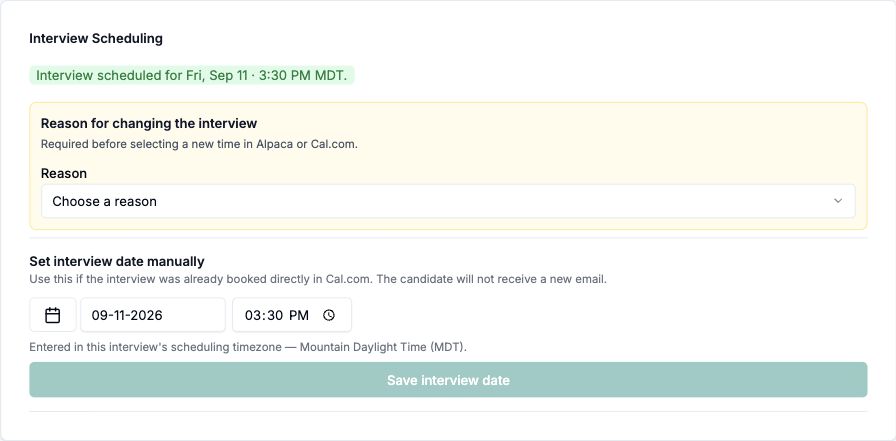
This example has an existing interview. A reason is required before changing it, and manual entry does not send a new email.
Reschedule an interview
Select Reschedule Interview beside the candidate.
Choose a Reason. Add the requested notes if you select Other.
Choose Select a new time to use the booking flow yourself, or Help me reschedule to request help coordinating a replacement.
Complete the booking or confirmation shown, then check the updated interview status and time.
Needs Rescheduling means a replacement still needs to be arranged. It is not a confirmed new appointment. If Alpaca reports that the existing Cal.com booking could not be cancelled, resolve that booking directly in Cal.com so an old time is not left on the calendar.
For a missed interview, choose the applicable no-show reason when rescheduling if you still want to meet the person. If you are ending this application, use the rejection flow instead.
Record a completed interview
After the interview takes place, select Interview Completed and confirm. Check that the candidate's available actions update.
Recording completion is separate from deciding to hire. Do not use it for an interview that has only been scheduled.
Reject an application
Open the candidate's actions menu and select Reject application.
Confirm the candidate and requisition named in the dialog.
Choose a Reason and add notes explaining your decision. Other requires at least 10 characters of notes; notes are optional for the other reasons.
Submit the rejection and check the updated status.
This ends the application for this opening. Any scheduled Cal.com interview is cancelled when possible; follow a cancellation warning if one appears.
Hire and continue to onboarding
Make sure the interview has been recorded as completed.
Select Hire candidate. The requisition must have an available position.
In Candidate hired, select Finish setup in My Team. To continue later, find the person in My Team → Hires to finish.
Hiring fills a position but does not itself send an invitation or complete onboarding. From My Team, prepare the invitation, choose whether to send an offer letter first when available, and follow registration and readiness.
See Offer Letter and Onboarding Guide for the candidate and clinic steps, help with invitations, and the difference between Mark ready and Mark started.
If the actions shown differ from this guide, contact Alpaca support to confirm the hiring workflow available for your clinic.
If something goes wrong
Problem | What to do |
|---|---|
No candidates appear | Clear candidate and requisition filters, then check that you opened the correct requisition. Check that its location, shifts, and requirements still match your hiring need. Contact Alpaca support if you need help. |
The interview time looks wrong | Check the scheduling timezone before changing the time. Compare it with the confirmed booking. |
The candidate did not receive an email after manual entry | Manual entry sends no new email. Contact the candidate through your normal scheduling process. |
A reschedule is still pending | Arrange the replacement time; a request for help is not a new booking. |
An action reports a refresh error | Reload and check the current status before repeating the action. The change may have saved even though the list did not refresh. |
The hire action fails | Check interview completion and available staffing capacity, then follow the error shown. |