Use Team Availability to review working hours and coverage
Last updated: September 9, 2026
Team Availability brings your active staff's declared working hours into one place. Use it to find missing availability, compare weekly capacity, and identify people whose stated hours overlap a time you need to cover.
Declared availability is not a live free/busy check. Confirm appointments, leave, and the exact time window in Schedule before booking someone.
Open the page
Select Team Availability in the Team section of the navigation. You need permission to view your team. The page lists active staff in your organization. Use All roles to show everyone, or select a clinical role to narrow all three sections of the page. The count beside the filter shows how many staff are included.
Booked and free-hour columns also require permission to view the team schedule. If the page is missing or shows Access Restricted, ask your organization administrator to check your access.
Read individual working hours
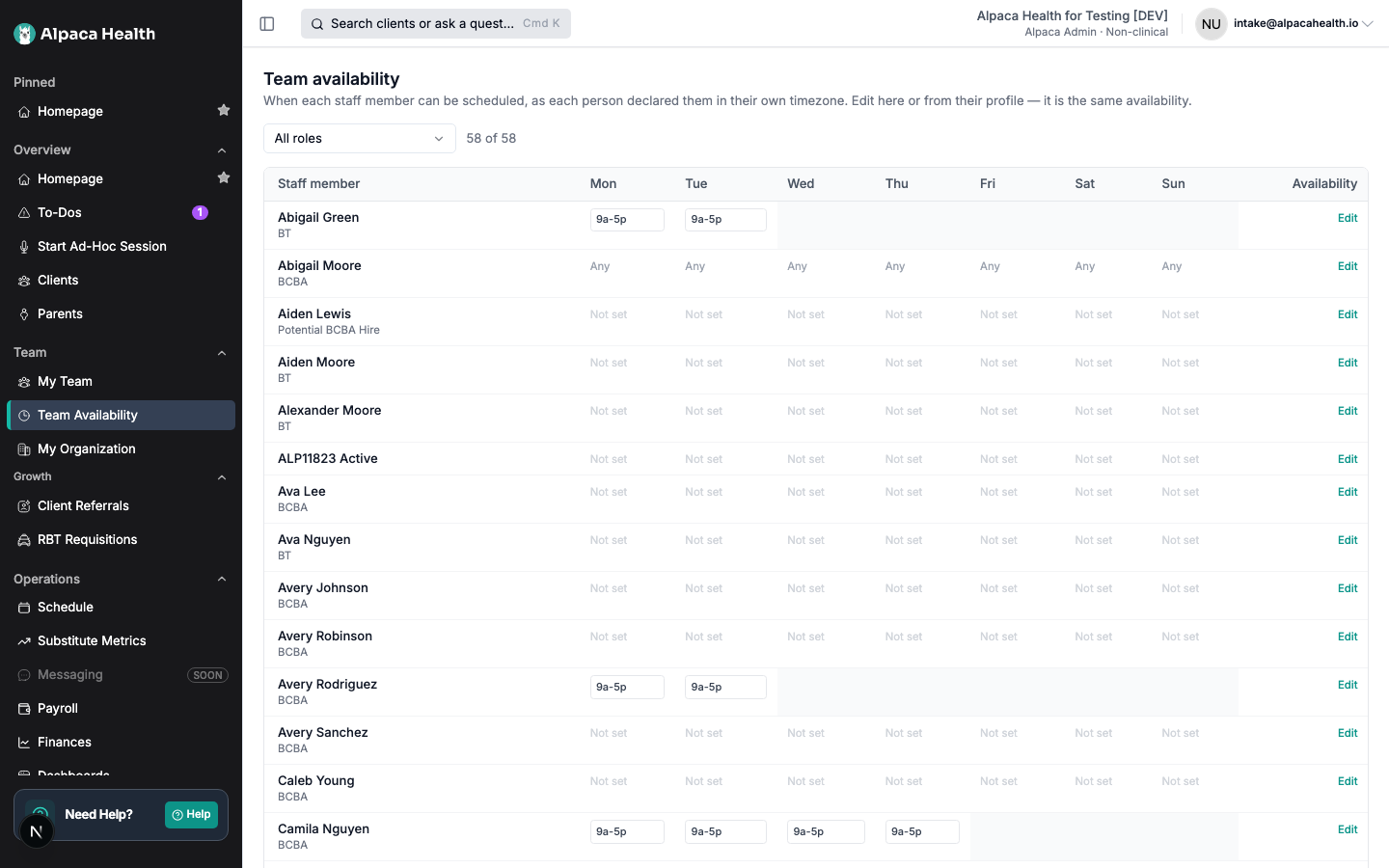
The first table shows each person's Monday–Sunday availability as they entered it, in that staff member's own timezone.
Display | Meaning |
|---|---|
A time range | The person declared that window available. A day can have multiple windows. |
Any | The person explicitly selected Open Availability. |
Not set | No availability has been entered. This does not mean the person is free. |
A blank, shaded day | The person has a schedule but no availability for that day. |
Use horizontal scrolling to see the remaining weekdays on a narrow screen.
Find coverage for an hour
Scroll to Team coverage.
Check the timezone named above the grid. Unlike the individual table, this grid converts everyone's hours to that single timezone.
Select a weekday/hour cell. The panel beside or below the grid lists staff whose declared availability overlaps that hour, along with their time windows.
Check each person's exact window and Schedule before assigning an appointment.
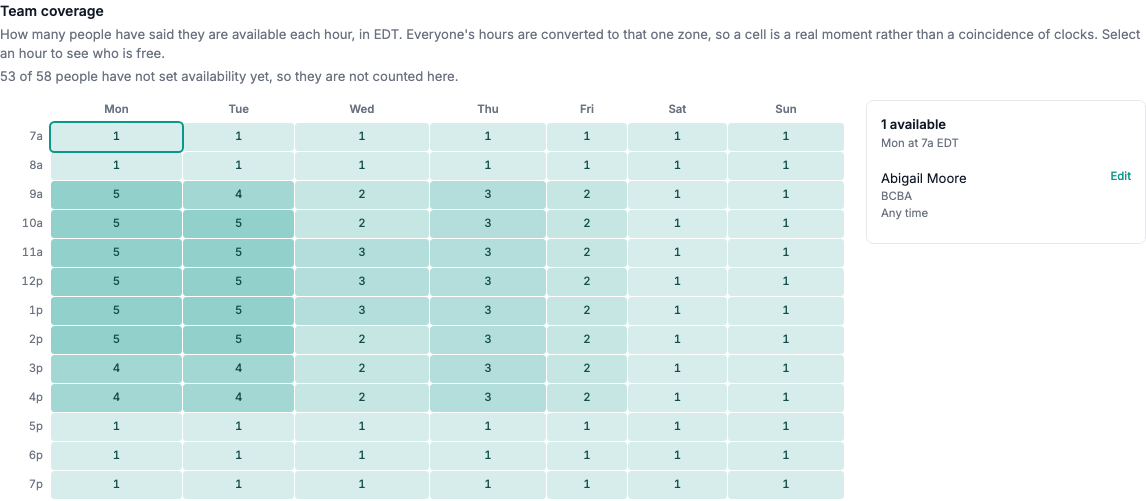
The grid covers 7 a.m.–8 p.m. A person available for only part of an hour is still counted for that cell. People with Not set availability are excluded from the counts; the page shows how many have not set their hours. Open Availability counts in every displayed hour.
The grid reflects declared hours, not appointments or leave. A count is a starting point for finding coverage—not a guarantee that everyone listed is free for the whole hour. If no one appears, try All roles, another hour, or confirm that staff have entered availability.
Compare declared and booked hours
Scroll to Declared hours. The table compares each person's weekly template with bookings for the current Monday–Sunday week shown in the caption.

Column or label | How to read it |
|---|---|
Declared | Total hours entered in the weekly availability template, or Any time / Not set. |
Booked | Hours booked in the displayed week, when team-schedule data is available. |
Free | Declared hours minus booked hours. This is a weekly total, not a list of open appointment slots. |
| Booked hours exceed the person's declared weekly hours. |
On leave | Approved leave overlaps the week. Check Schedule for the actual leave dates; this does not mean the entire week is leave. |
A dash in Free | No numeric capacity can be calculated for Any time or Not set. |
Availability outside the coverage grid's displayed hours still contributes to the declared total. Without team-schedule access—or while booked data is unavailable—the page shows declared hours without the Booked and Free columns. Missing columns are not evidence that everyone has zero bookings.
Update a staff member's availability
If your access permits editing:
Select Edit beside the staff member in any section.
In Update Availability, set the working days and time windows in the staff member's timezone. Use Add Time Slot for a second window on the same day. Windows on the same day cannot overlap.
Use Open Availability only when the person has explicitly said they can work any time. Do not use it to stand in for missing information.
Select Update. After the success message, confirm the revised hours on the page. Select Cancel to leave the existing hours unchanged.
This edits the same availability shown on the staff member's profile. It does not create or move appointments. If the update fails, check for overlapping windows and retry; reload before assuming the new hours saved. Ask an administrator for help with an access error.
For the profile editor and calendar availability overlay, see How to Set and Update Availability (Providers and Clients).
For organizing staff into custom groups in Schedule, see Staff subgroups, grouping, and filters.