Use Client Availability to find when clients can be scheduled
Last updated: November 4, 2026
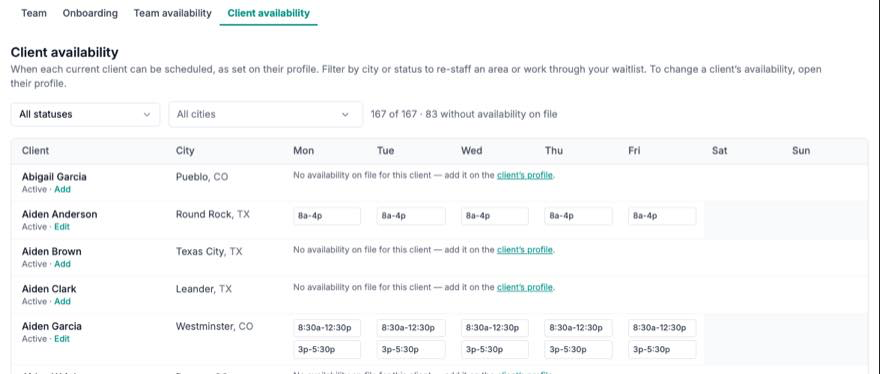
Client availability shows the weekly hours every current client can be scheduled, all in one table. Filter by city or status to re-staff an area, match a new clinician to nearby clients, or work through your waitlist.
The table shows the availability each client has on file. It is not a live free/busy check, so confirm existing appointments in Schedule before you book a session.
Open the table
Select My Team in the Team section of the navigation, then open the Client availability tab next to Team availability. You need access to both the Team page and the client list. You see the same clients your Clients page shows you. If your access is limited to your own caseload, only those clients appear. Discharged and withdrawn clients are left out.
Read a client's week
Each row is one client, with a column for each day from Monday to Sunday. Times are shown as entered on the client's profile.
A time range, such as 8a-4p: the client is available in that window. A day can have more than one window.
Any: the client's profile is set to Open Availability.
A blank, shaded day: the client has availability on file, but not on that day.
No availability on file for this client: nothing has been entered yet. This does not mean the client is free at any time.
Under each name you see the client's status and an Add or Edit link. The City column shows the client's home city and state, or Not on file.
Filter by status or city
Use the status menu (All statuses) to show one status: Active, Intake / Assessment, Pending Match, On Waitlist or Info. Submitted.
Open All cities and select one or more cities. Type in the search box to find a city quickly. Choose No city on file to find clients whose profile is missing a city.
Check the count beside the filters, for example 3 of 167 · 1 without availability on file. It tells you how many clients match and how many of those still need availability entered.
The city comes from the client's home service location. Different spellings of the same city are grouped as one option. A city name that exists in two states is listed with its state, such as "Springfield, IL".
If nothing matches, the page says No clients match these filters. Select Clear filters to see everyone again.
Add or update a client's availability
You can't edit availability from this table. Select the client's name, or Add / Edit, to open their profile on the Overview tab. Then update the client availability card there. For step-by-step instructions, including how to set a location for each time slot, see How to Set and Update Availability (Providers and Clients).
Common problems
The Client availability tab is missing: ask your organization administrator to give your role access to the client list.
A client you expected isn't listed: check that the client isn't discharged or withdrawn, and that they're on your caseload.
A client's city is wrong or shows Not on file: update the client's home service location on their profile.
Client availability could not be loaded: refresh the page. If the problem continues, contact support.
To check when your staff are available, see Use Team Availability to review working hours and coverage.