Manual leave entries and corrections
Last updated: August 25, 2026
Sometimes a leave balance needs a human. A worker joined mid-year with time already banked, a policy was set up late, or a day of leave was recorded against the wrong person. This article covers the manual leave entry tool: what each field does, and when to use it rather than fixing the underlying record.
Who can use it
Manual leave entry requires a specific permission that clinic admins hold. If you do not see the option on the Leave Time Policies tab, you do not have it — ask an admin, or email support.
The three buckets
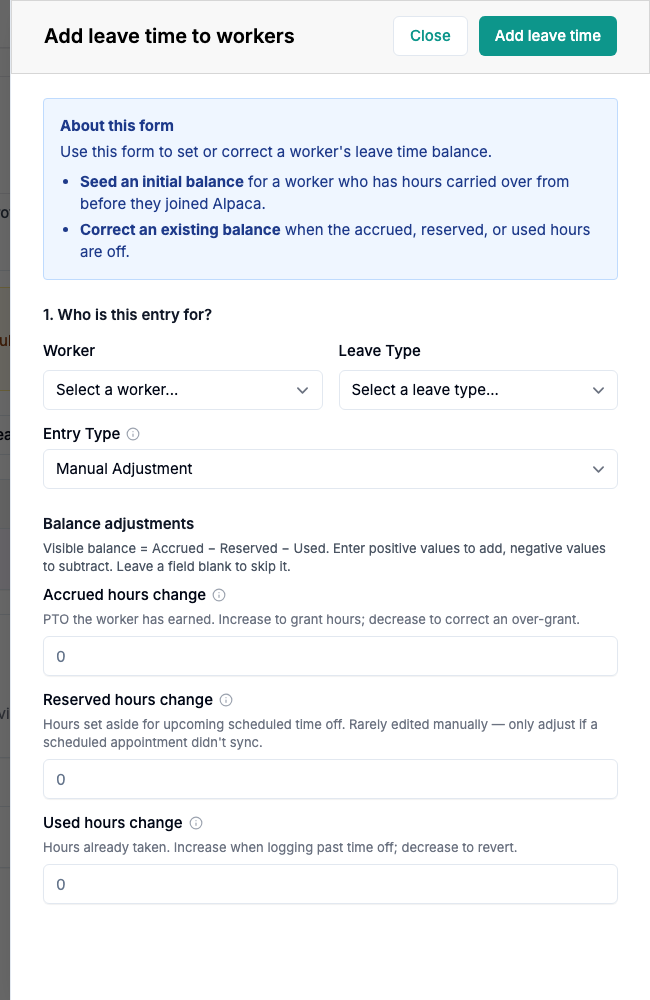
The Add leave time to workers form.
A leave balance is not one number. It is three, and a manual entry adjusts them independently:
Bucket | What it is | When you would adjust it |
|---|---|---|
Accrued | PTO the worker has earned. | Granting hours, or correcting an over-grant. This is the one you will use most. |
Reserved | Hours set aside for upcoming scheduled time off. | Rarely. Only if a scheduled leave appointment did not sync. Normally the schedule manages this automatically. |
Used | Hours already taken. | Logging past time off that was never entered, or reverting time that was recorded in error. |
The form states the arithmetic it is working with: visible balance = Accrued − Reserved − Used. Positive numbers add, negative numbers subtract, and a blank field is skipped. You must enter at least one non-zero adjustment for the form to submit.
Making an entry
Go to Payroll → Leave Time Policies and open Add leave time to workers.
Pick the User. The form shows their current accrued, reserved and used totals for the selected leave type, so you can see what you are changing before you change it.
Pick the Leave Type.
Choose the Entry Type — whether this is seeding an initial balance or correcting an existing one. This is what the audit trail records.
Enter the accrued, reserved and/or used change.
Submit.
Reversing an entry
There is no undo button. To reverse a manual entry, make an equal and opposite one — if you added 8 accrued hours in error, add −8. Both entries stay in the log, which is the point: the balance history is an audit trail and nothing is deleted from it.
When to fix the record instead
A manual entry patches the balance. It does not fix whatever produced the wrong balance. Prefer fixing the source when:
A leave request was approved for the wrong day — correct the appointment on the schedule, and the reserved/used hours follow.
Everyone on a policy has the wrong balance — the policy is misconfigured. Fix the policy rather than patching each worker. See Configuring leave time accruals.
Balances are missing for past periods — policies do not backfill, so no amount of waiting will fill them in, but a bulk correction is better handled by support than by dozens of manual entries.
A note on leave types
Some leave types come from Alpaca's calendar and some are synced from the payroll provider. Alpaca matches an entry to the right balance either way, so you do not need to know which is which — but it is why the same type can look slightly differently named on different screens.
Leave must be processed before payroll
Leave accruals are processed as part of closing out a period, and unprocessed leave blocks payroll finalization. If you are making corrections, make them before the period's deadline rather than during the processing window afterwards.
Still stuck? Email support@alpacahealth.io and we will take a look.