Hiring an RBT: Candidate Pipeline & Interview Scheduling
Last updated: September 24, 2026
Alpaca Health — Applicant Tracking System (ATS)
Alpaca's Applicant Tracking System (ATS) lets you post RBT requisitions, review matched candidates, schedule and track interviews, and move people through your hiring pipeline. This guide walks through creating a requisition and working the candidate pipeline from first match to offer.
Where this lives: In the left-hand navigation, open RBT Requisitions. You'll need an admin or BCBA role with hiring access.
1. Create an RBT requisition
A requisition is the job opening that candidates get matched to.
In the left-hand navigation, click RBT Requisitions.
Click Create requisition in the top right.

Choose the requisition type: Open (a general hiring need) or Linked to a client (staffing one specific client).
If you chose Linked to a client: select the client, then enter the needed-by / start date.
Add a title and description for the role.
Set the requirements candidates are matched against:
Minimum RBT credential — Active RBT certification / Inactive or in-process accepted / No certification required (willing to train).
Minimum experience — 1+ years ABA or BT; any ABA or BT; experience with special-needs children or special education; any experience with children; or no experience required (willing to train).
Gender preference — set this only if a client requires it; otherwise choose no preference.
Set how the role is staffed and scheduled:
Alpaca schedules interviews for you — toggle on to have the Alpaca recruiter coordinate candidate availability and book through your organization's Cal.com link; toggle off to review matches and contact candidates yourself. (Note: if toggled off, Alpaca only sends new candidate matches via email — you're responsible for checking them and reaching out to schedule interviews promptly.)
NOTE: If you're reaching out yourself, since candidates applied for Alpaca Health, your first message should mention that connection (e.g., "[Your organization], powered by Alpaca Health" or "in partnership with Alpaca Health" so it doesn't read like a cold outreach from an unfamiliar sender)
Role type — full-time, part-time, or either.
Required shifts — weekday mornings, afternoons, evenings, and/or weekends. Add shift details (specific days or hours) (optional).
Hourly rate — enter a minimum and maximum.
Number of openings — for an Open requisition, enter how many openings you need to fill.
Location — select the state, then add the specific city or cities where you're hiring.
Review everything and click Create.
Review your requisitions
Back on the RBT Requisitions page, the list shows every requisition at a glance.
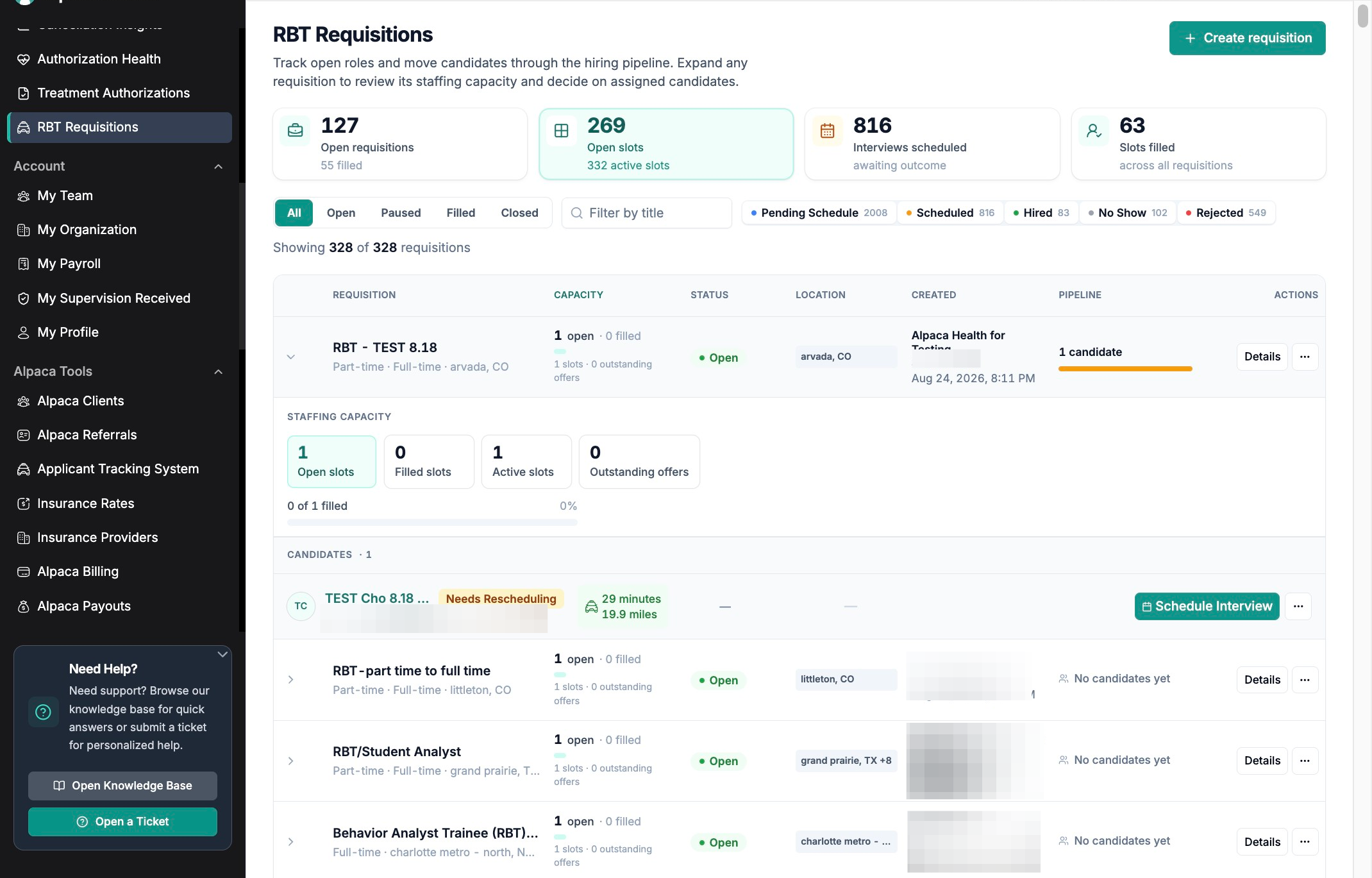
Requisition — title, role type, and location.
Capacity — open vs. filled slots and active slots.
Status — Open, Paused, Filled, or Closed. Use the tabs above the list (All / Open / Paused / Filled / Closed) to filter.
Created and Pipeline — who created it and when, plus how many candidates are attached and how far along they are.
Candidate status chips on the right — Pending Schedule, Scheduled, Hired, No Show, Rejected — filter candidates by stage across all requisitions.
2. Work the candidate pipeline
Open a requisition and review candidates
Click the chevron (>) to the left of a requisition to expand it.
Review its Staffing Capacity (open / filled / active slots and outstanding offers) and the Candidates matched to it.

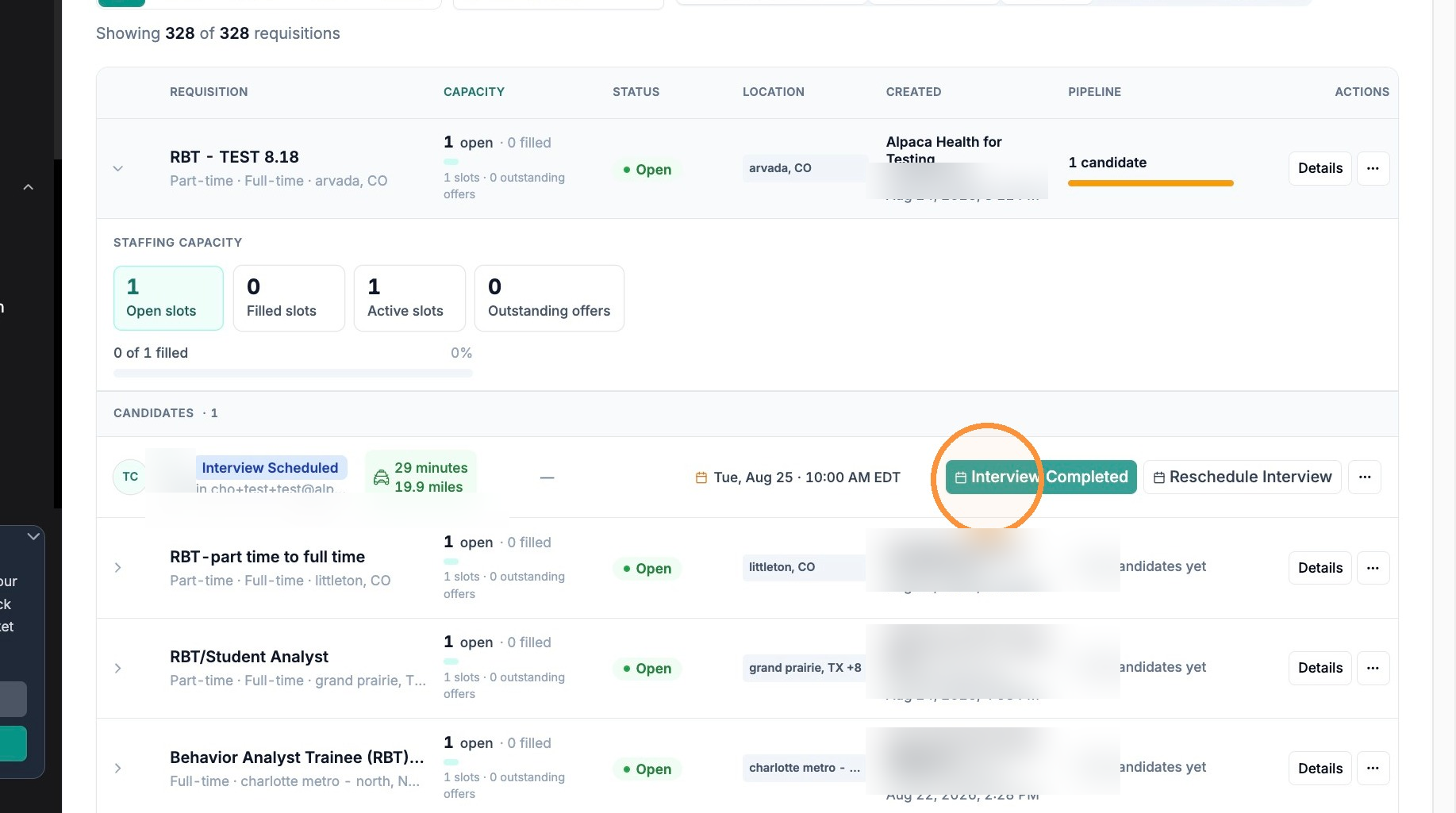
Each candidate row shows a status badge (e.g., Assigned, Interview Scheduled), a commute estimate, the interview date/time, and the actions available for that stage.
Schedule or record an interview
Click Schedule Interview on the candidate's row to open the scheduling panel.
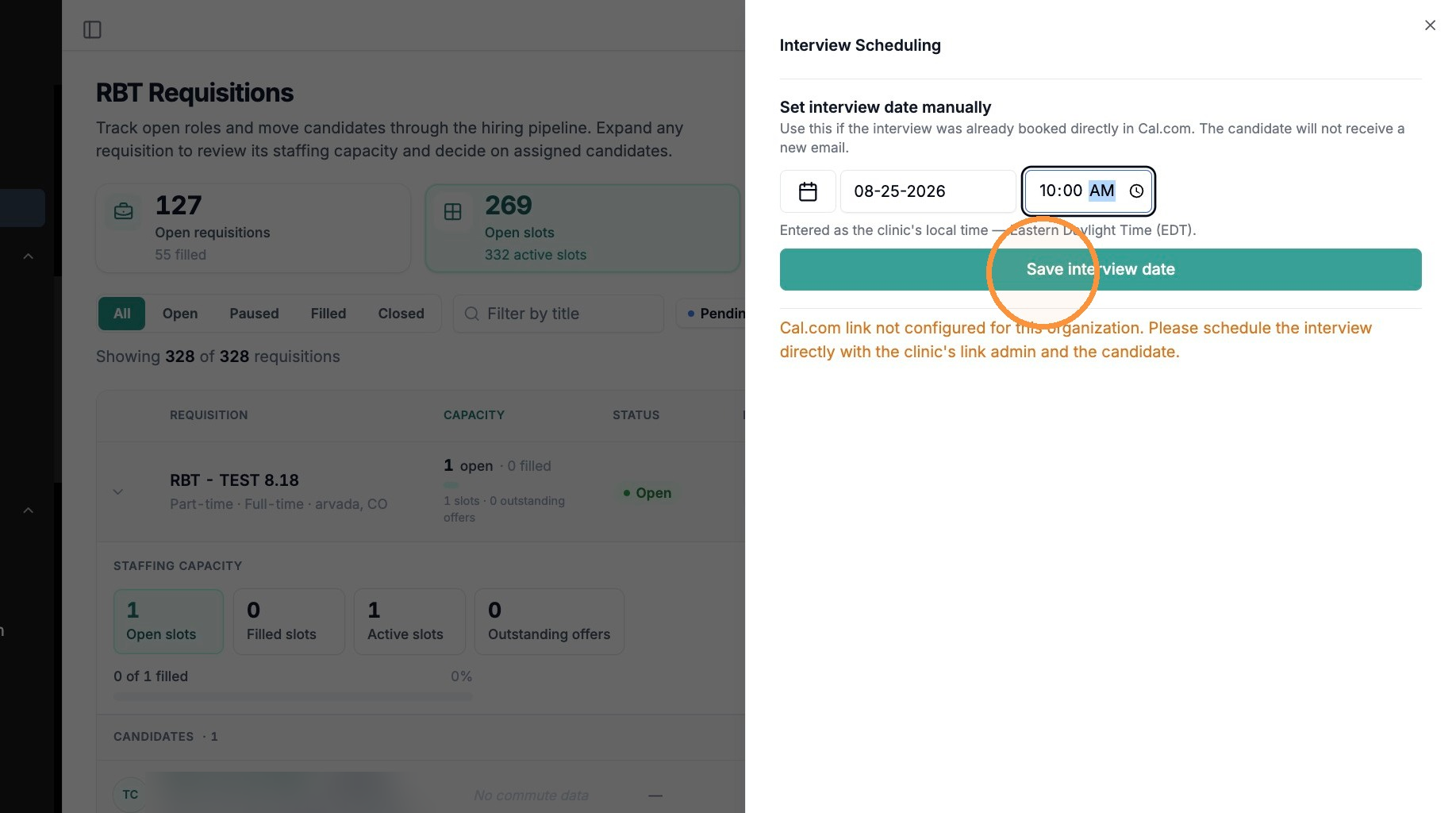
If Alpaca schedules for you — the recruiter books the interview through your Cal.com link, and the candidate will already appear as Interview Scheduled.
To record a date manually — use Set interview date manually when the interview was already booked directly in Cal.com. Enter the date and time, then click Save interview date. This does not send the candidate a new email.
Times are entered in the clinic's local time, shown in the panel.
If you see "Cal.com link not configured for this organization," Alpaca can't send the invite. Schedule directly with your clinic's link admin and the candidate, then record the date here.
Mark an interview as completed
On the candidate's row, click Interview Completed.
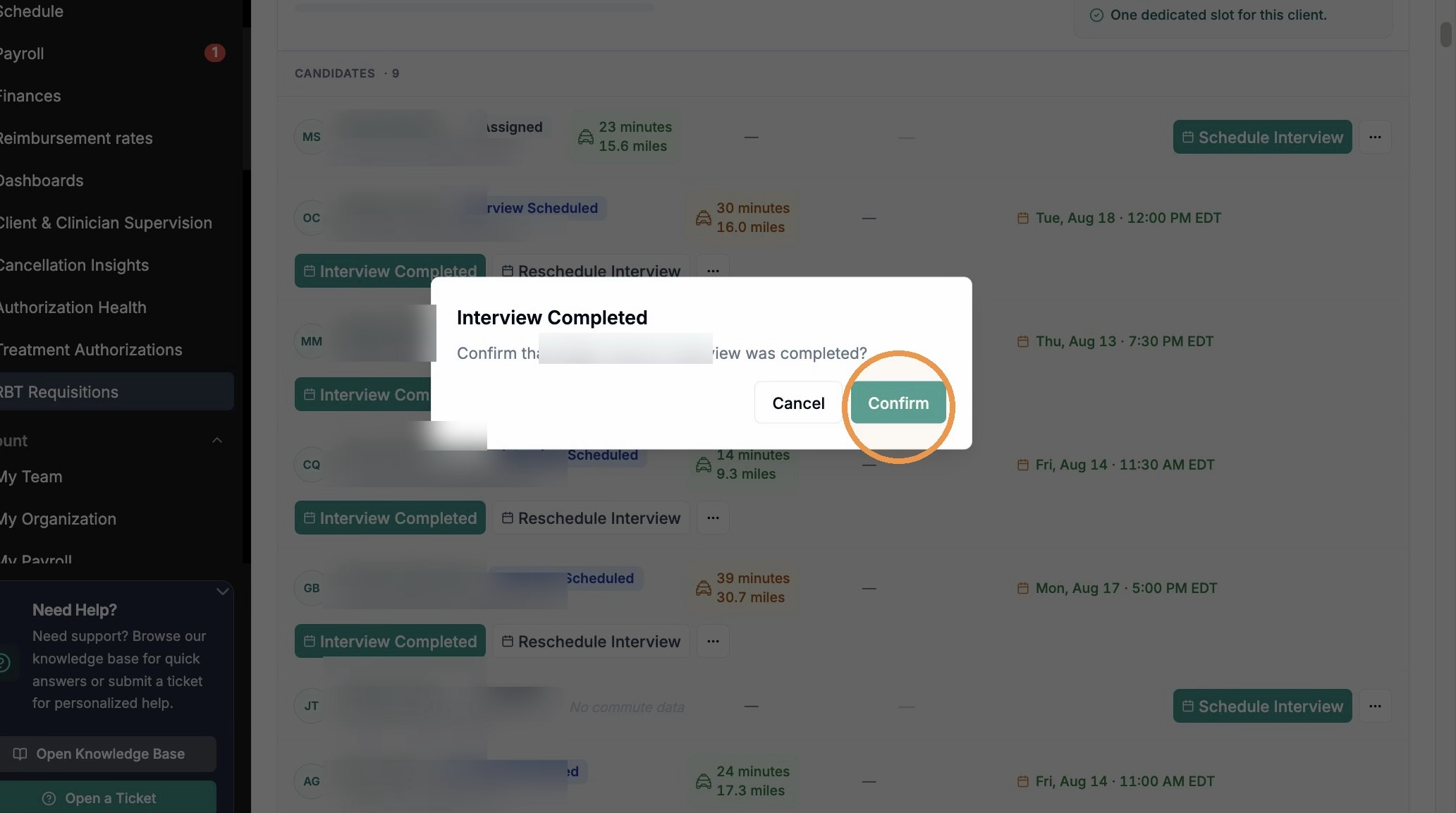
In the confirmation dialog, click Confirm to record that the interview took place.
Reschedule an interview
Click Reschedule Interview on the candidate's row.
Open the Reason menu and choose why — e.g., Candidate no-show, Candidate had something come up, Provider / BCBA conflict, or Other.
Choose how to reschedule.

Select a new time — pick a new slot yourself using your organization's Cal.com link.
Help me reschedule — flag the Alpaca recruiter to coordinate a new time.
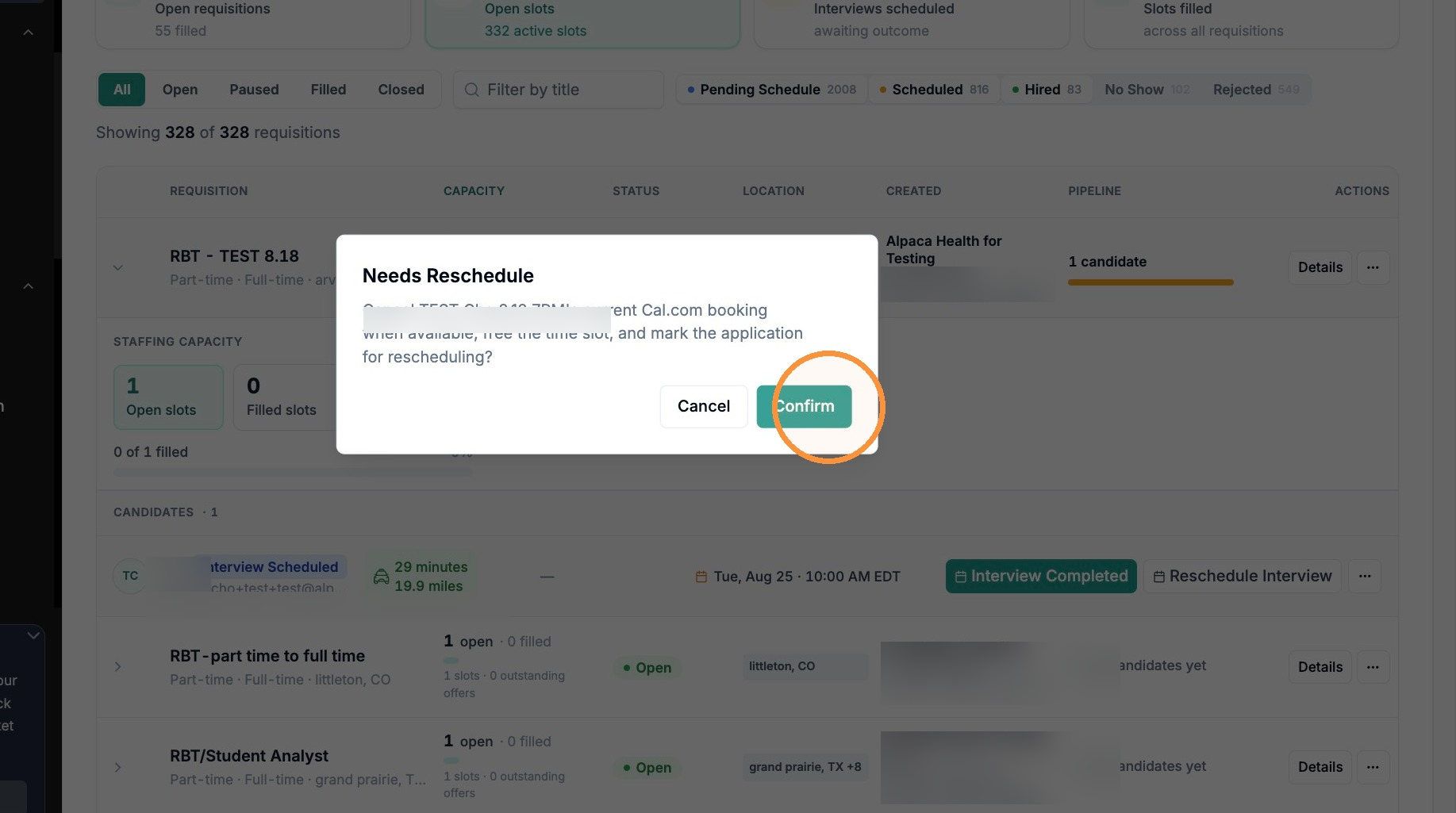
If you chose Help me reschedule, click Confirm. This cancels the current Cal.com booking, frees the time slot, and marks the candidate Needs Rescheduling.
Reject a candidate
Click the ... (more) menu on the candidate's row, then click Reject.

Choose a reason (e.g., Position filled, Interview no-show, Other).
Add notes — these are internal and stay in Alpaca (e.g., "took another offer," "not qualified," "do not re-engage").

Notes are optional for most reasons, but required (at least 10 characters) when the reason is "Other."
Click Reject.
Rejected and no-show candidates aren't deleted — use the Rejected and No Show status chips at the top of the page to find them later, along with any notes you added.
Hire a candidate / extend an offer
Make sure the interview is marked Interview Completed.
Select Hire candidate, then Finish setup in My Team to send their invite.
Quick FAQs
Does the candidate get an email when I set the interview date manually?
No. Manual entry only records the date and time in Alpaca — use it when the interview was already booked in Cal.com. It does not send a new invite.
What's the difference between "Select a new time" and "Help me reschedule"?
"Select a new time" lets you rebook the slot yourself via your Cal.com link. "Help me reschedule" hands it to the Alpaca recruiter to coordinate, and cancels the existing booking so the time slot is freed.
Where do rejected or no-show candidates go?
They stay in the system. Filter by the Rejected or No Show status chips at the top of the RBT Requisitions page to review them, along with any notes you added.