Pay periods and check dates
Last updated: August 25, 2026
This article explains the four dates attached to every Alpaca pay period, where to find them in the app, and which one your staff actually care about. For the wider picture of how the cycle works, start with Payroll Schedule: when do staff get paid?
The four dates on a period
Alpaca pay periods are biweekly and identical for every organization on the platform. Each one carries four dates:
Date | Meaning | Typical timing |
|---|---|---|
Period start | First day of the two-week window. | Monday, 12:00 AM |
Period end | Last day of the window, and the cutoff for notes and approvals. | Sunday, 11:59 PM |
Confirmation date | Alpaca confirms the payroll run for the period. | The following Monday |
Staff check date | The day your staff are paid. Shown on their pay stub. | That Friday |
There is also a payment date on the period, which is the clinic-side payout date used by the Finances page — that is a different flow from staff pay. See When do I get paid? for the clinic side.
Where to see the dates
Link to google sheet with schedule
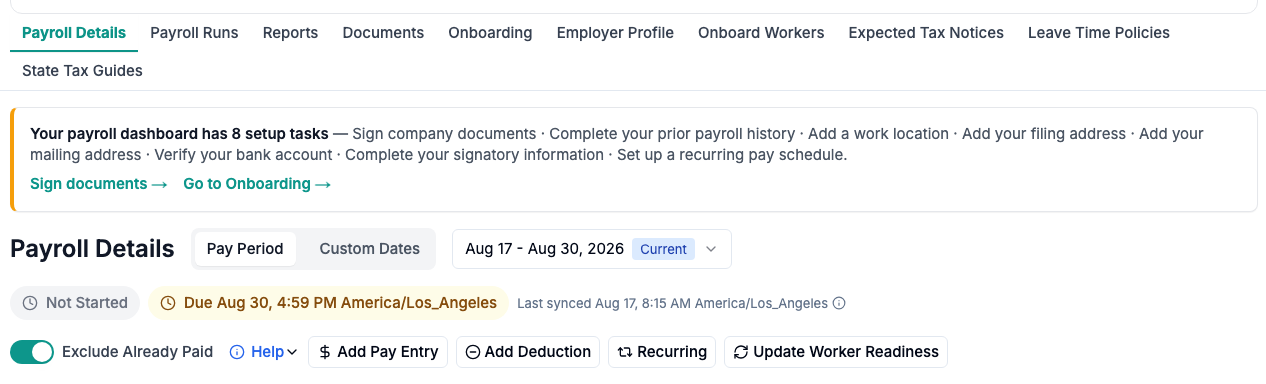
The pay period selector, run status, and the deadline for the selected period.
Go to Payroll in the left sidebar.
Stay on the Payroll Details tab.
Use the pay period selector at the top of the page. Each period is labelled with its start and end dates, and selecting one shows the hours, pay and status for that period.
Your staff see the same cycle from the other side: My Payroll → Payments shows each pay stub with its check date.
Which period is selected by default
The Payroll page does not always open on the period containing today. It opens on the period you most likely still need to work on:
A period that ended within the last three days, if there is one — so a just-closed period stays in front of you while you finish tidying it up.
Otherwise, the period that contains today.
Otherwise, the most recent period that has already ended.
If the page seems to be showing "last" period rather than the current one in the first days of a new period, this is why. Switch periods with the selector at any time.
The deadline, and what happens after it
The deadline is the period end: 11:59 PM on the final Sunday. Your homepage surfaces it as a Needs your attention card in the last week or so before it lands, counting down in days and then in hours.
For three days after the period ends, pay-affecting edits are locked for clinic admins while Alpaca processes the run. Adding a reimbursement, bonus or deduction to that closed period is blocked; Alpaca will offer to put it in the next period instead. Pay rate changes are a special case — see Worker rates and when to edit them.
A worked example
Take a period running Monday the 1st through Sunday the 14th:
A session on the 3rd with its note signed on the 5th → in this period.
A session on the 3rd with its note signed on the 16th → in the next period.
Admin time on the 10th, verified by an admin on the 12th → in this period.
Everything that landed in this period is confirmed on Monday the 15th and paid to staff on Friday the 19th.
Still stuck? Email support@alpacahealth.io and we will take a look.