Mastery Criteria and Clinical Status
Last updated: August 26, 2026
Target Status and Lifecycle
In Alpaca, a program and target can move through different phases as data is collected.
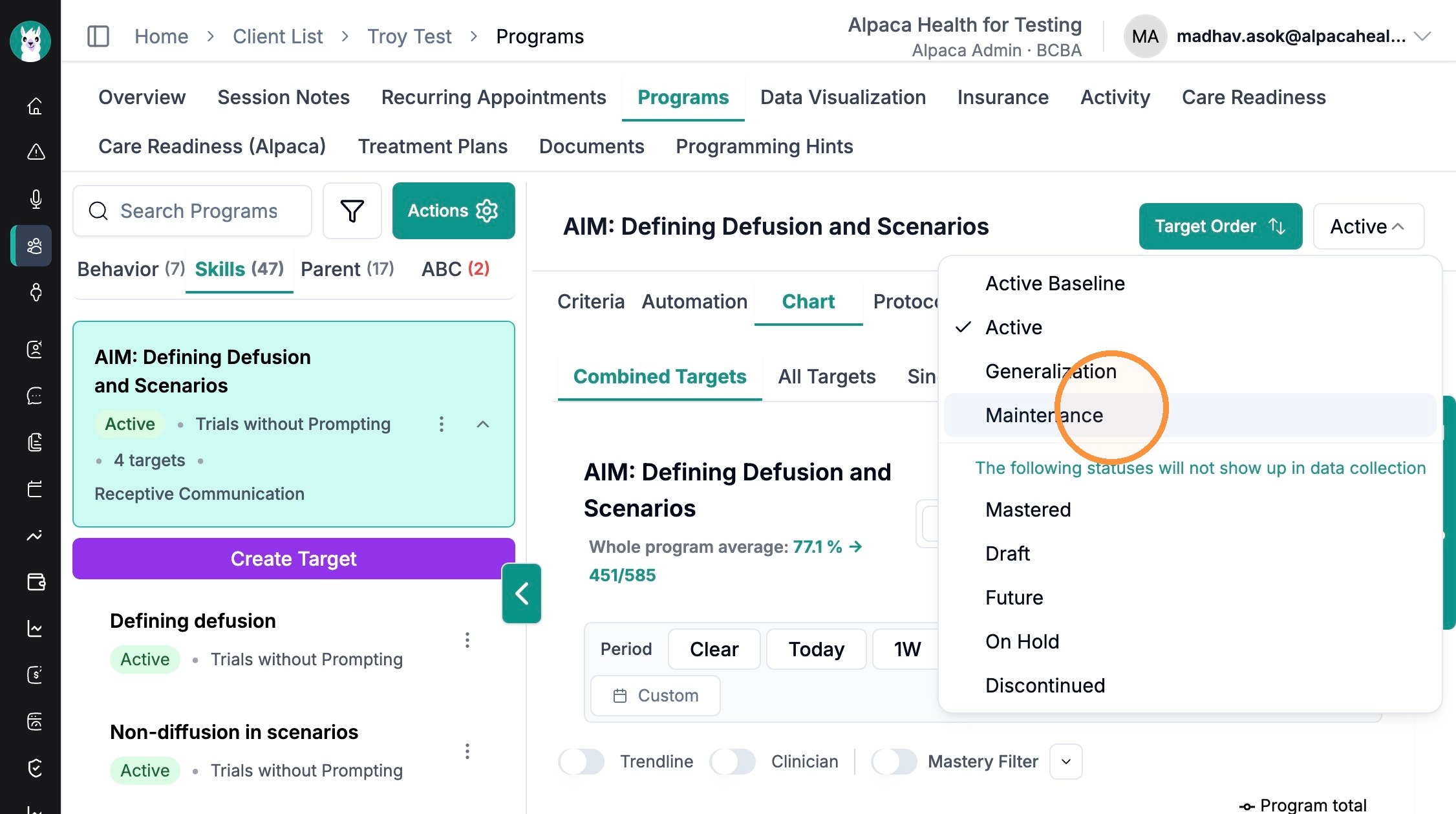
Baseline — Data collected before intervention starts, to establish the client's current level on a skill/behavior. No teaching or prompting procedures are applied yet; you're just measuring where they are.
Active (in-treatment / acquisition) — The target is actively being taught and worked on during sessions with the intervention procedures in place. This is where most data collection happens.
Maintenance — The target has met its mastery criteria and is now probed periodically (e.g., every few sessions/days/weeks) to confirm the skill is retained over time. Less frequent data collection than Active.
Mastered — The target has met its defined mastery criteria. Will not show up in data collection/ graphs.
On Hold — Temporarily paused; not being run in current sessions but not removed. Not shown on graphs.
Draft- A target that is not finalized. Not shown on graphs
Future- A target that will be implemented in the future. Not shown on graphs
Discontinued / Closed — Stopped and no longer in use. Not shown on graphs
At the program level, status reflects the overall program (Active, Baseline, Maintenance, etc.), and program mastery is reached when the required number of targets within it hit their mastery criteria. At the target level, each target moves through its own lifecycle (Baseline → Active → Mastered → Maintenance).
Setting up Baseline Criteria
Define your baseline criteria by selecting your program and navigating to "criteria".
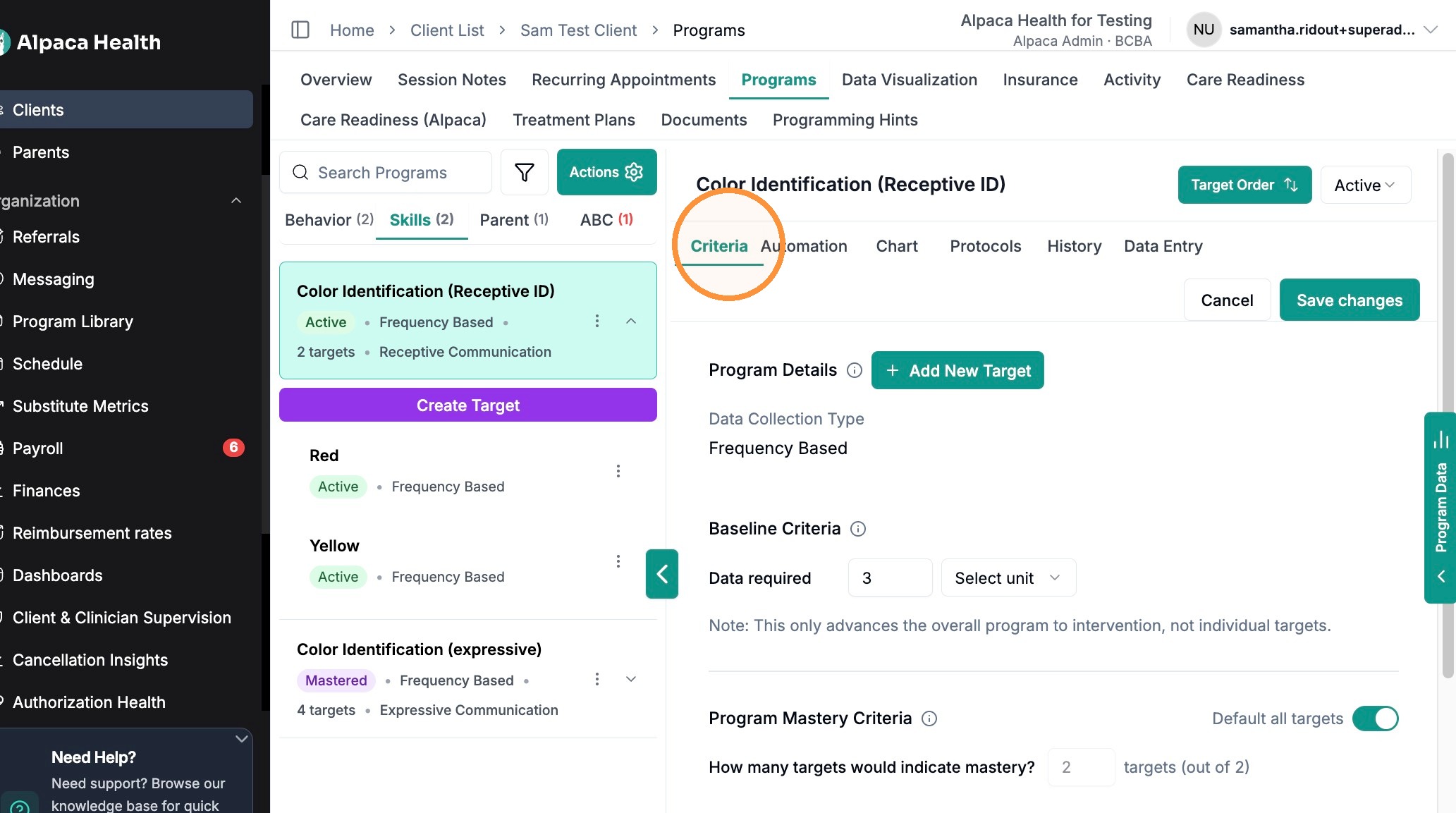
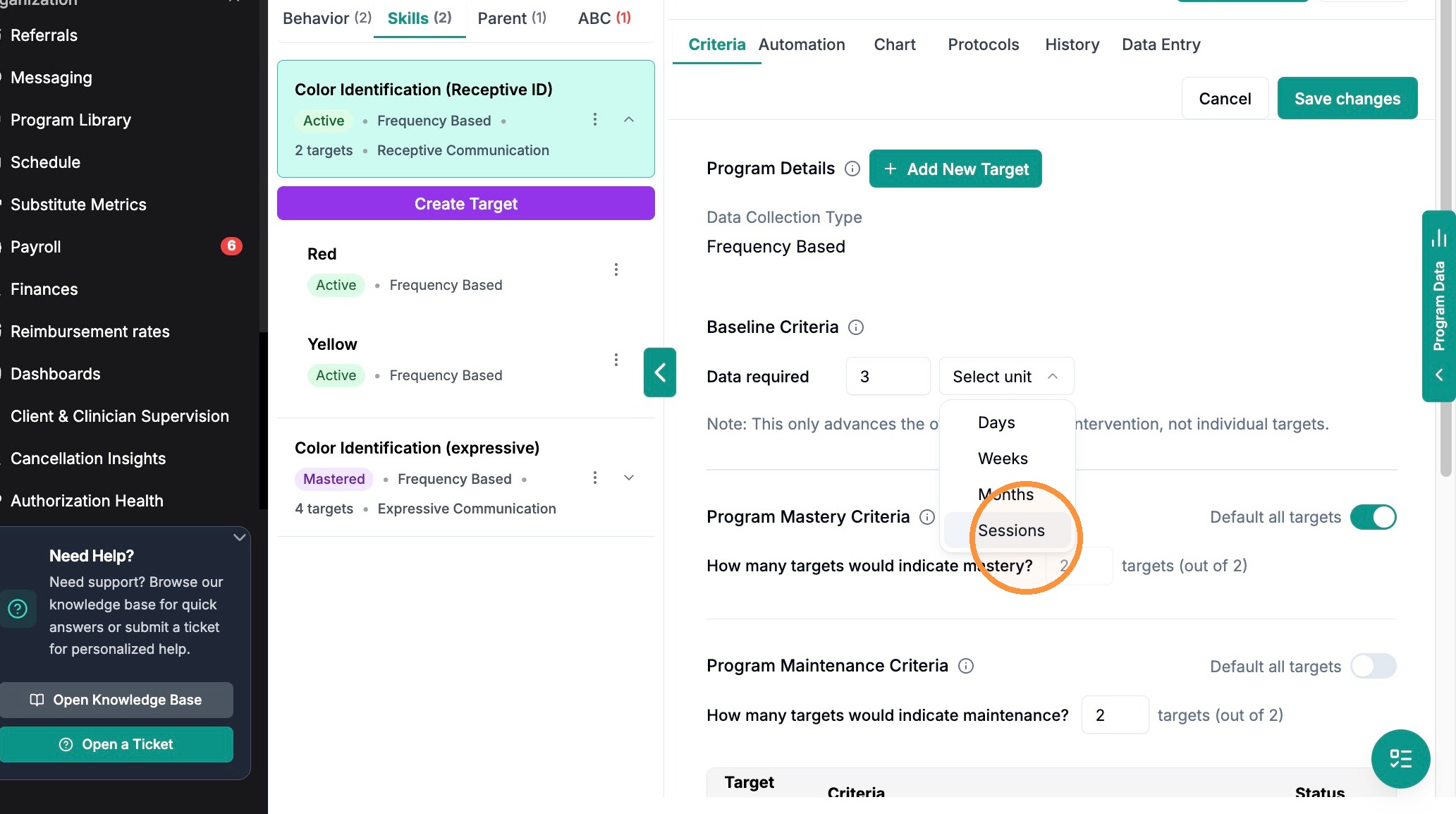
Enter your criteria by number and selecting a unit of measurement.

Defining Mastery Criteria
Define your mastery and maintenance criteria at the program and target level.
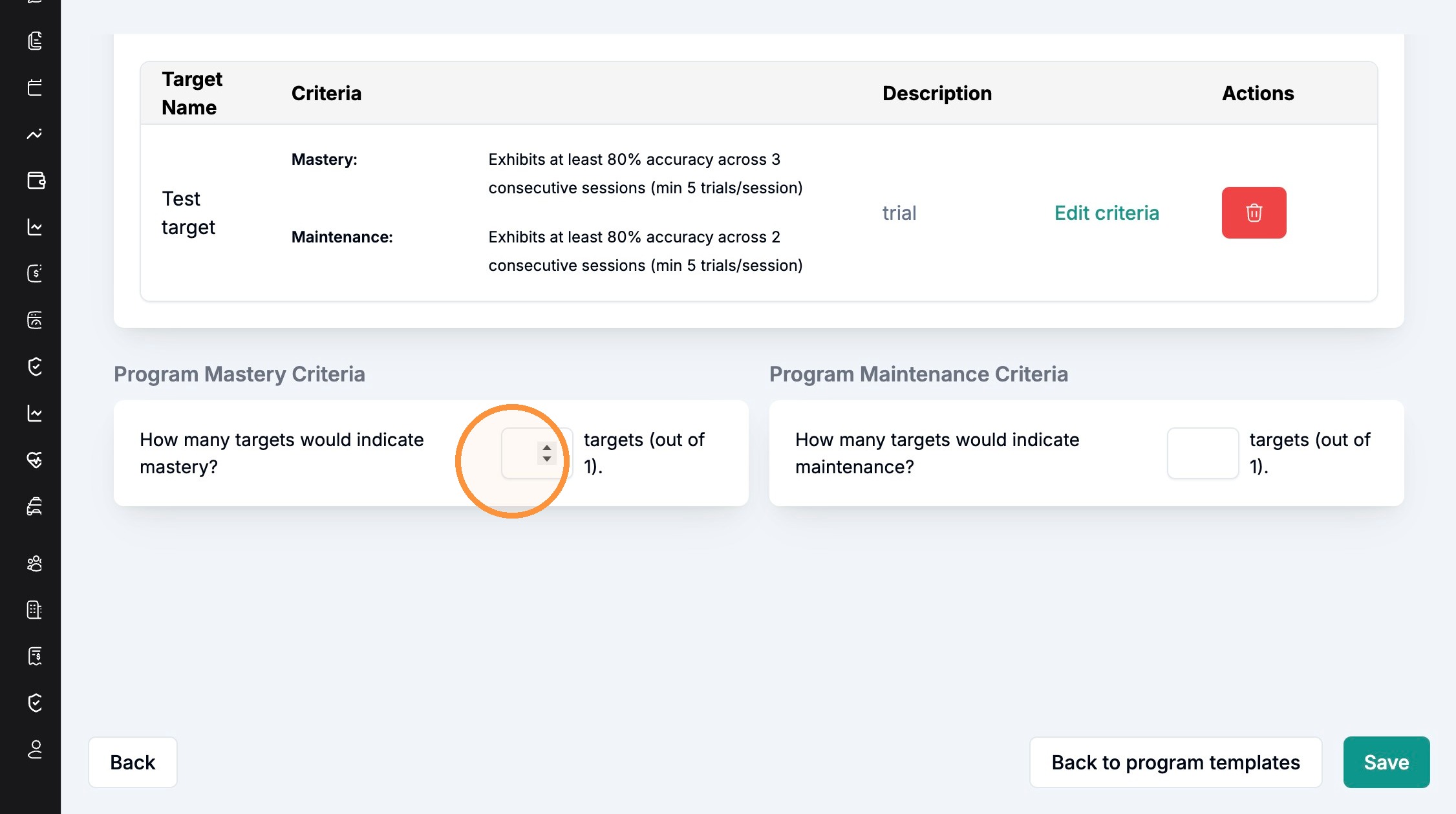
Program Mastery
Program mastery is determined by the number of targets meeting mastery criteria within a program. This is configured when you create a program template, or create a program from scratch.
Defining Target Mastery
When creating a new target, you can define your target's mastery criteria using the drop down option to record by sessions, days, weeks, etc.
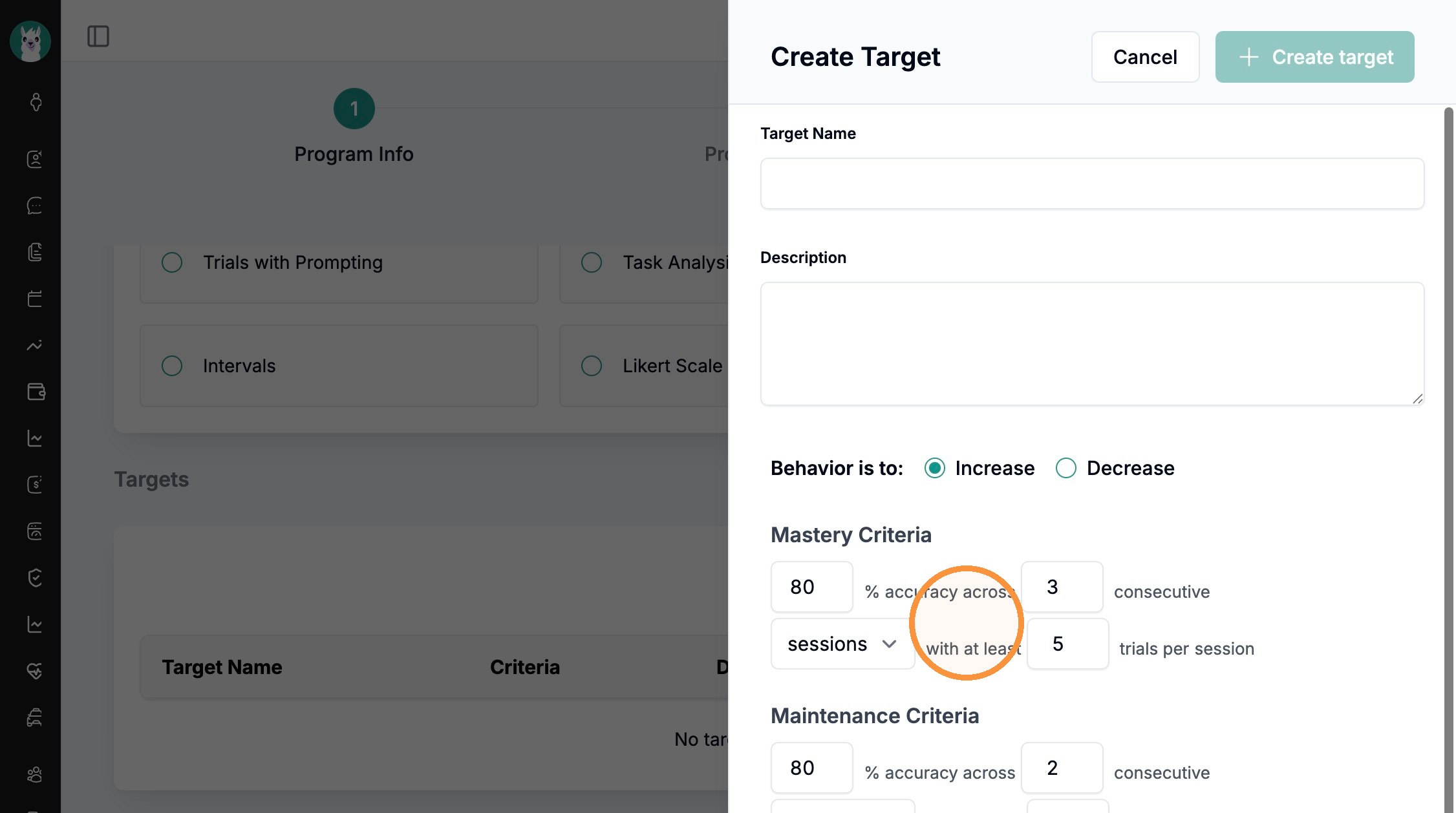
When finished, click "+ create target"
You can also update existing program and target status'.
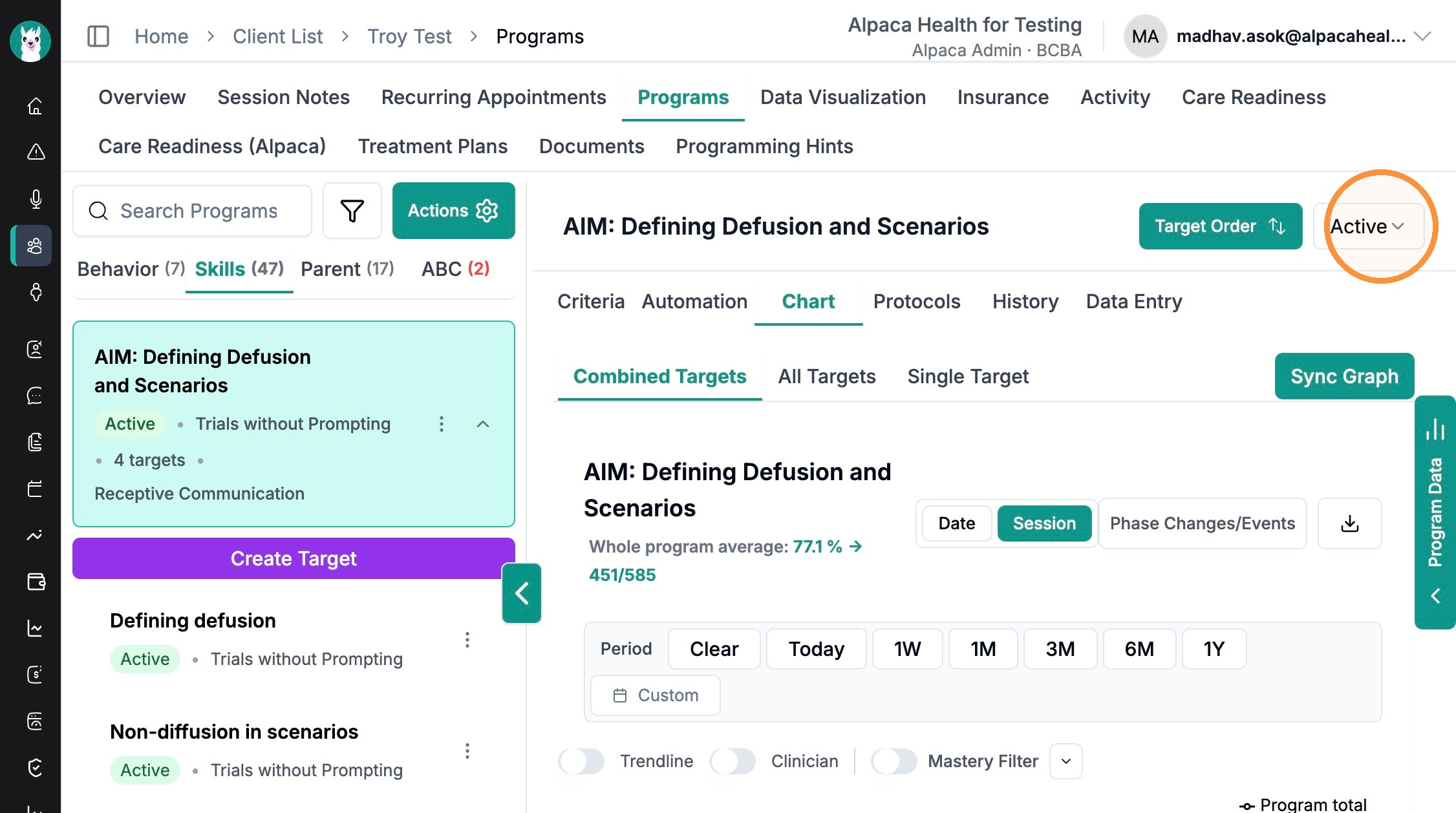
Highlight your program-->Program status button is next to "Target Order"
Select your program's status
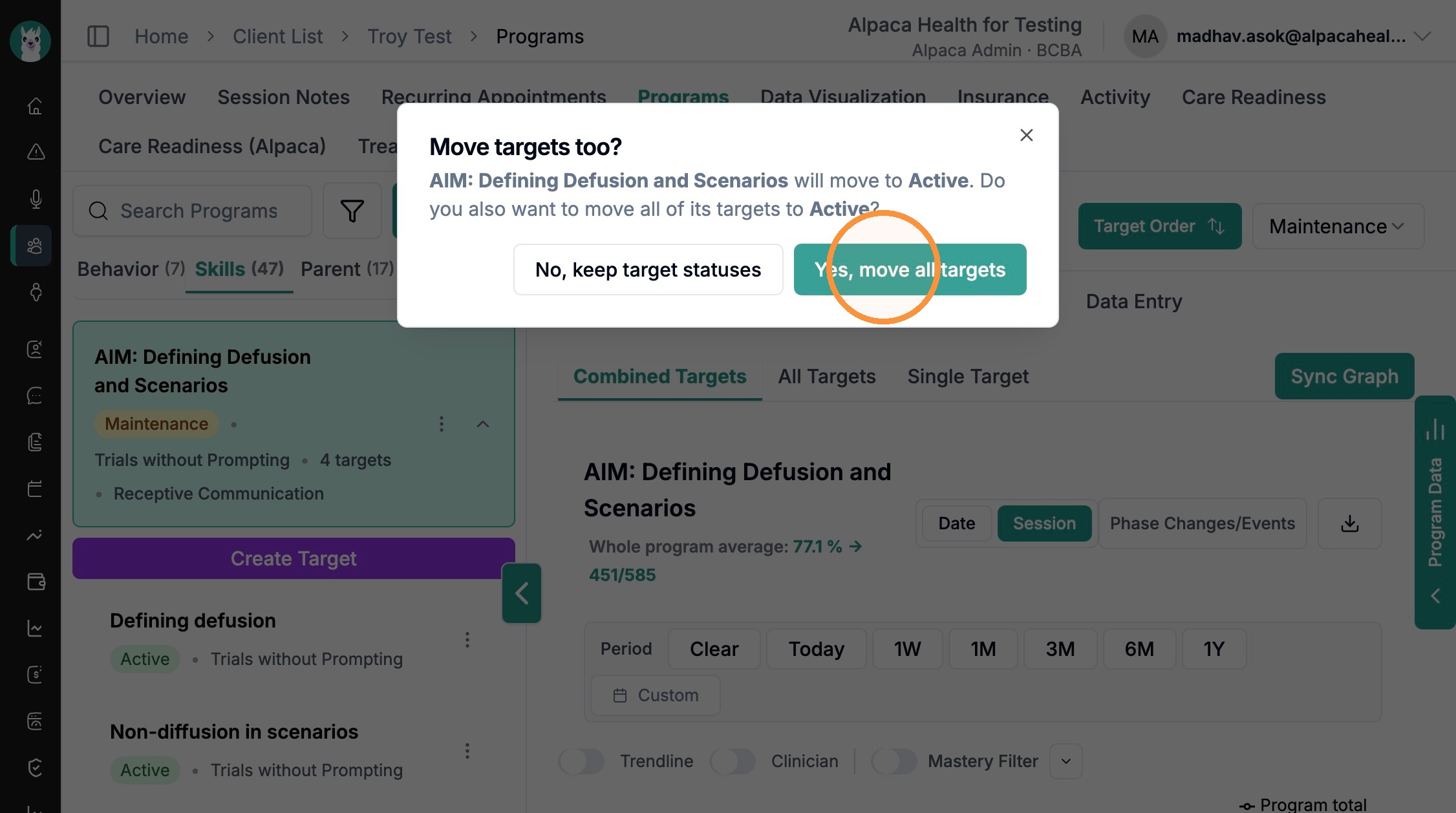
Decide to move all targets, or keep current target status.
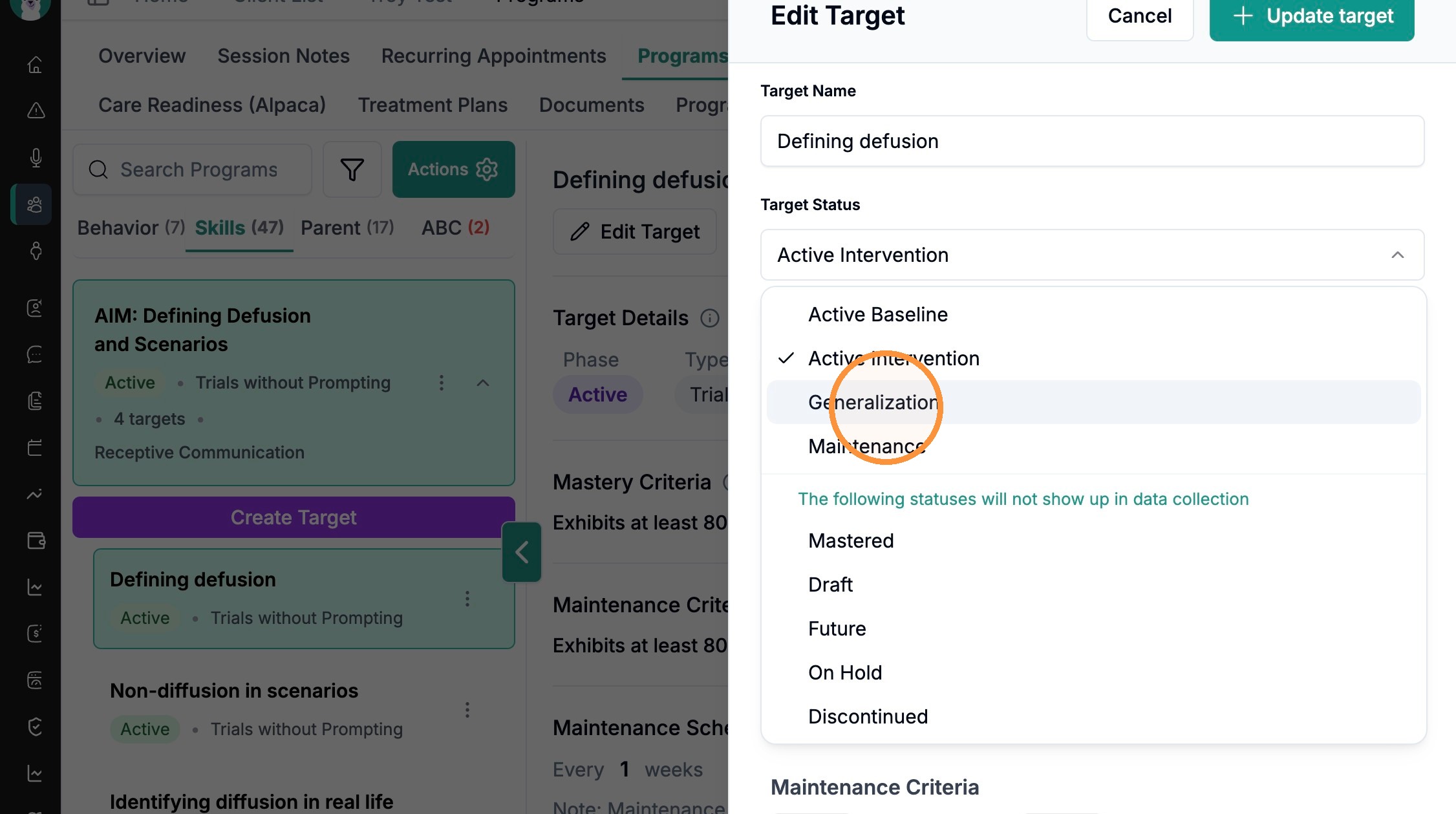
Updating Existing Target Status
Click "Edit Target"
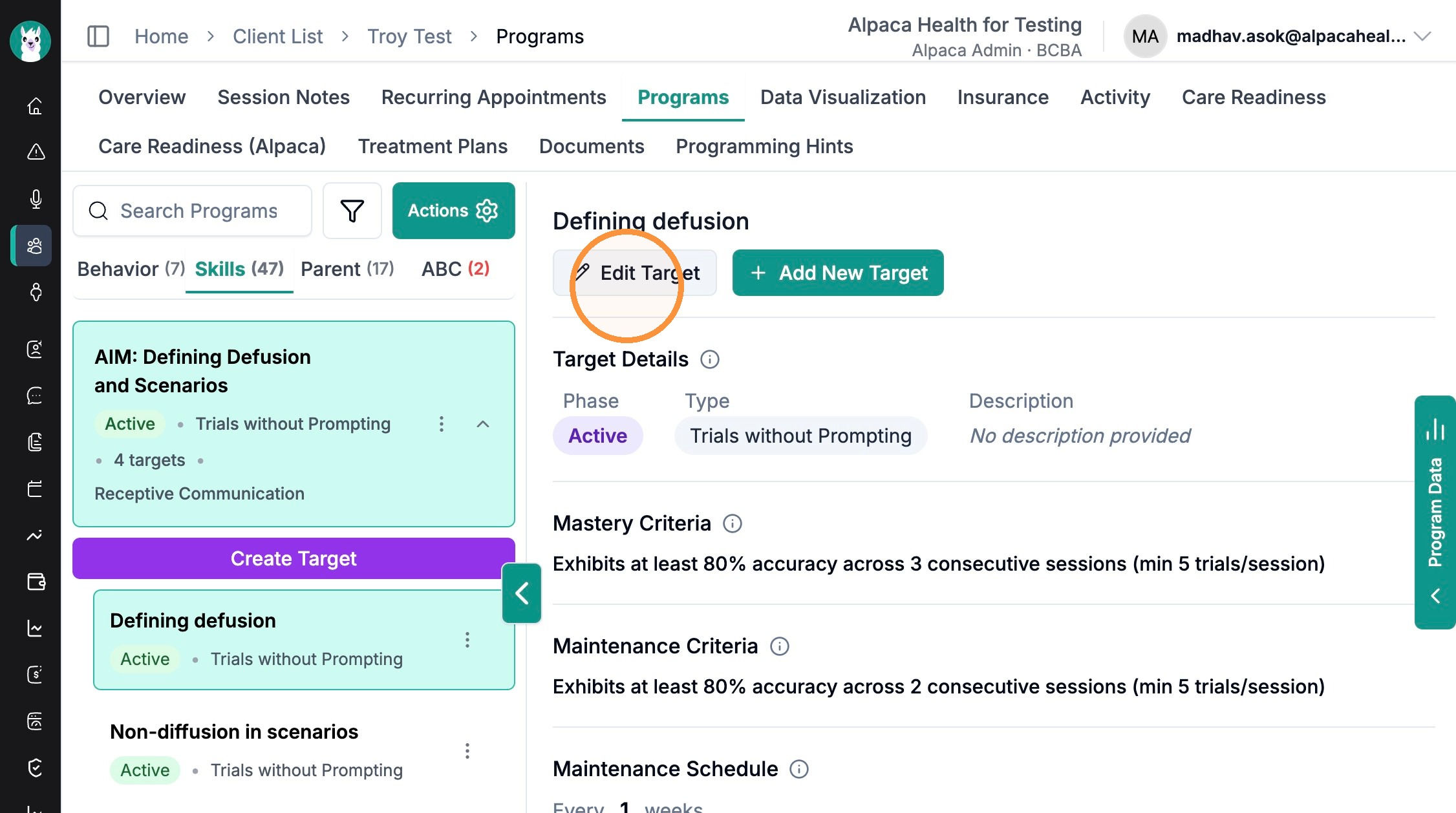
Select Target Status
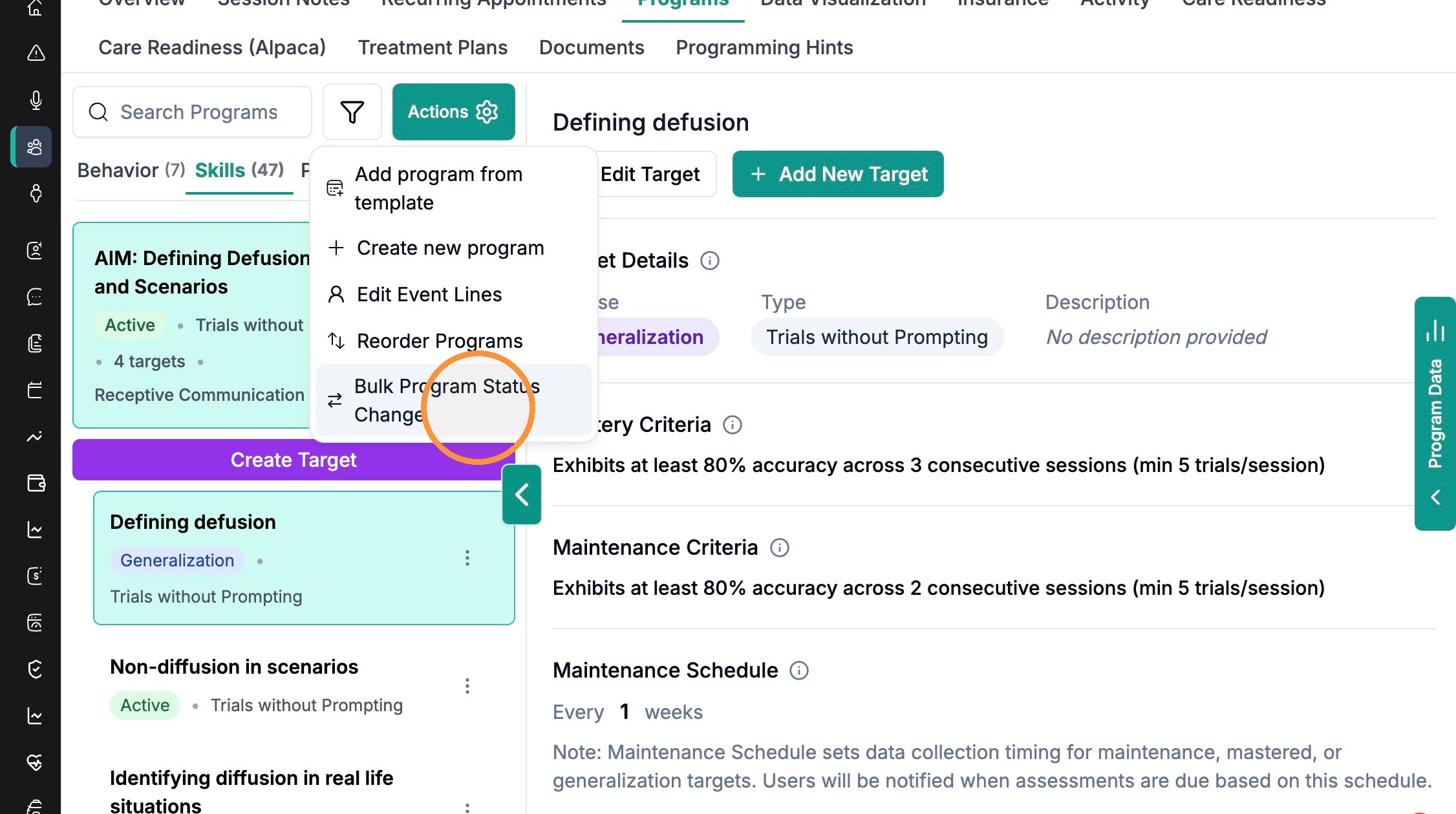
How to Make Bulk Program Changes
Click "Bulk Program Status Change" under "Actions".
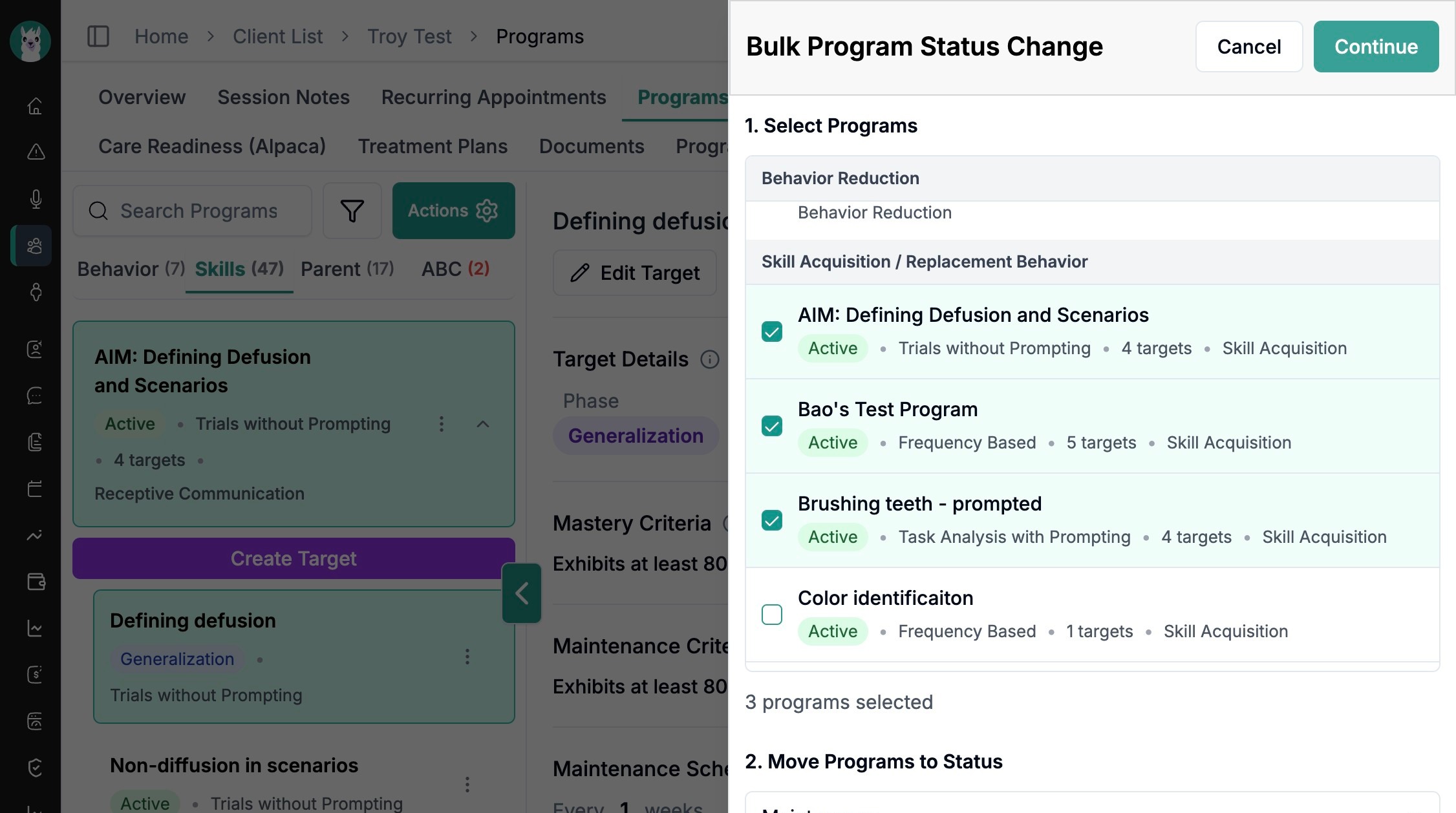
Select one or many programs to bulk change
Determine to move all target status, or keep the same
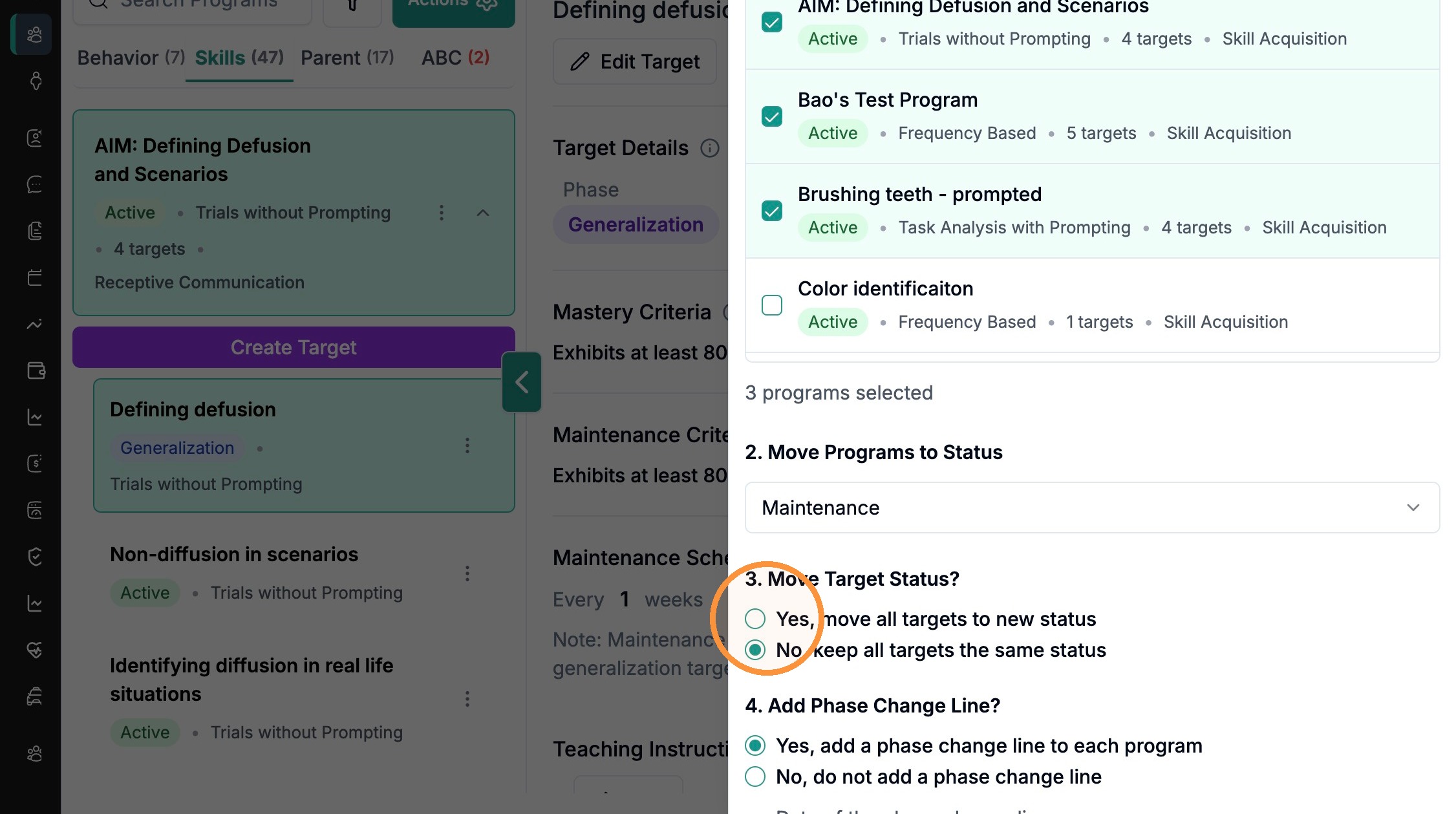
If "yes", you will be prompted to select the status the targets will be moved to.
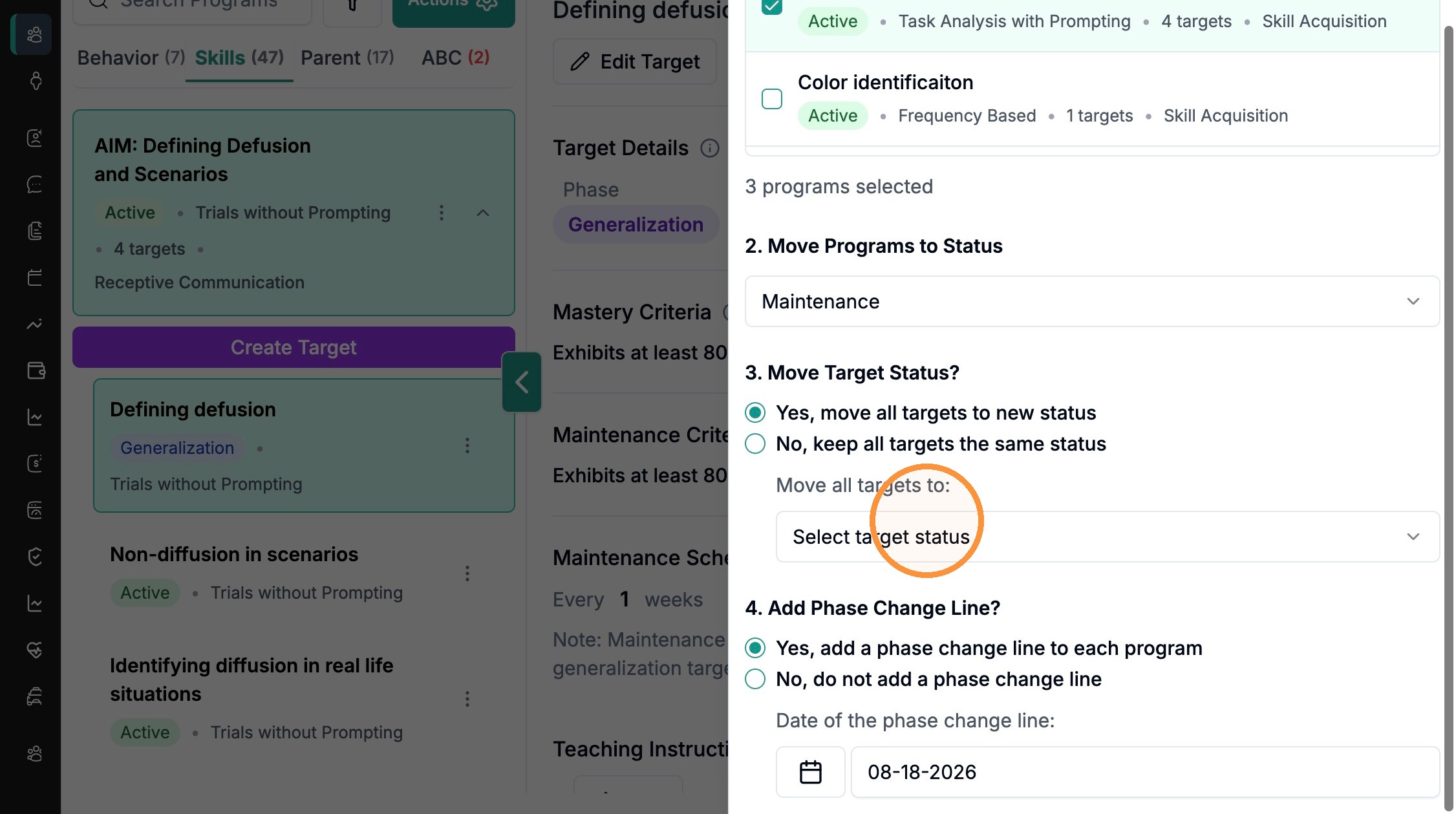

Confirm changes.
Frequently Asked Questions
1. Why doesn't my target show up in data collection or on graphs?
A target only appears in data collection and graphs when its status is Baseline, Active, or Maintenance. Targets set to Mastered, On Hold, Draft, Future, or Discontinued/Closed are intentionally hidden from graphs and data collection. If a target has disappeared unexpectedly, check its status first — it's likely moved to one of those phases.
2. What's the difference between "Mastered" and "Maintenance"?
Both mean the target has met its mastery criteria, but they behave differently:
Mastered — the target is considered complete and drops out of active data collection and graphs.
Maintenance — the target still gets probed periodically (e.g., every few sessions, days, or weeks) to confirm the skill is retained over time, so it continues to appear for data collection, just less frequently.
Use Maintenance when you want to keep verifying retention; use Mastered when the target is finished.
3. When I change a program's status, does it also change all the targets inside it?
Not automatically — you decide. When you update a program's status (the Program Status button next to "Target Order"), you're prompted to either move all targets to that status or keep each target's current status. The same choice appears when you use Actions → Bulk Program Status Change to update several programs at once. To change just one target, use Edit Target → Select Target Status.