Guide to Your Program Library
Last updated: October 20, 2026
Learn how to build, customize, and assign new program templates to clients within the Alpaca Health platform. This guide covers the full process from setting up templates, creating templates from existing programs, and managing templates for your organization.
Ready-made goals from Alpaca
Your Program Library comes with ready-made goals from Alpaca, so you don't have to start from a blank page. They are based on goals BCBAs commonly write in signed treatment plans, and cover skill acquisition (such as requesting, following directions, imitation, play, social and daily living skills) and replacement behaviors.
Each Alpaca goal comes complete with an operational definition, targets, a teaching procedure, prompting and error correction, reinforcement, generalization, materials, interventions and mastery criteria.
Find them by searching your Program Library or filtering by domain or type, the same way you find your own templates.
Mastery criteria fill in for you. When you add an Alpaca goal to a treatment plan, its mastery rule is filled in automatically. You can change it like any other field.
Make them yours. The goals in your library are your organization's own copies. Edit, disable or delete them as you would any template; nothing you change affects other organizations.
Medical necessity is left blank on purpose. It has to explain why a specific client needs the goal, so write it for each client when you add the goal.
Create a Program Template
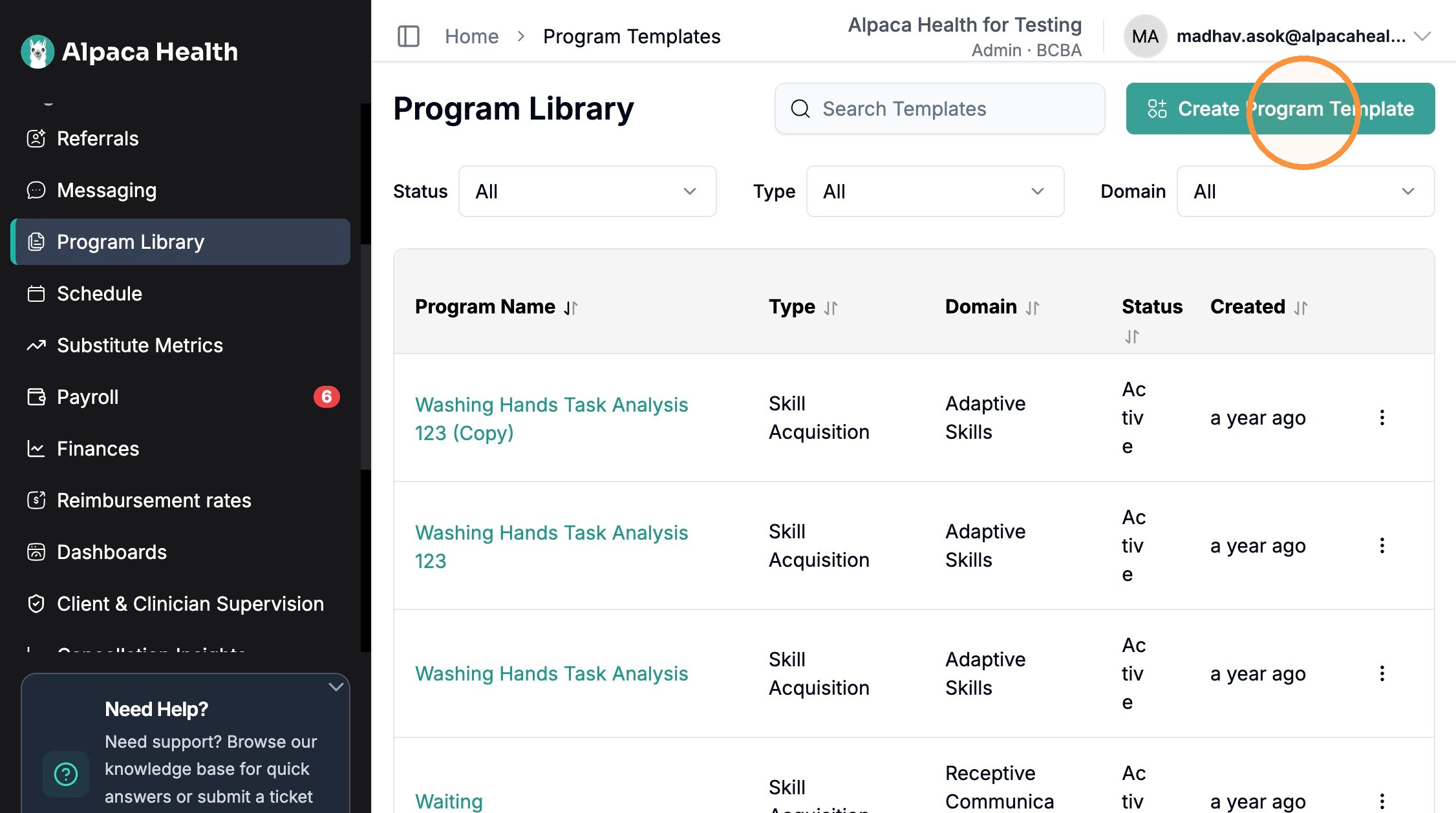
Click "Create Program Template" under your program library.
Name your program, and fill out required fields
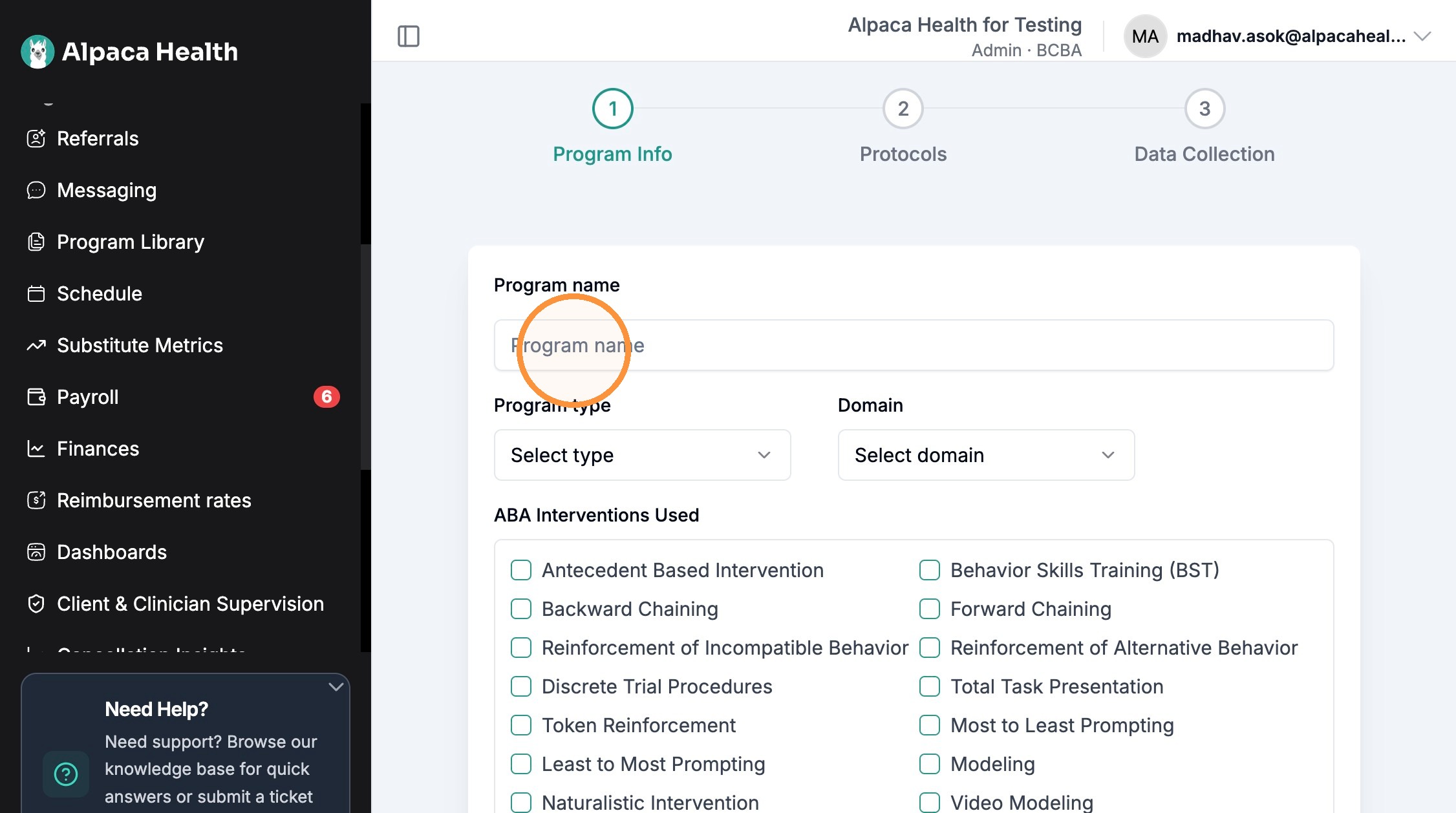
You can create a program by:
Skill acquisition
Behavior reduction
Replacement Behavior
Parent Training
Protocol Configuration
Define Medical Necessity, interventions to be used, antecedent and consequential procedures by filling out the prompted text boxes. When creating a template, you will only have to do this step once.
Select your Measurement Type
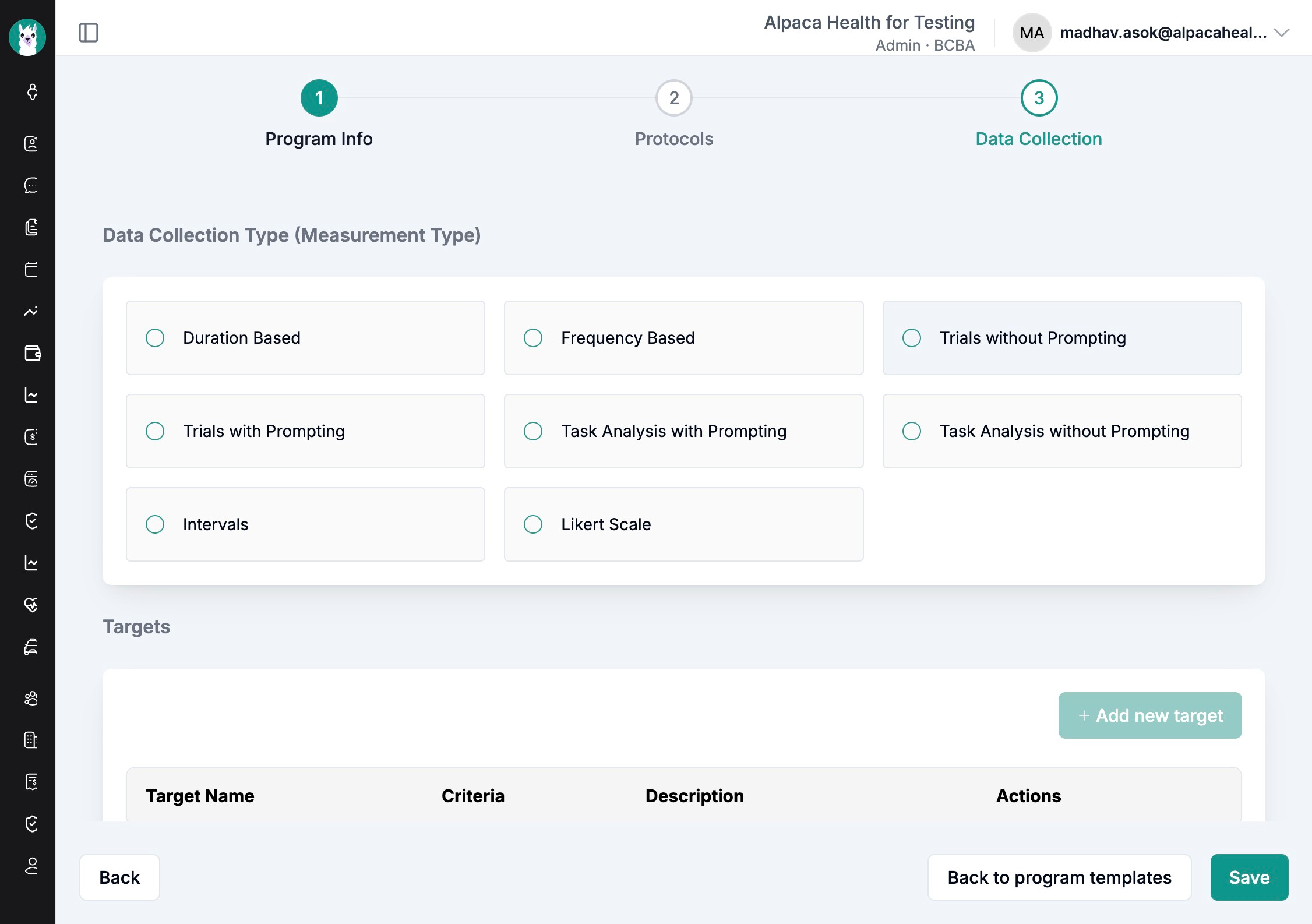
See measurement type for the program default. Individual targets can use a different measurement type when configured that way.
Create Targets, define target mastery, and target maintenance criteria
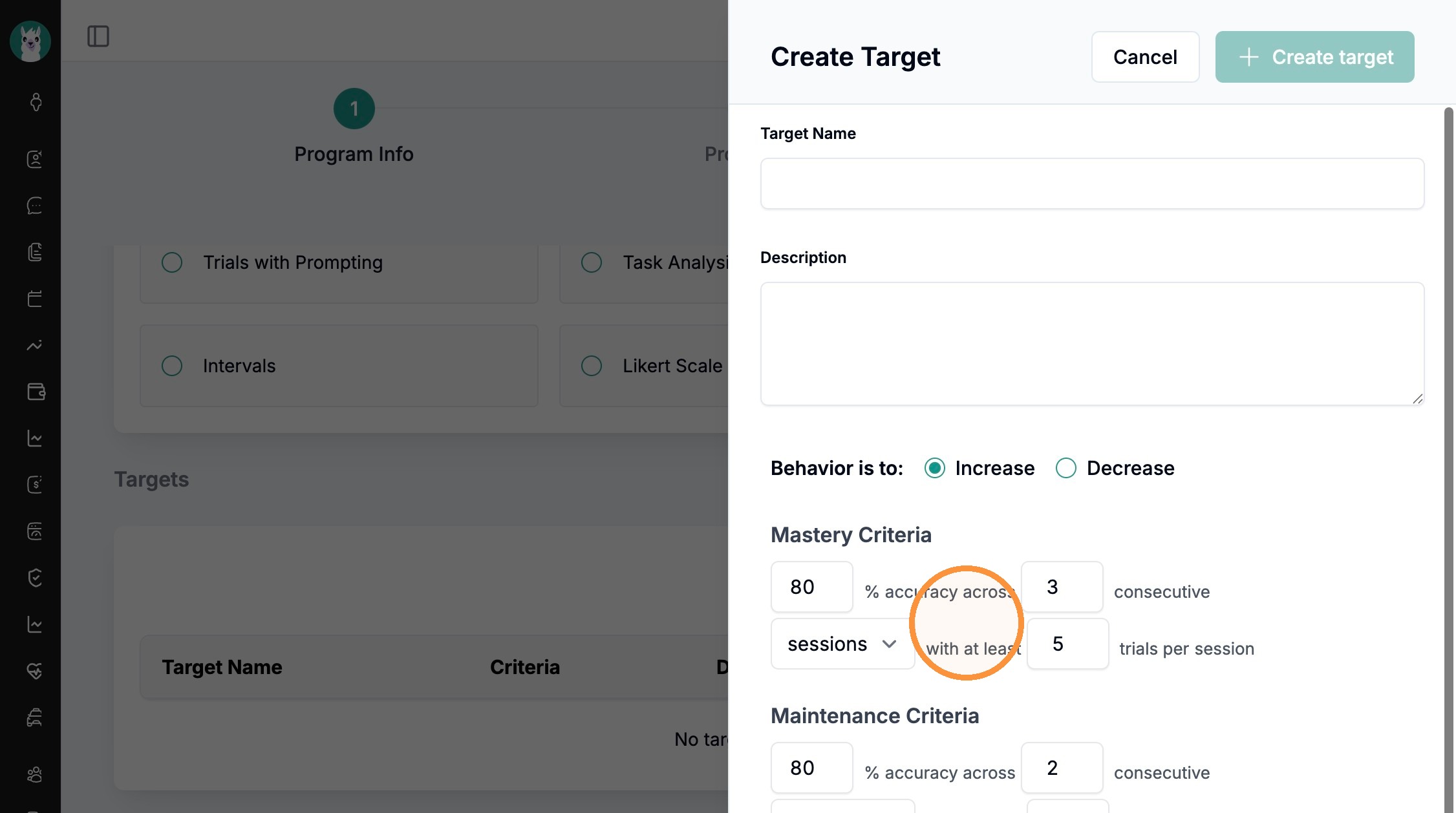
You can define your target's mastery criteria using the drop down option
You can define maintenance criteria by sessions, days, weeks, etc.
When finished, click "+ create target"
Define your program mastery
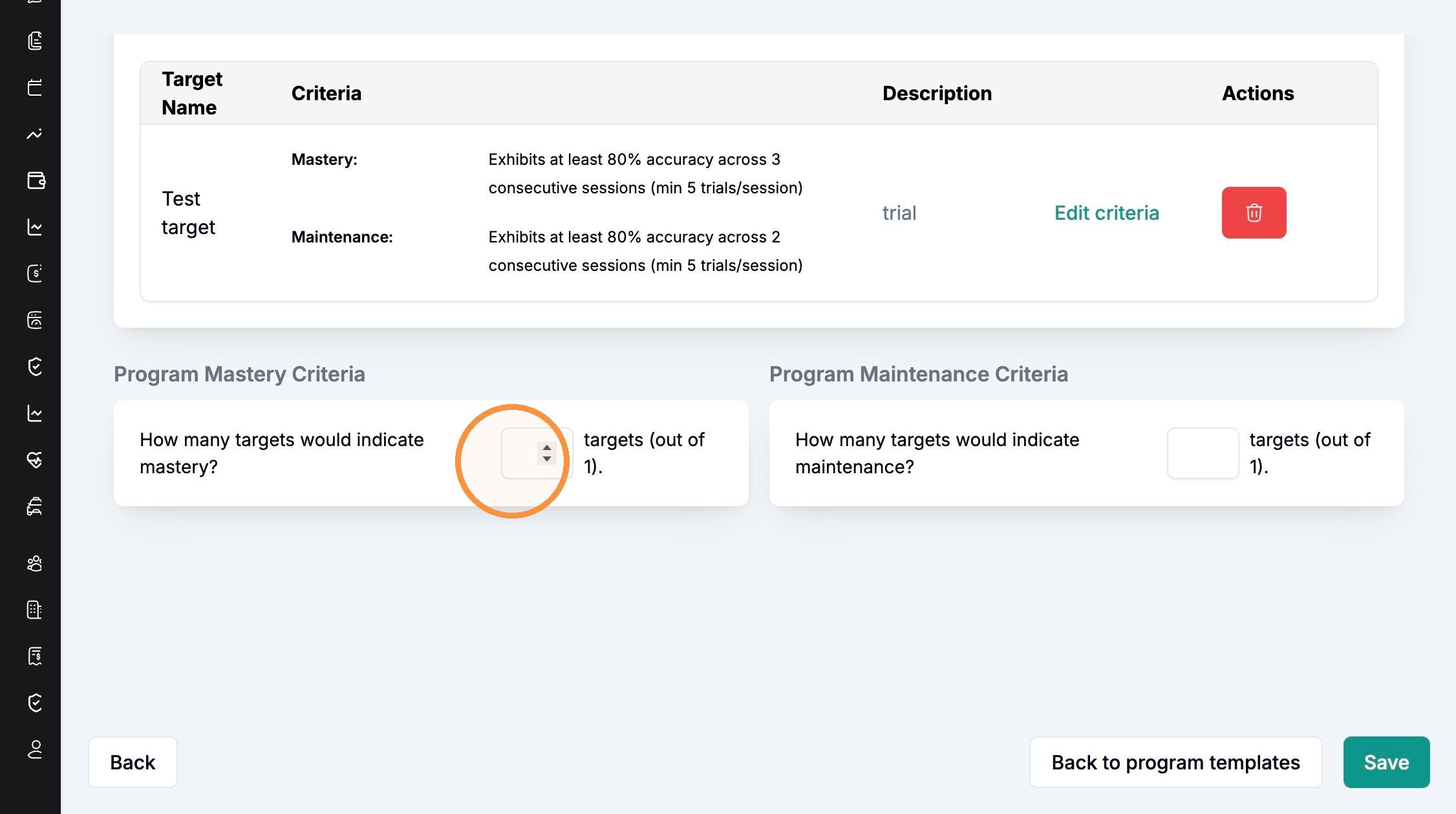
Program mastery is determined by the number of targets meeting mastery criteria within a program
Save your program, and return to your program template list
Adding Templates to Client
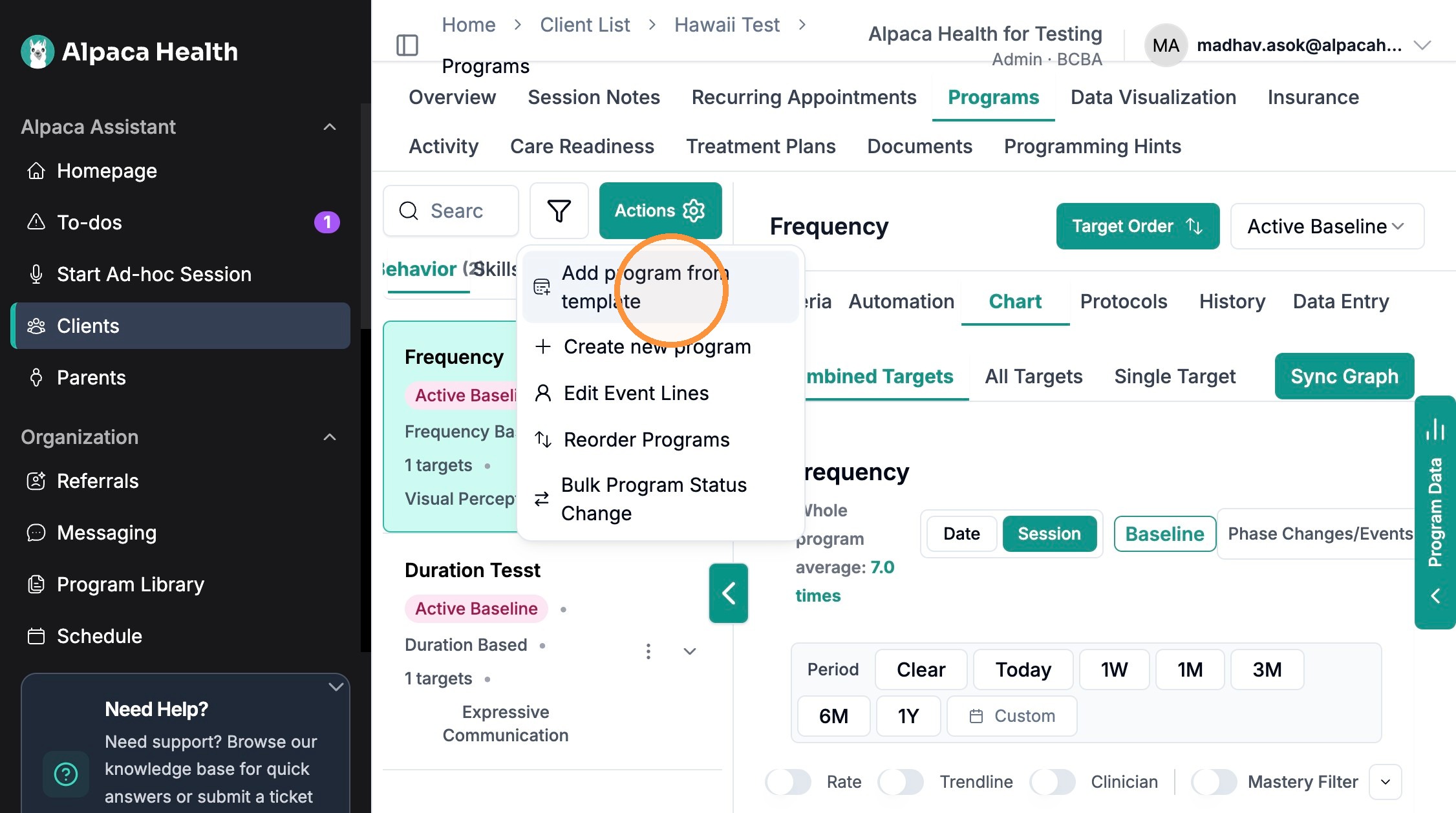
Select your client, navigate to their program list, select the actions button
Click "Add program from template"
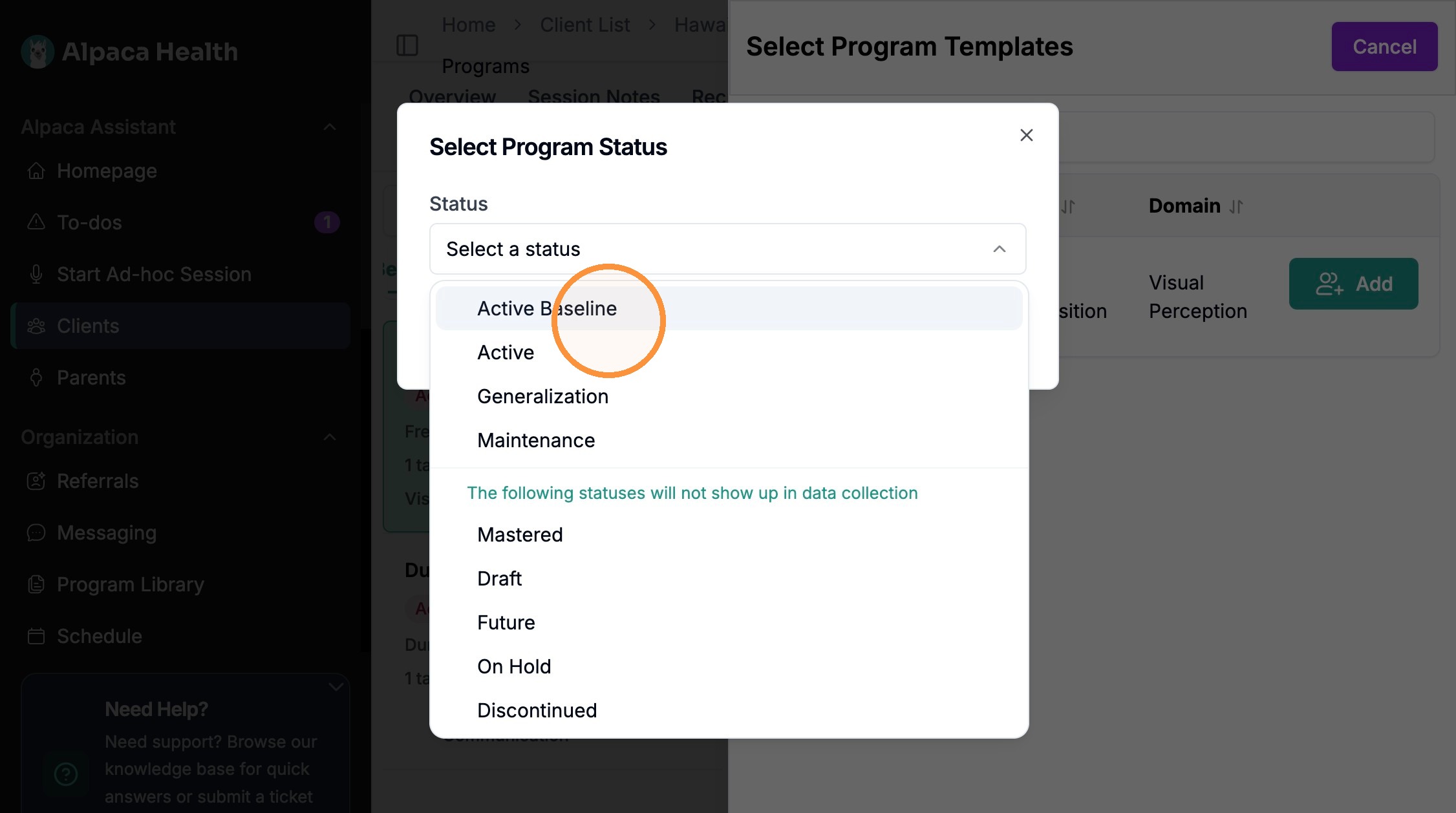
Select your program template and select program status, then add program.

Creating a Template from an Existing Program
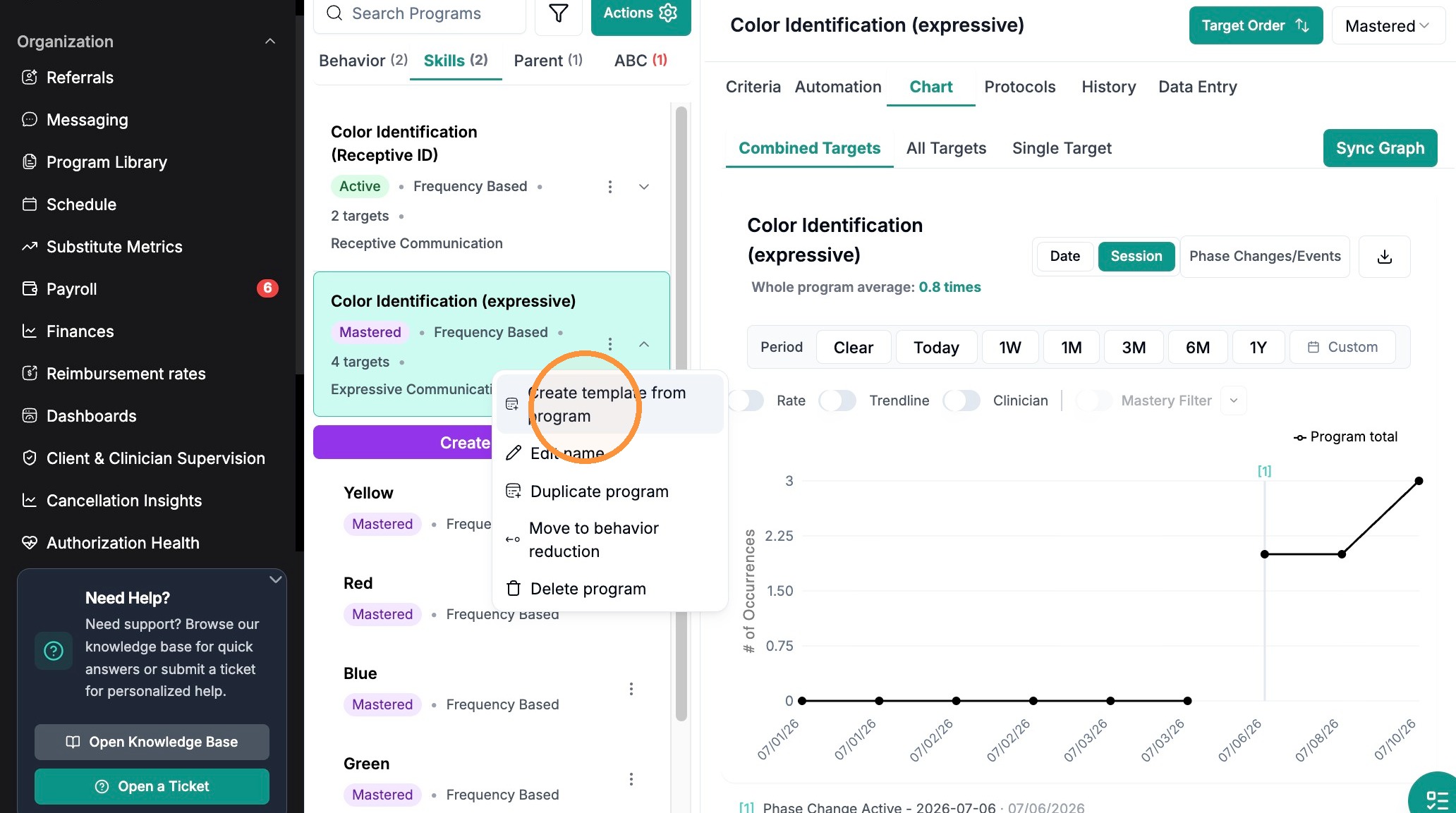
Select the program you would like you make a template from and click the 3 dots
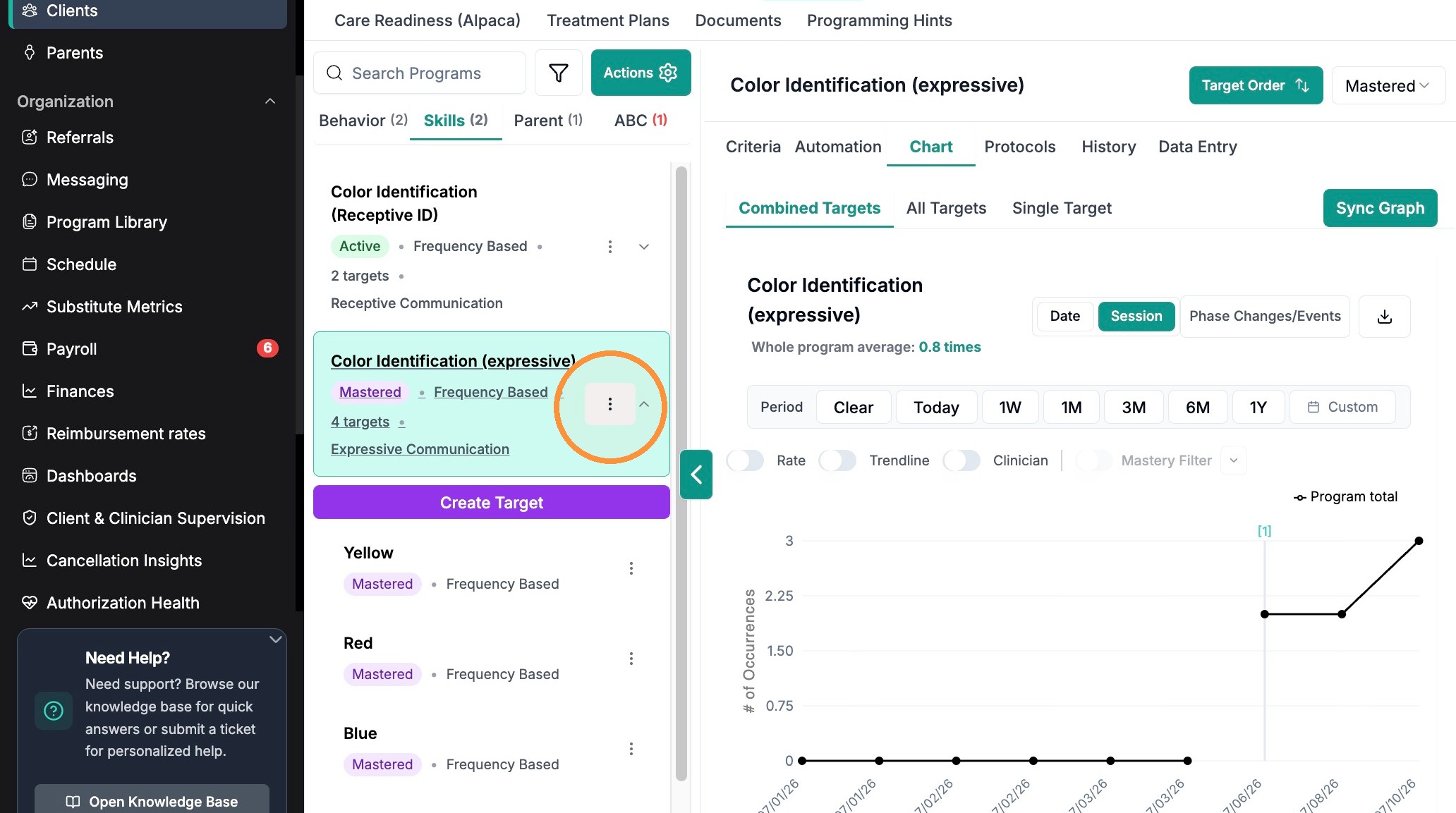
Click "Create template from program"
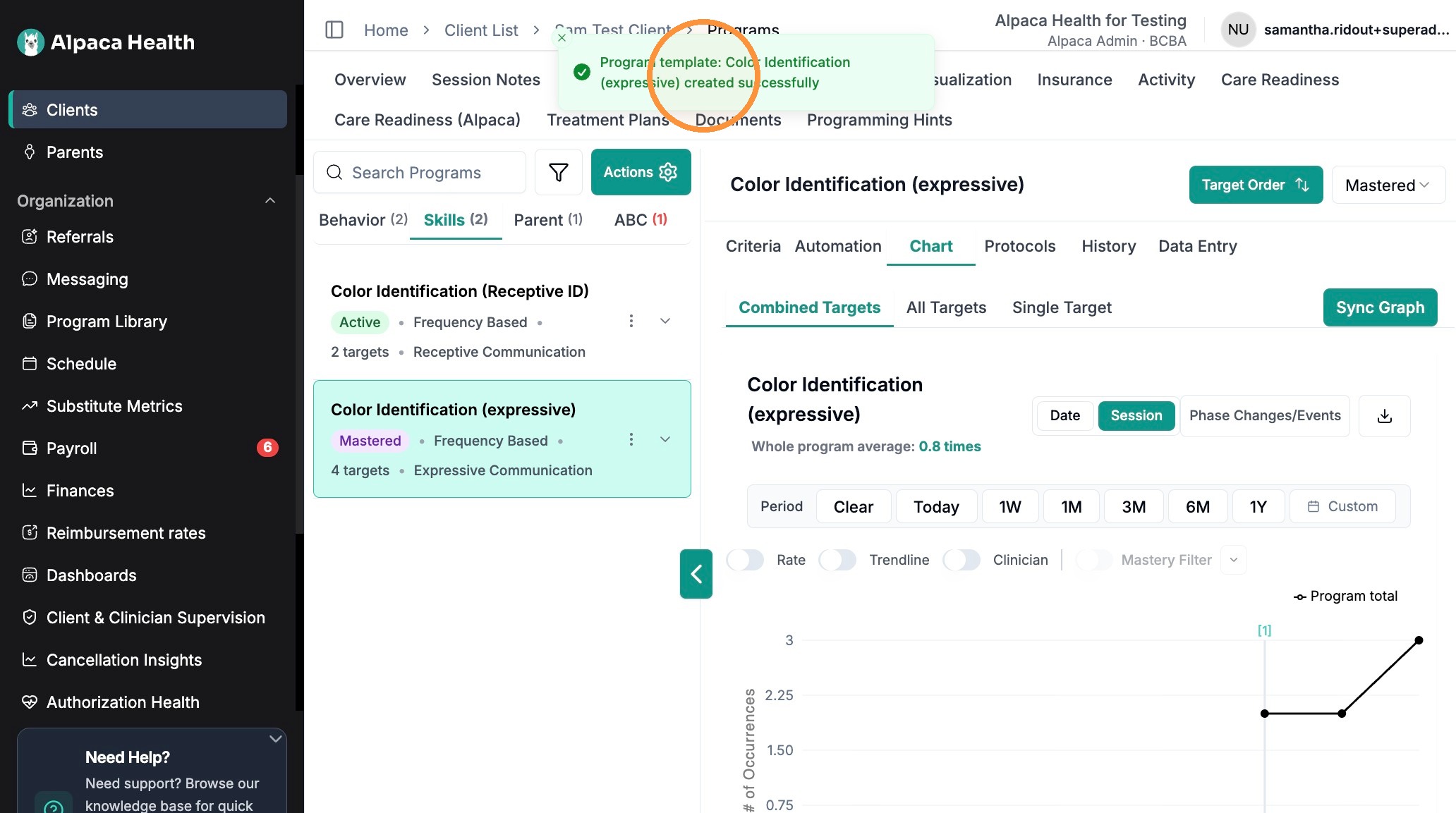
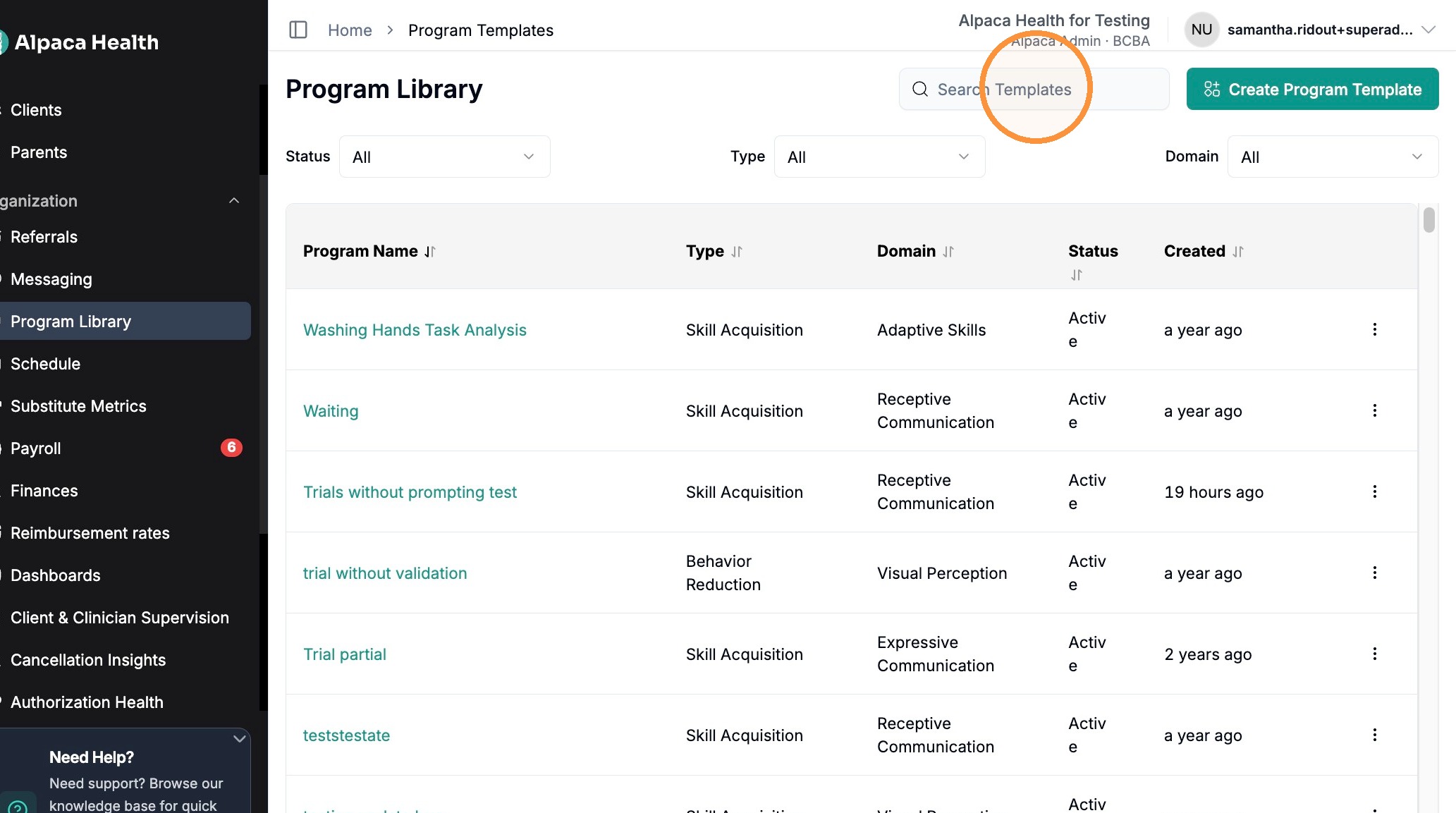
Search your new program in the program library
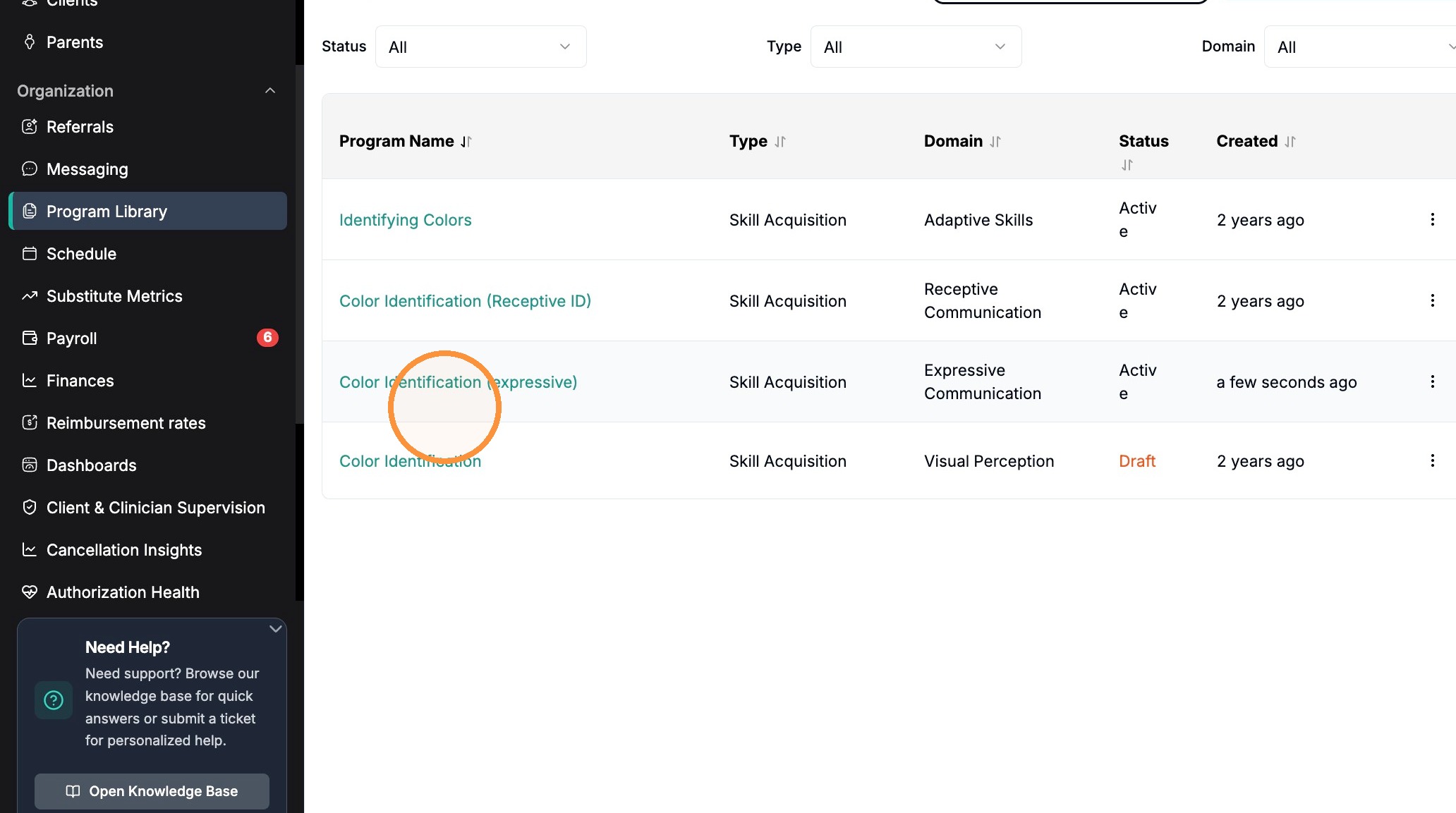
Confirm your program is there
Manage Templates
You can manage your organization's templates by clicking the 3 dots next to your program's name
Here you can select an action based on your organizations's needs
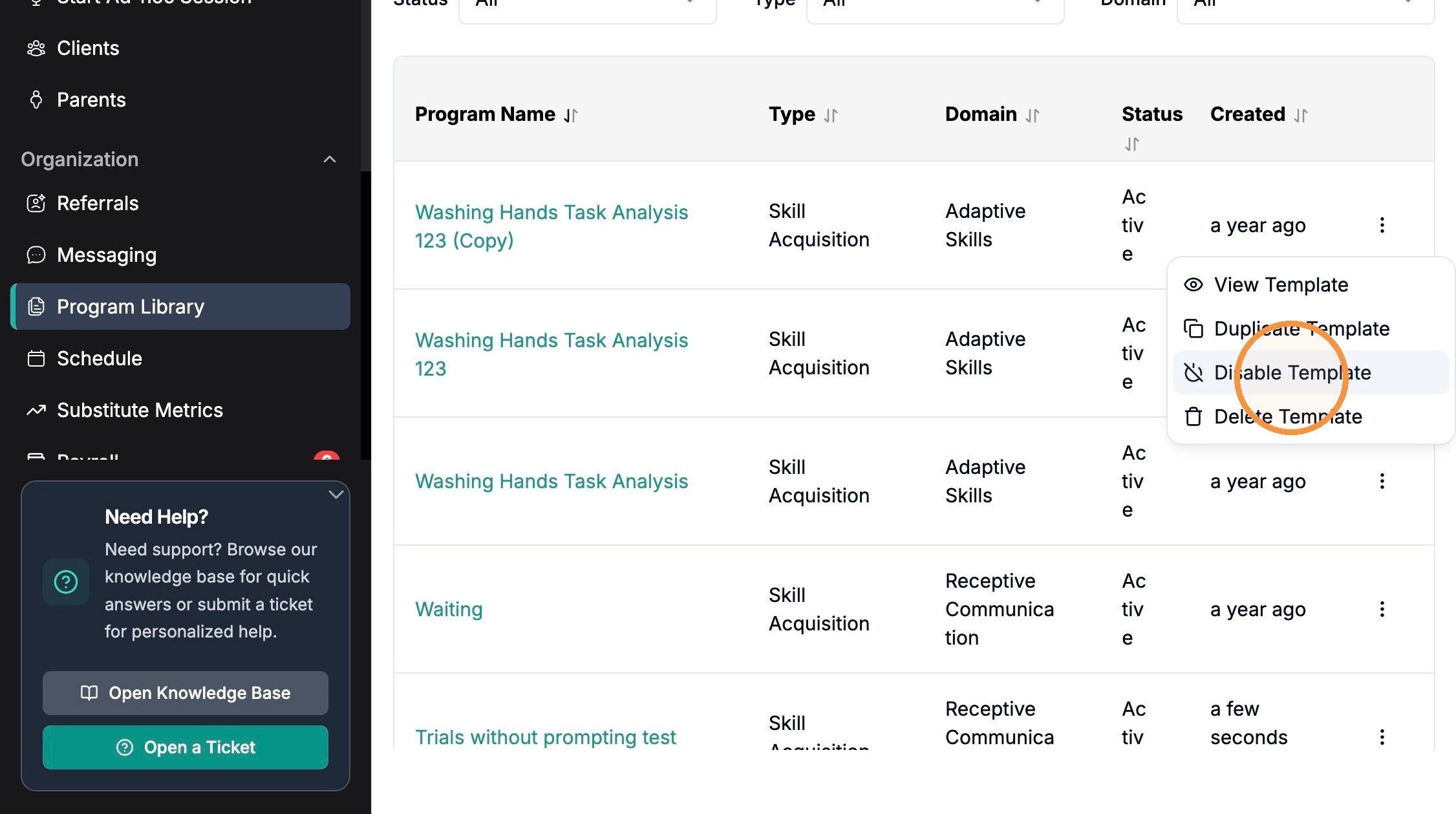
You can manage templates by:
Duplicating- to create a similar program within your library
Disabling- will clear the template from the list and no one in the organization will be able to view or use it
View template
Delete template: remove from your program library, removes access from the entire org.
Filtering and Ordering Programs
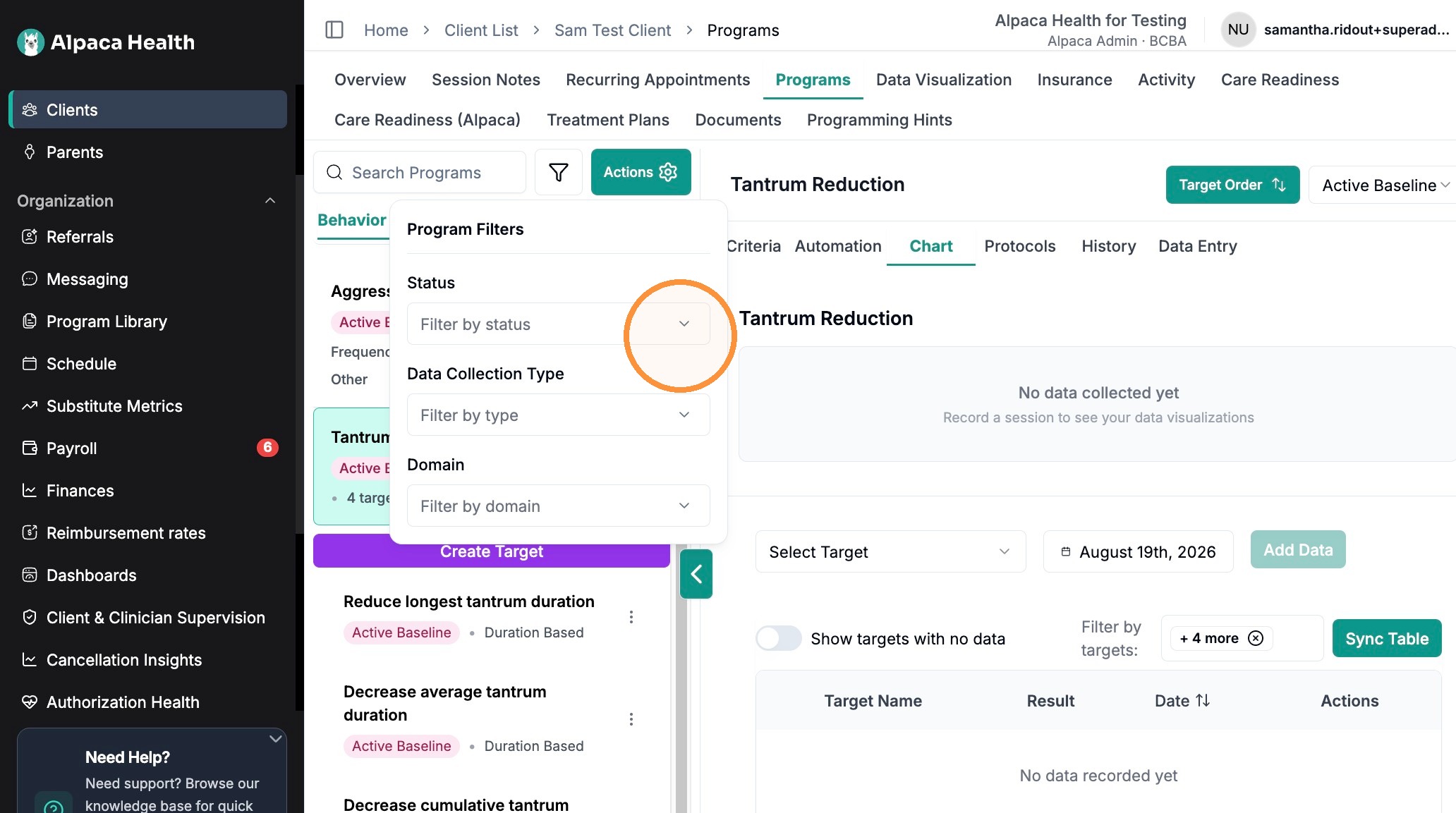
You can filter a client's programs by status, domain and measurement type. You can also change the order of programs and targets.
Click this icon.
Select how you would like to filter
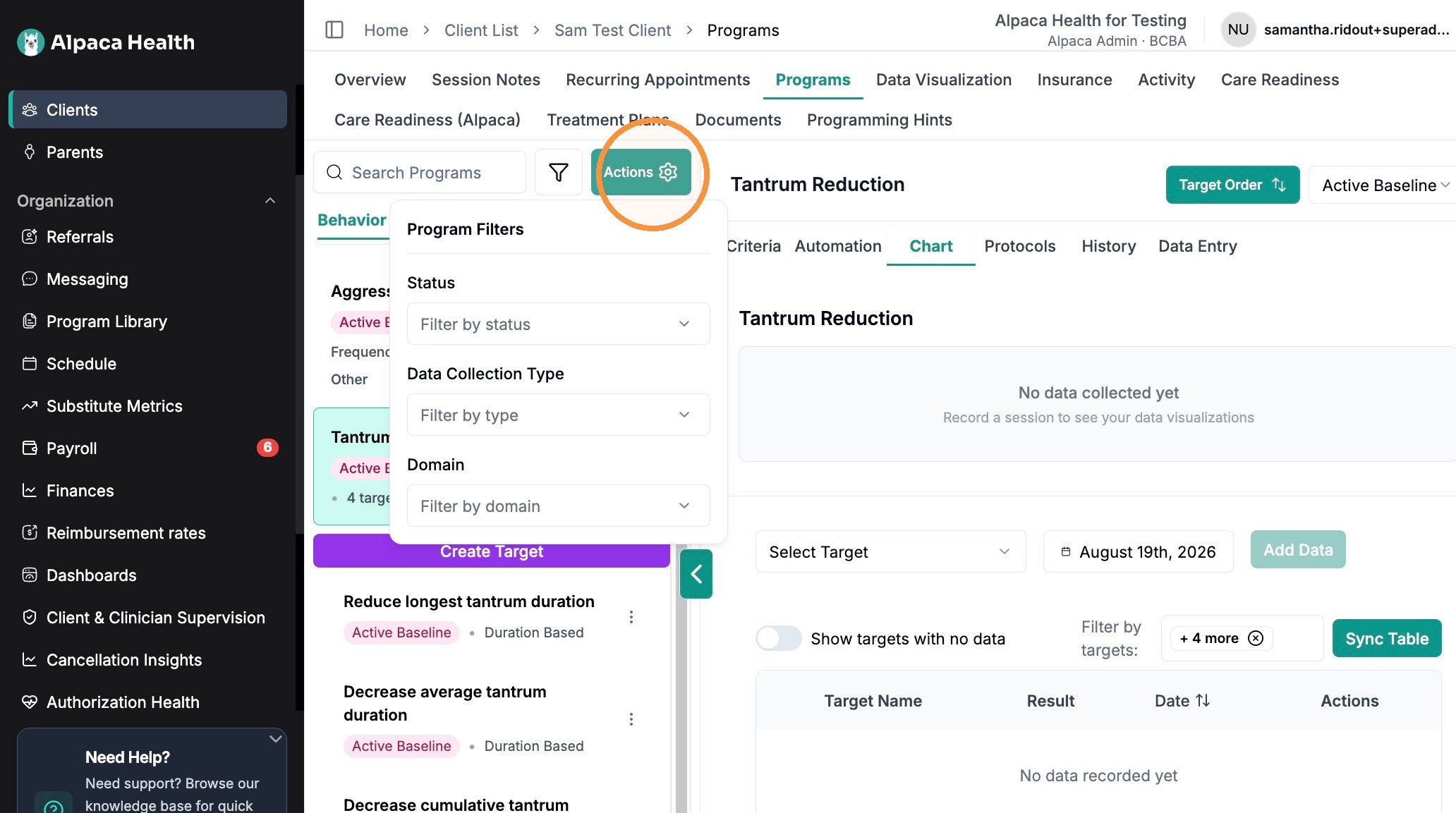
To Prioritize or Re-order Programs, Click "Actions" -->"Reorder Programs"

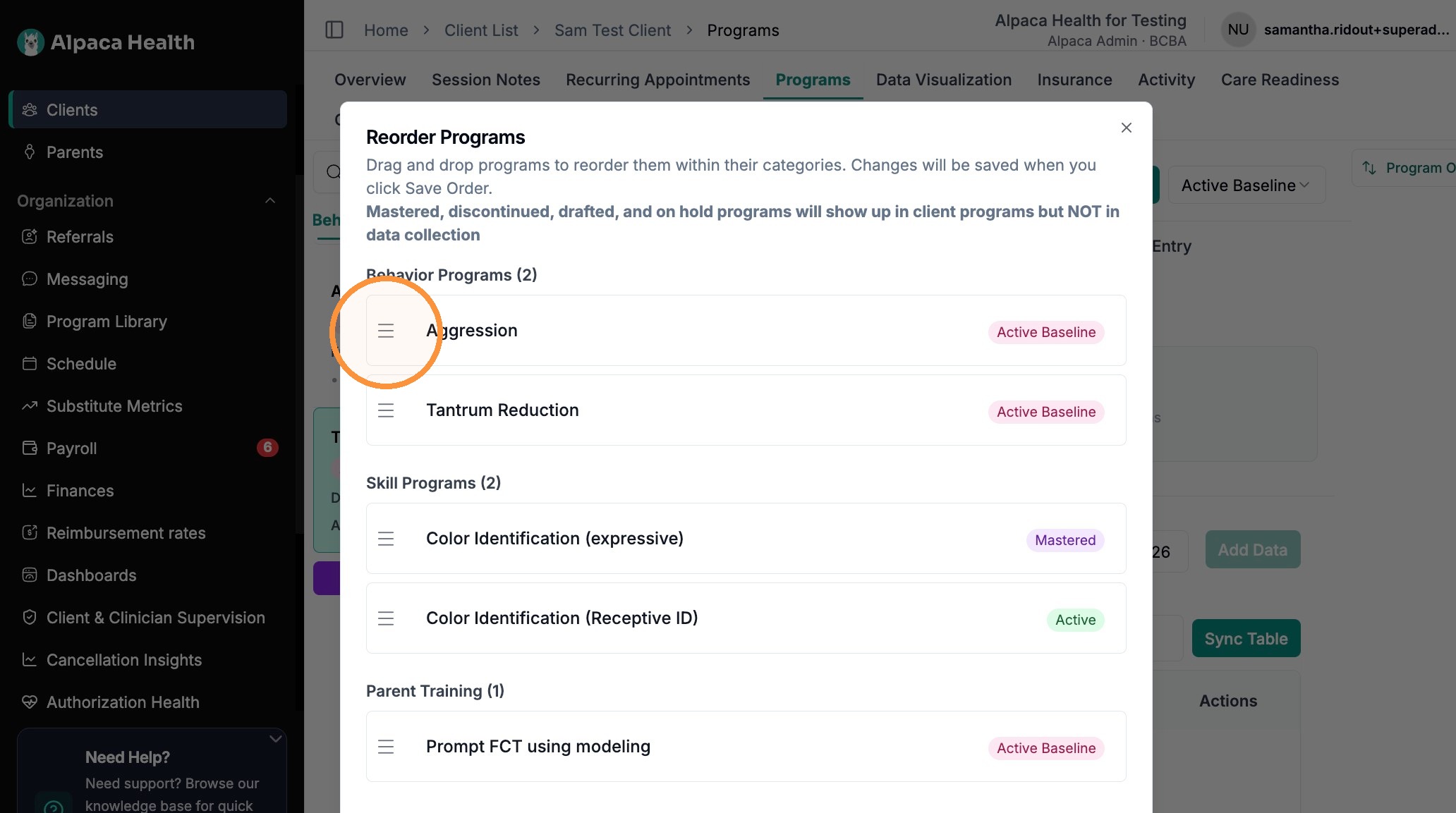
Drag programs to reorder
Targets are re-order the same way by selecting "target order"
Frequently Asked Questions
1. What's the difference between disabling and deleting a template?
Both remove the template from your program library list, but they differ in scope and reversibility:
Disabling clears the template from the list so no one in the organization can view or use it — use this when you want to retire a template without permanently removing it.
Deleting permanently removes the template from your program library and revokes access for the entire organization.
If you only need a variation of an existing template, use Duplicate instead of recreating it from scratch.
2. Can I set a different measurement type for individual targets within a program?
YES. You can now set different measurement types within programs. For example, you could define measurement at the program level as trials without prompting, and set a frequency target within that program.
3. Can I turn a program I've already built into a reusable template?
Yes. Open the program you'd like to reuse, click the three dots, and select "Create template from program." The program will be added to your Program Library, where you can search for it to confirm it's available. From there it behaves like any other template — you can assign it to clients via Actions → Add program from template.
4. Where did the new goals in my Program Library come from?
They are Alpaca's ready-made goals (see Ready-made goals from Alpaca above). They were added alongside your own templates; none of your existing templates were changed or removed. If you already had a template with the same name, Alpaca's version was not added.
5. I don't want some of the Alpaca goals. Can I remove them?
Yes. Disable or delete them like any other template. A goal you delete will not be added back.
6. What happens to target rules when I reuse a saved program?
With the October 20 update, imported targets retain the mastery, maintenance, baseline and generalization rules saved on the source. Review the exact values before use. A copy cannot restore a rule that was never saved on the original; add missing criteria where needed. See the reuse steps below for saved-rule confirmation.
Reuse saved programs in a treatment plan or reassessment
October 20, 2026 update: The updated controls below are included in the October 20 release. They may not appear until the update is available in your app. Your existing library and plan workflows remain available.
Open Goals in a treatment plan or Create New Programs in a reassessment.
Select Browse library and choose the goal section you want to fill. You can also open the library from inside a goal section.
Enter part of the saved program name in Search by program name. Protocol text does not affect name search.
To use a template from another category, select Show all program types. For example, a Skill Acquisition template can be copied into Replacement Behavior goals. The copy uses the destination category; the library original keeps its category.
Review the program and select Add. Each import creates an independent copy using the latest saved version.
After generating goals, open Suggested. Saved programs with similar names may appear beside the generated suggestions. Review in library opens the ordinary picker with the saved name filled in. It does not add either goal automatically. This compares names locally and does not start another AI lookup.
Review exact saved rules
If Review saved target rules appears, inspect each displayed rule. A saved 0.8% stays 0.8%; it is not changed to 80%. Select Cancel import to correct the source, or Confirm and add if the literal values are intended. Changed source rules require a fresh review.
Saved targets retain their authored mastery, maintenance, baseline and generalization rules when present. Saved ABA interventions, medical necessity, protocols and measurement settings come through with the import. Review client-specific wording before use.
Later library edits affect future imports. They do not overwrite existing copies. Repeated synchronization retains existing live target rules, clinical status and collection history; edit an existing live target in Programs when its rule needs changing.
To add a variation, reopen the picker and add another copy. To make a reusable library variation, use the template menu's Duplicate template action.