Troubleshooting Microphone Issues
Last updated: October 12, 2025
If you're experiencing problems with your microphone not working properly, here are some steps to help resolve the issue:
Check Browser Permissions
Make sure your browser has permission to access your microphone:
Look for a microphone icon in your browser's address bar
Click on it and ensure microphone access is set to "Allow"
Refresh the page after granting permissions
iOS 26 - Safari Troubleshooting
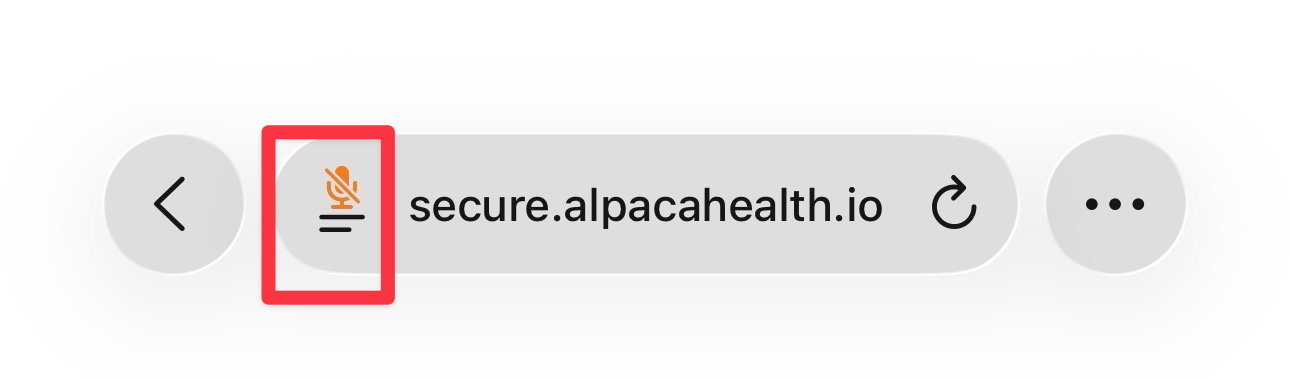
Click the two line icon next to the URL.
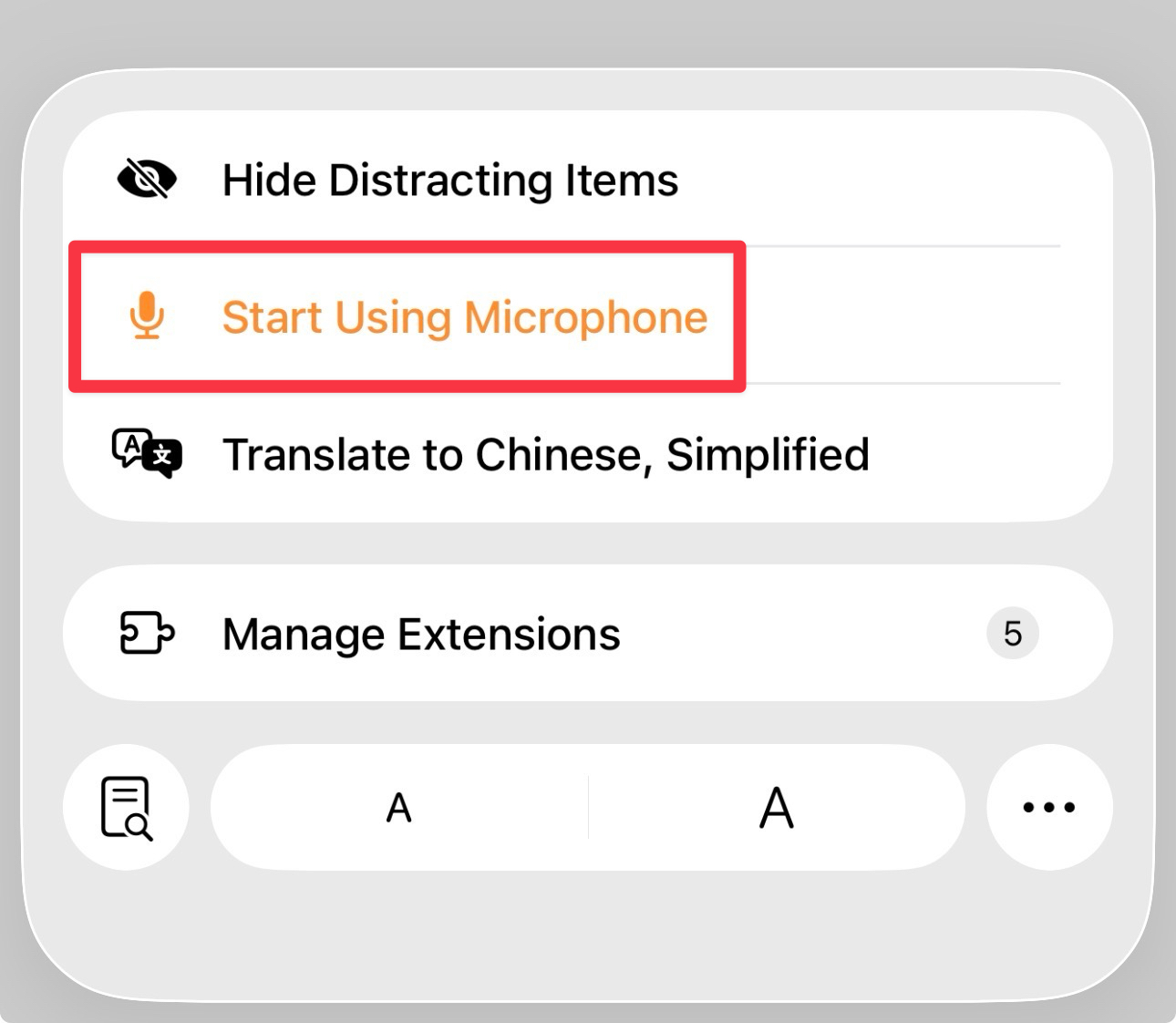
Click "Start Using Microphone"
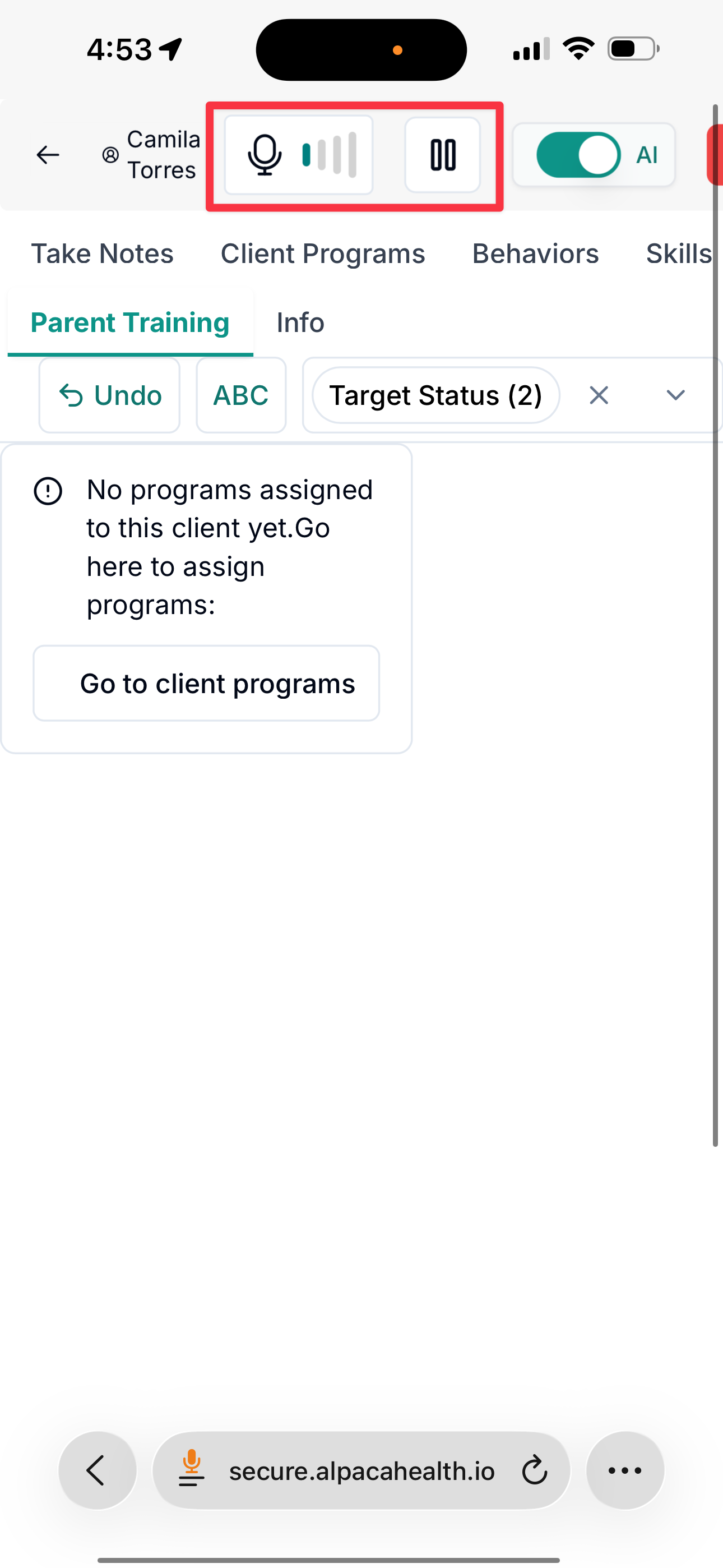
One it is done, you should see the microphone sound at the top. At the bottom, you should see a orange microphone logo.
Test Your Microphone
Verify that your microphone is working outside of the application:
Try using your microphone in another application or website
Check your computer's sound settings to ensure the correct microphone is selected
Test the microphone volume levels in your system settings
Browser Troubleshooting
If the issue persists, try these browser-specific solutions:
Clear your browser cache and cookies
Try using a different browser (Chrome, Firefox, Safari, etc.)
Disable browser extensions that might interfere with microphone access
Restart your browser completely
Device-Specific Steps
For additional troubleshooting:
Restart your computer or device
Check if your microphone drivers need updating
Try using a different microphone or headset if available
Need Immediate Help?
If you have an urgent session and can't resolve the microphone issue, contact our support team immediately for real-time assistance.