Start a treatment plan from a previous plan
Last updated: October 28, 2026
Use a previous BCBA-written plan to fill matching blank sections in a new treatment plan or reassessment. Existing text stays in place. Review copied information and assessment evidence before signing.
Use an account with access to the client’s clinical tabs. PDF is supported; Word is available where Word uploads are enabled.
1. Choose a source
For a treatment plan, open the client’s Treatment Plans tab and select Create New Report → Treatment Plan. At How do you want to start?, choose:
Upload a plan: select choose a file, then Upload and use in the upload dialog. You can also open the dialog with Upload and continue. To reuse a file, choose it under Or use one already uploaded:, then continue.
An earlier Alpaca plan: choose the source and select Copy sections and continue.
Current documents only: select Continue with client documents to start without copying earlier-plan sections.
For a reassessment, open Prior Treatment Plan in Clinical Information. Choose an uploaded plan and confirm Use uploaded plan, or select Upload a plan and Upload and use to add a file.
You can keep working while the file is read. Matching blank sections fill when reading finishes; current client documents still inform generation. The upload is saved in Documents as Treatment plan · reference. It can be viewed, downloaded, and reused, but cannot itself be finalized or submitted for authorization.
2. Review the copied information
Open each section’s source link and compare the text with the original. Use Edit to correct or update it. Review copied medications, allergies, hours, units, and behavior baselines carefully. An empty behavior list does not mean the client has no maladaptive behaviors.
Supported sections include narrative text, service history, assessment tools, requested services, weekly hours, FBA, and BIP. Missing or ambiguous information may remain blank. Uploads do not update the client’s profile.
For reassessments, review copied crisis and discharge text for the current period. Findings, recommendations, and clinical observation need current information. Review the complete document before your final signature; there is no per-section confirmation step.
3. Check assessment Files and Screenshots
When a PDF contains clearly identified assessment charts, score tables, or protocol grids, Alpaca can attach them under the matching assessment tool. Open its Files to inspect the excerpt PDF; its figures also appear in Screenshots or images. Filenames identify the tool and source pages.
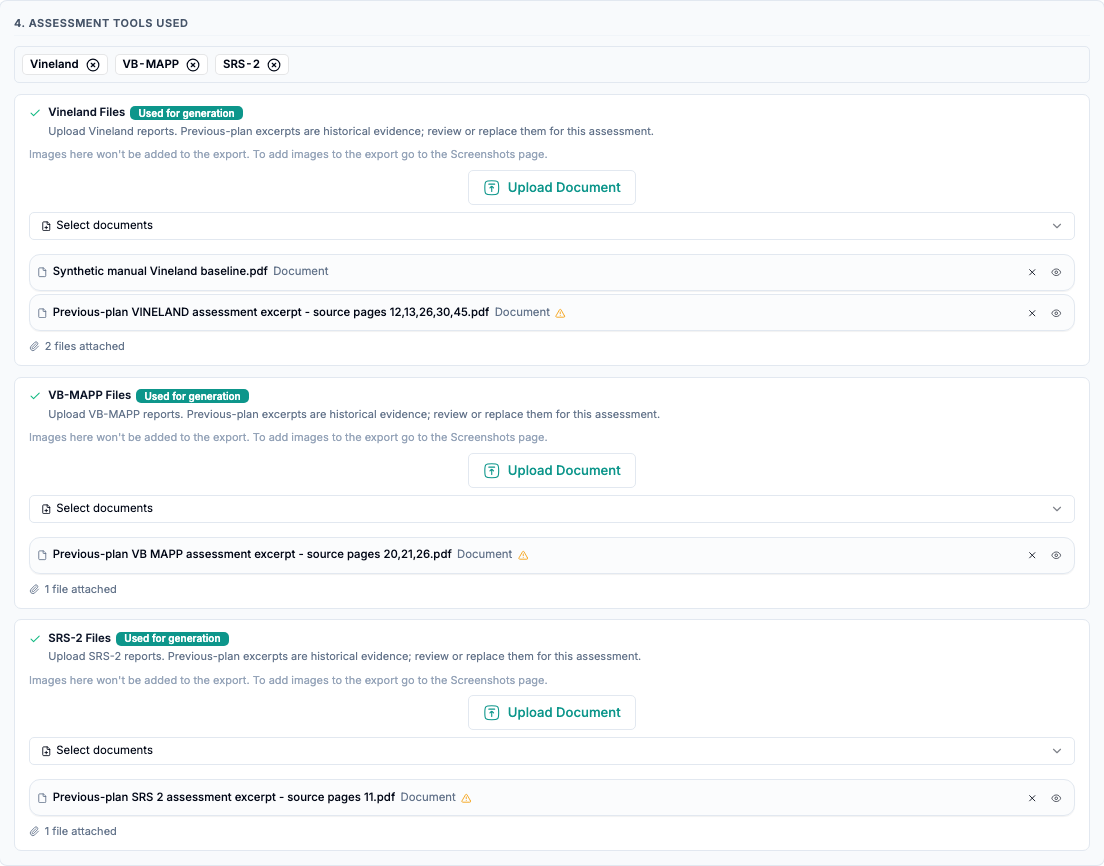
Compare the client, assessment period, instrument, labels, and scores with the original pages. Use the normal file and image controls to remove, replace, or reselect evidence. Existing selected files, screenshots, and recorded dates stay in place when historical evidence is added.
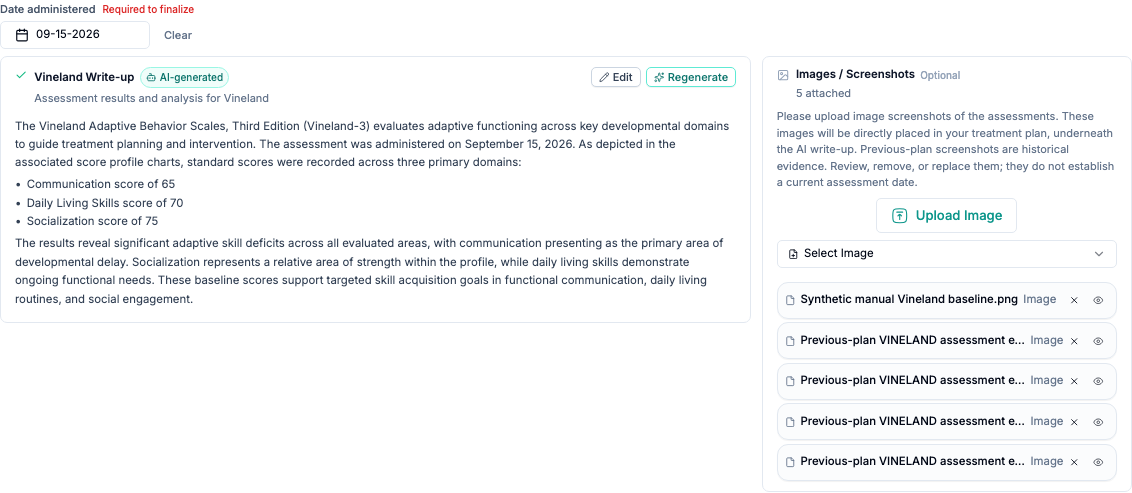
These are historical excerpts, not newly completed vendor forms or newly scored assessments. Missing administration dates stay blank; enter the actual date rather than the upload date. Review generated writeups and the exported document before signing.
An assessment mentioned only in text does not produce an attachment. Unclear or combined figures may remain unattached, and Word text does not produce PDF figure attachments. Upload a missing current report or image yourself. Assessment figures appear with their tool; FBA behavior graphs are separate.
Common problems
What you see | What to do |
|---|---|
Reading failed | Select Try again if offered, or choose another source. |
Fields stayed blank | Existing text is kept. Compare the source and enter missing information. |
Assessment files changed. Reload before importing them. | Reload and inspect saved text and files before retrying. |
This import would exceed the 100-image export limit. | Remove screenshots or select fewer tools, then retry. |
Changing the prior source or canceling after copying starts does not remove assessment files already copied. Inspect Files and Screenshots and remove unwanted evidence. PDF reading stops at 200 pages.
Reading an upload uses Alpaca’s AI document-reading service. Extracted text, edits, excerpt PDFs, and images are saved in Alpaca. AI tracing may retain inputs and outputs in LangSmith.