Add, Edit, and Delete Data
Last updated: October 20, 2025
Graphs automatically generate from the data collected during a session, but you can easily add, edit, or delete data outside of sessions.
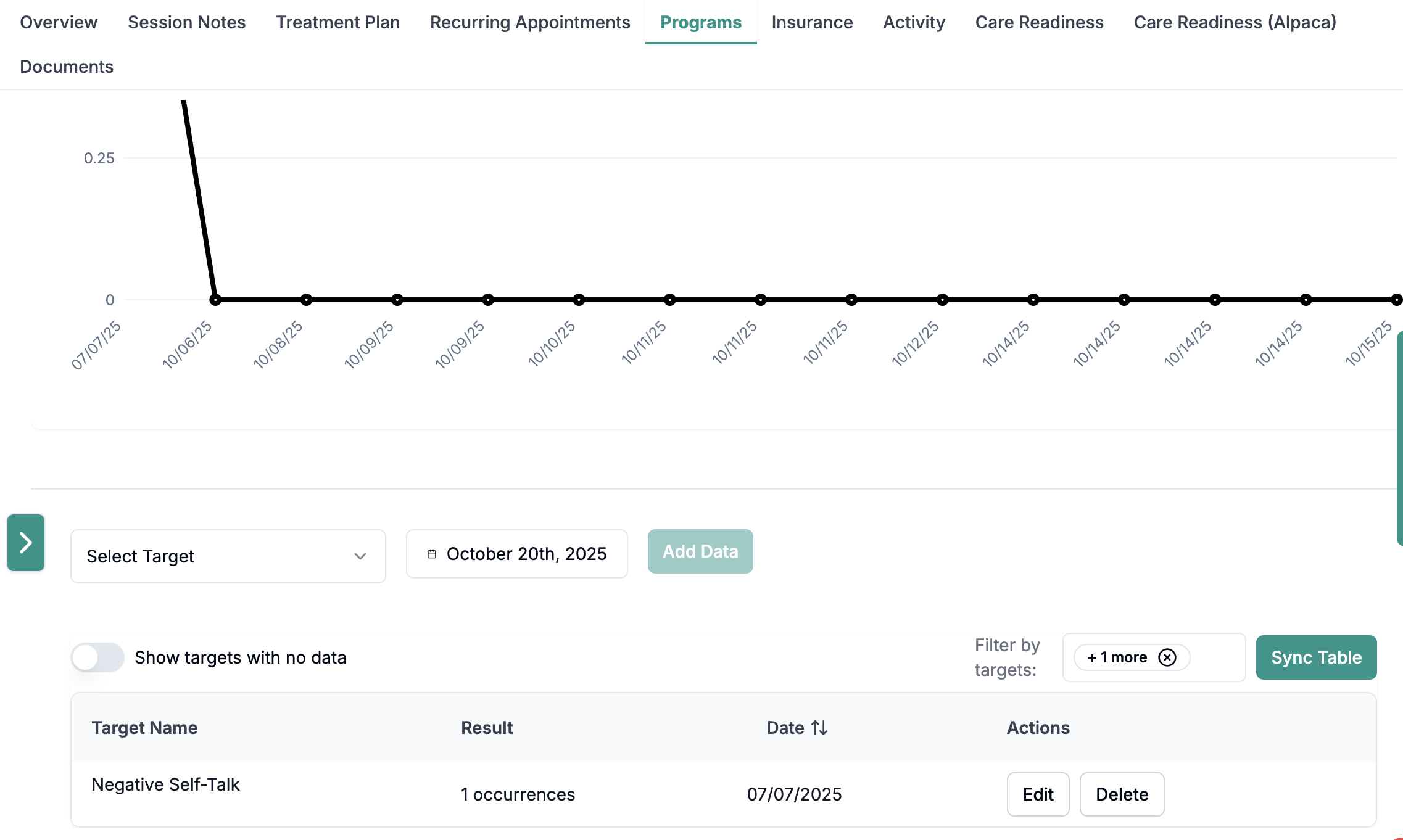
In every client, there is a "Programs" tab, where you can scroll underneath the graph in order to see the raw data.
Add new data
You can easily add new data
Select the target you are adding data for.
Note - every program must have at least one target for any data collection to occur (during a session or, as discussed in this article, outside of sessions)
Click "Add Data"
Then, to see the data on the graph, click "Sync Table" and "Sync Graph"
Edit/delete existing data
You can manually remove data points using the raw data feature:
Navigate to your behavior program chart
Scroll down below the chart to find the raw data section
Click "Delete" next to individual data points that represent non-session days
Optional: If you need to remove points that represent zeros on the graph, toggle on "Show Empty Data Points" to view all zero values