Patient Responsibility Payment Receipts
Last updated: August 21, 2026
Every payment you make toward your child’s therapy is saved as a receipt in the parent portal. Here is how to find your receipts and open a copy for your records.
Find your receipts
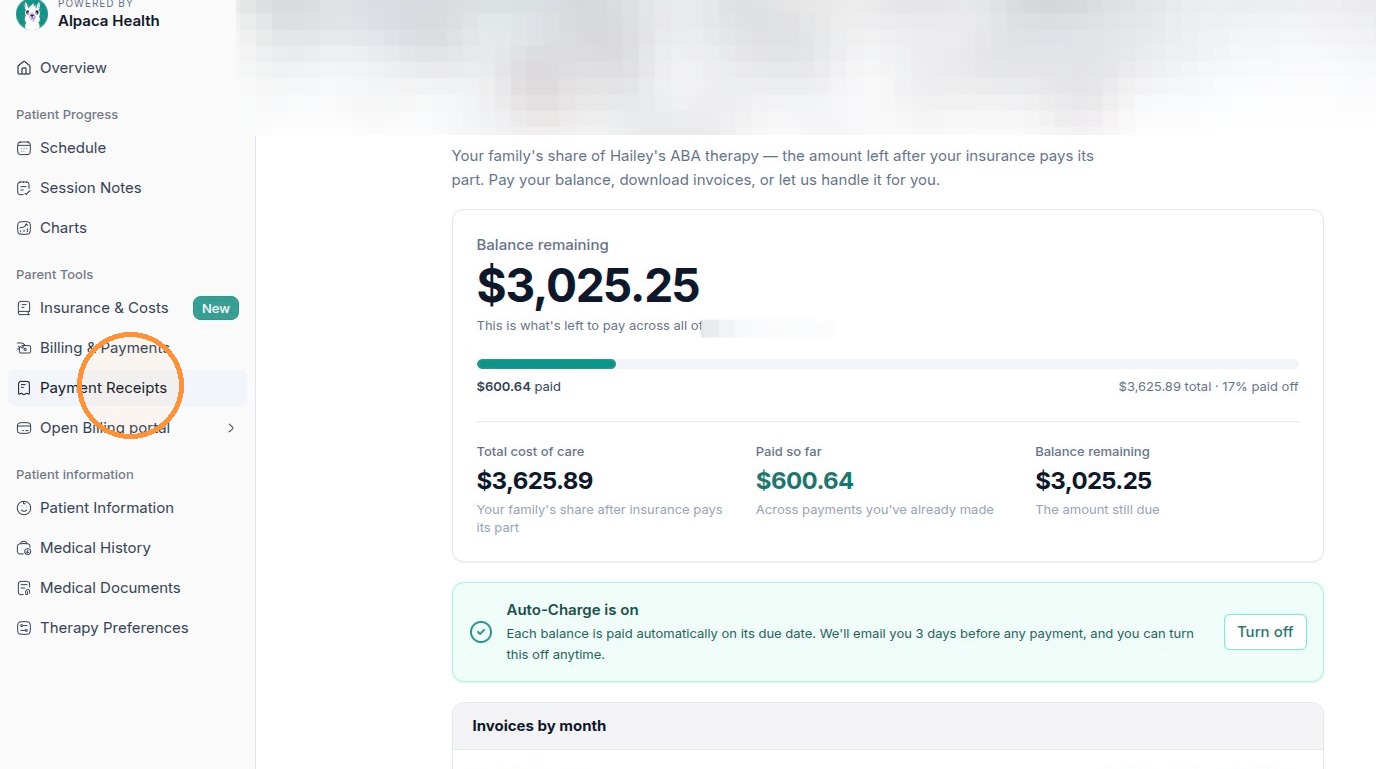
Receipts live on the Payment Receipts page. In the menu on the left, under Parent Tools, click Payment Receipts — it sits just below Billing & Payments.
Payment Receipts is under “Parent Tools” in the left menu, just below Billing & Payments.
Read the page
At the top you will see two summary tiles: Total Paid (everything paid so far for this child) and Payments (how many payments have been made). Below that is a list of every payment, showing the date, amount, status, card used, and description.
The page shows receipts for the child you are currently viewing. If you care for more than one child, switch between them using the patient tabs across the top of the page.
Open or save a receipt
Find the payment you want in the list.
Click View receipt on that row. The receipt opens in a new browser tab, where you can print it or save it as a PDF for your records.
Click “View receipt” on any paid payment to open a printable copy.

Only payments with a green Paid status have a View receipt link. Rows marked Failed are payments that did not go through, so they have no receipt — nothing was charged.
Need an invoice instead?
Receipts show what you have already paid. If you need your full invoice history — including amounts still due — click Open Billing portal in the same menu, then click View more under “Invoice History.” Use the Return to Alpaca Health link to come back.
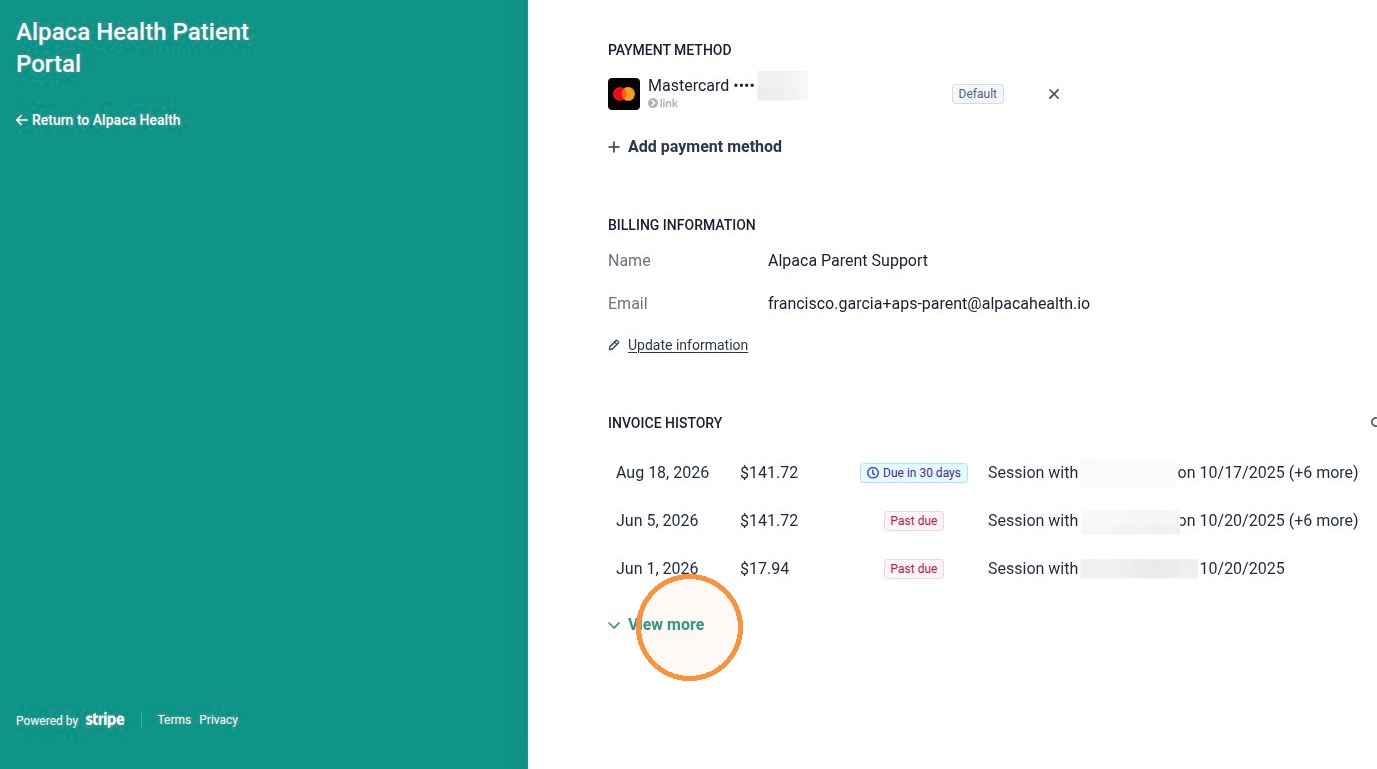
The billing portal lists your full invoice history. Click “View more” to see older invoices.