Track Your Supervision Hours & Ratios
Last updated: August 25, 2026
Alpaca Health continuously tracks two supervision ratios for you and flags anyone who is falling behind, so you can stay compliant without hand-tallying hours. This guide shows where the dashboard lives, how to read every number on it, how to drill into one person's history, and how to check your own received supervision.
The two ratios Alpaca tracks
Client supervision — 10% of direct hours
For each client, at least 10% of their direct therapy hours must be supervised.
RBT & Student Analyst supervision — 5% of working hours
For each RBT / Student Analyst, at least 5% of their worked hours must be supervised. This is the BACB monthly requirement.
Note: Only signed session notes count toward these ratios. Drafts and unsigned notes are excluded, and figures refresh overnight — a note you sign today is counted tomorrow.
Where to find the dashboard
In the left sidebar, click Client & Clinician Supervision (in the main navigation, just below Dashboards).
The org-wide Supervision Dashboard opens, titled with your organization name and the subtitle “Client & Clinician Supervision.”
The Supervision Dashboard: Client & Clinician Supervision in the left sidebar, the period controls, and the three summary tiles.

Read the top of the dashboard
The header holds every control that changes what the whole page shows, plus three at-a-glance tiles.
Choose the time period
Use the pills at the top: This month, Last month, Last 30 days, Last 90 days, QTD, or YTD.
For anything else, click the date box (top center) and pick a custom range.
Heads-up: totals are computed per calendar month, so a custom range is snapped to whole-month boundaries.
Narrow by supervisor (optional)
All supervisors — limit the page to one supervisor's caseload.
All supervisor roles — limit by role (e.g., BCBA).
The three summary tiles
Clients behind 10% threshold
How many clients are under the 10% target (e.g., “1 of 68”), with an “X additional at risk” line for those trending low.
Clinicians behind 5% threshold
Same idea for RBTs / Student Analysts against the 5% target.
Supervision hours (this period)
Total supervision hours logged, split into client-tagged vs RBT-tagged hours.
Below the tiles, the Active period bar shows the calendar month in view and whether that period is still open or Closed.
Read the Client supervision table (10%)
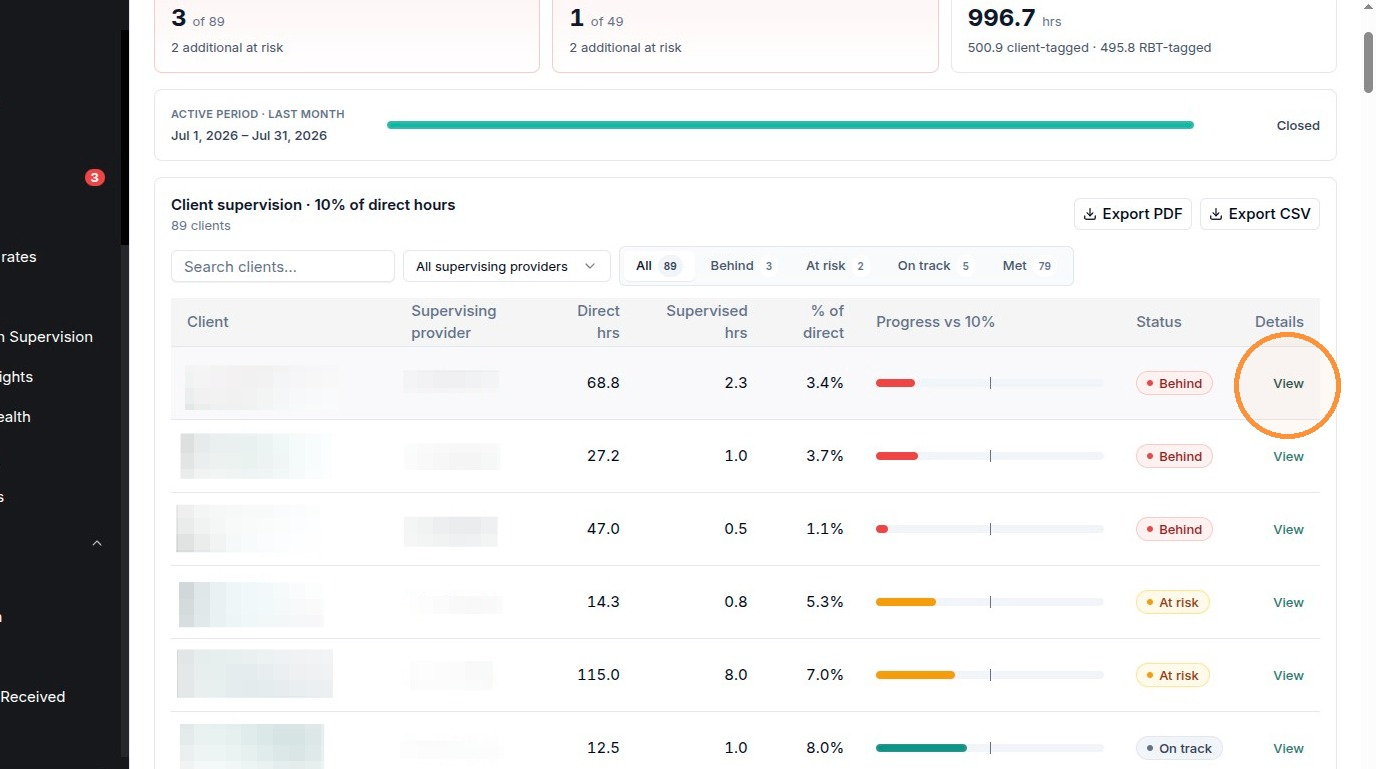
The first table, “Client supervision · 10% of direct hours,” lists every client for the selected period.
Filter it with the Search clients box, the All supervising providers dropdown, or the status tabs: All, Behind, At risk, On track, Met (each shows a count).
Columns, left to right:
Client — name and authorization number.
Supervising provider — the BCBA of record.
Direct hrs — direct therapy hours logged this period.
Supervised hrs — supervision hours logged against them.
% of direct — supervised ÷ direct (the number that must reach 10%).
Progress vs 10% — a bar with a marker at the 10% target line.
Status — Behind (red), At risk (amber), On track (green), Met, or No data.
Details — click View to open that client's full history.
Client supervision table: each row shows direct hrs, supervised hrs, % of direct, a progress bar against the 10% target, a status, and a View link. (Client and provider names blurred.)
Read the RBT & Student Analyst table (5%)
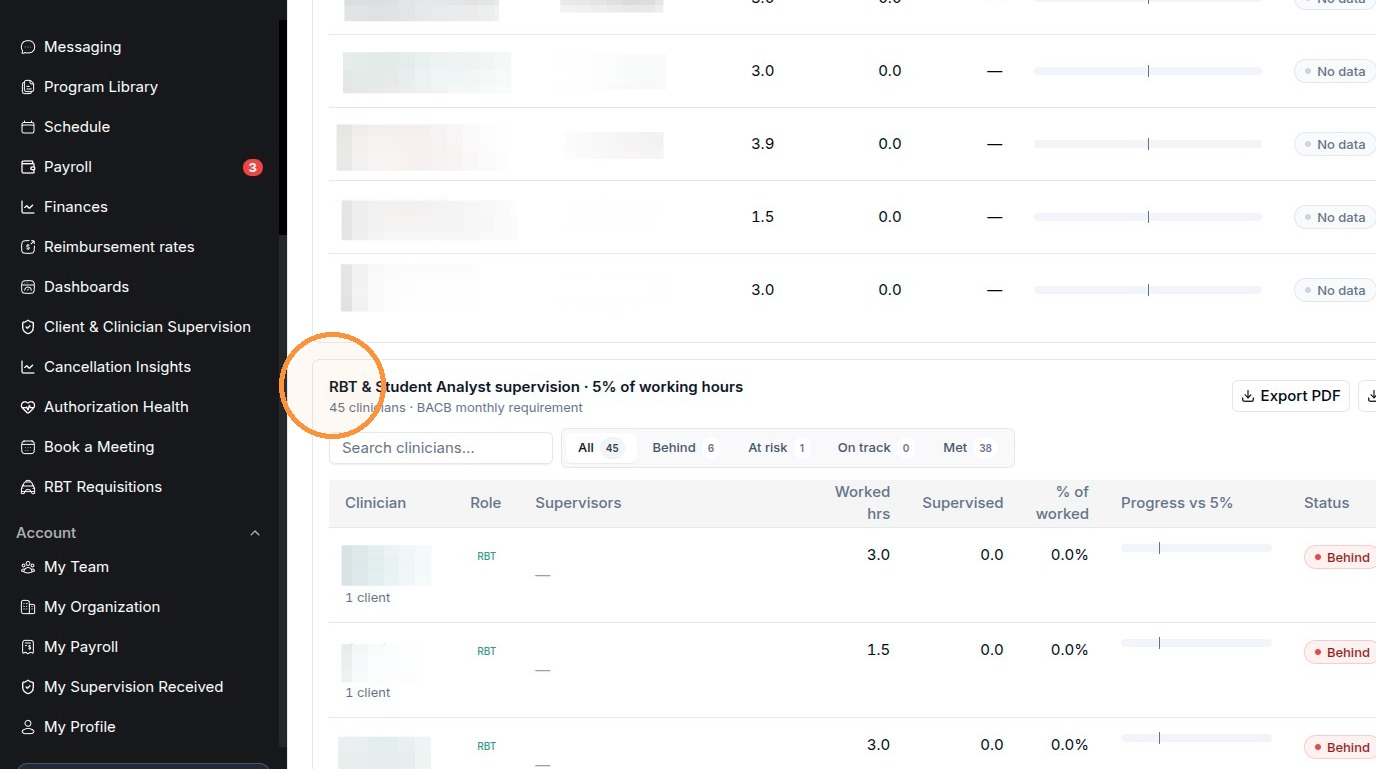
Scroll down to “RBT & Student Analyst supervision · 5% of working hours.” It works the same way, but tracks staff against the 5% target.
Clinician — name, plus their role and how many clients they carry.
Role — RBT or BT.
Supervisors — who supervises them (with credential).
Worked hrs — total hours worked this period.
Supervised / % of worked — supervision received and the ratio (must reach 5%).
Progress vs 5% and Status — same bar and status labels as the client table.
RBT & Student Analyst supervision table, measuring supervised hours against the 5% of-working-hours target. (Names blurred.)
Drill into one person's history
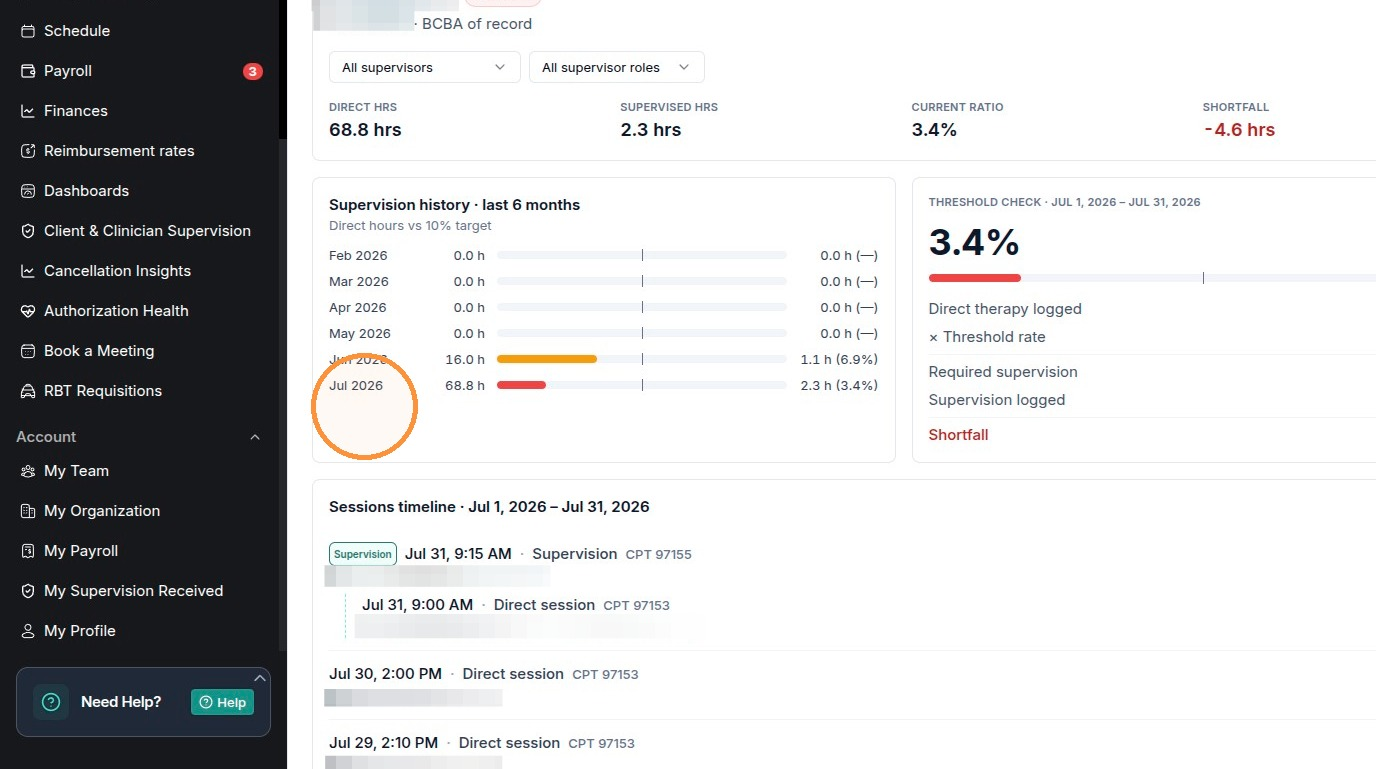
Click View on any row to open a detail view that explains exactly why someone is behind.
Top stats: Direct hrs, Supervised hrs, Current ratio, and Shortfall (how many supervision hours are still owed, e.g., “−4.6 hrs”).
Supervision history · last 6 months — month-by-month direct hours vs the target.
Threshold check — for the window in view: direct therapy logged, the threshold rate, required supervision, supervision logged, and the resulting shortfall.
Sessions timeline — each supervision session (CPT 97155) is listed and linked to the direct session (CPT 97153) it covers, so you can see what counted.
Note: The detail view has its own All supervisors and All supervisor roles filters. Watch the period label at the top of the timeline — it reflects the date range you selected on the main dashboard, not always the current month.
Individual detail view: top stats (direct hrs, supervised hrs, current ratio, shortfall), the 6-month supervision history, the threshold check, and the sessions timeline linking each 97155 supervision to the 97153 direct session. (Names blurred.)
Export the data
Each table section has its own Export PDF and Export CSV buttons on the right.
Set the period and filters first — the export matches exactly what's on screen.
Use PDF for a shareable snapshot; use CSV to work the numbers in a spreadsheet.
Check your own received supervision
Clinicians can track the supervision they personally received, separate from the org-wide view.
In the left sidebar, under Account, click My Supervision Received.
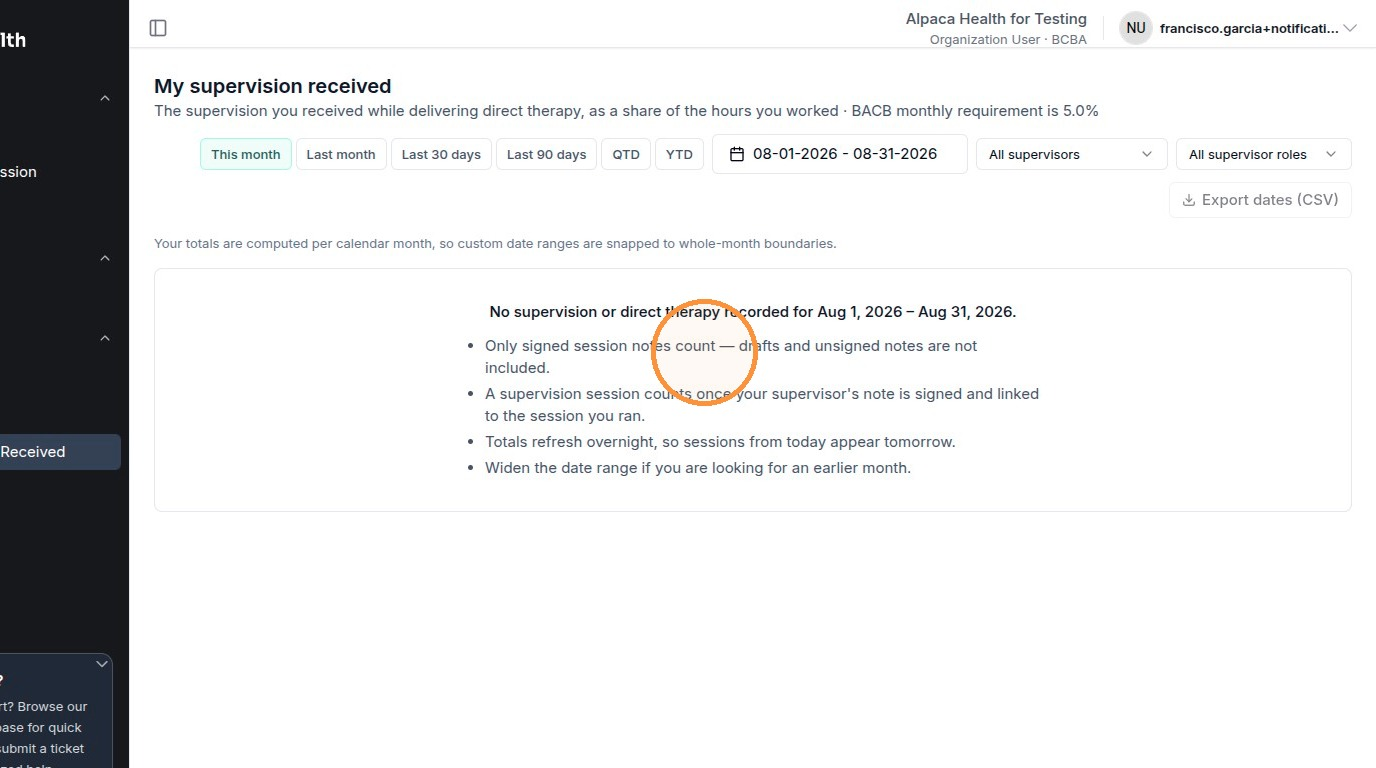
The page opens as “My supervision received,” measuring the supervision you got as a share of the hours you worked (BACB monthly requirement is 5.0%).
Use the same period pills and supervisor filters, and click Export dates (CSV) to download your own totals.
Two things to know here:
A supervision session only counts once your supervisor's note is signed and linked to the session you ran.
If the page says “No clinician record for your account,” your login isn't linked to a clinician in this organization, so there are no hours to show — contact your admin.
The My supervision received page, with the period controls and the rules for what counts toward your ratio.
Quick FAQs
Why is a clinician still “Behind” after I ran a supervision session?
Totals refresh overnight and only signed, linked notes count. Sign the supervision note, make sure it's linked to the direct session, and check again tomorrow.
What's the difference between “Behind” and “At risk”?
Behind means the person is already under the target for the period. At risk means they're trending low and likely to miss it if nothing changes.
My numbers look wrong for a custom date range — why?
Aggregates are computed per calendar month, so custom ranges snap to whole-month boundaries. Pick a full-month range (or use the This month / Last month pills) for an exact match.