Authorization Notes
Last updated: September 23, 2026
Numbers on the Utilization tab tell you what happened. Notes let you capture why.
Add a note to an authorization or CPT code to give your team context about a utilization number. The next person who looks at that authorization can see the explanation without having to ask for it again.
Notes are internal to your organization. They are not session notes or clinical documentation, and they are never shared with families.
A few things to know
Notes keep their original context. When you add a note, Alpaca saves the utilization view, snapshot date, and value you were looking at when you wrote it.
Notes are visible to anyone with access to the client. There is no private-note option.
Only you can edit or delete notes you wrote. Other users, including administrators, cannot change your notes.
Who can use notes?
Anyone who can access a client's record can read and write notes on that client's authorizations.
This includes:
Admin
Assistant Admin
Clinician
Director
Lead RBT
Alpaca billing staff with client-record access
Organization Users, including most RBTs and BTs, cannot access authorization notes because they cannot open client records. Intake coordinators and intake managers cannot access them either.
Where you access notes depends on your role:
Where | Who can access it |
|---|---|
Authorizations → Utilization | Admin, Assistant Admin, and Director |
Client → Insurance | Anyone with access to the client's record |
For example, a clinician or Lead RBT can read and reply to a note created from the Utilization tab by opening the client's Insurance tab instead.
Note: Access follows client-record access across your organization. Notes are not limited by caseload.
Using notes from the Utilization tab
Find a note
Go to Authorizations → Utilization.
Notes are attached directly to cells in the Utilization grid.
A filled comment icon means the cell already has a note.
Hover over a cell without a note to reveal a +.
The CPT code cell also has a note control for comments about the entire line item rather than a specific metric.

Shows a Utilization row with filled note icons on two cells and a faint + on a hovered empty cell.
The first time you open the Utilization tab, Alpaca shows a short walkthrough explaining how notes work.
To see it again, select the ? button in the toolbar and choose Show me how notes work.
Read or add a note
Click a cell to open its notes.
If notes already exist, you can also hover over the cell briefly to preview them.

Shows the note card open on a Utilization cell with two entries and the composer.
At the top of the card, you'll see:
The metric and its current percentage, such as Completed · 0%
The client, payer, CPT code, and authorization dates
The utilization view and snapshot date you're currently looking at
Each existing note shows:
Who wrote it
When it was written
The utilization view and snapshot date at that time
The value and percentage the author was looking at when they wrote the note
This context is saved with the note, so you can understand what the author was seeing even if utilization has changed since then.
Add a note
Enter your note in the box at the bottom of the card.
The editor supports formatting such as bold, italics, lists, and links.
Select Post to save your note.
Select Cancel to discard your draft and close the card.
Important: Anyone with access to this client can read these notes, including Alpaca staff.
View notes on other columns
A note belongs to a specific Utilization column.
For example, a note on Completed is separate from a note on Scheduled.
If other columns on the same authorization have notes, you'll see:
N notes on other columns of this authorization
Expand it to see the other columns and their note counts.
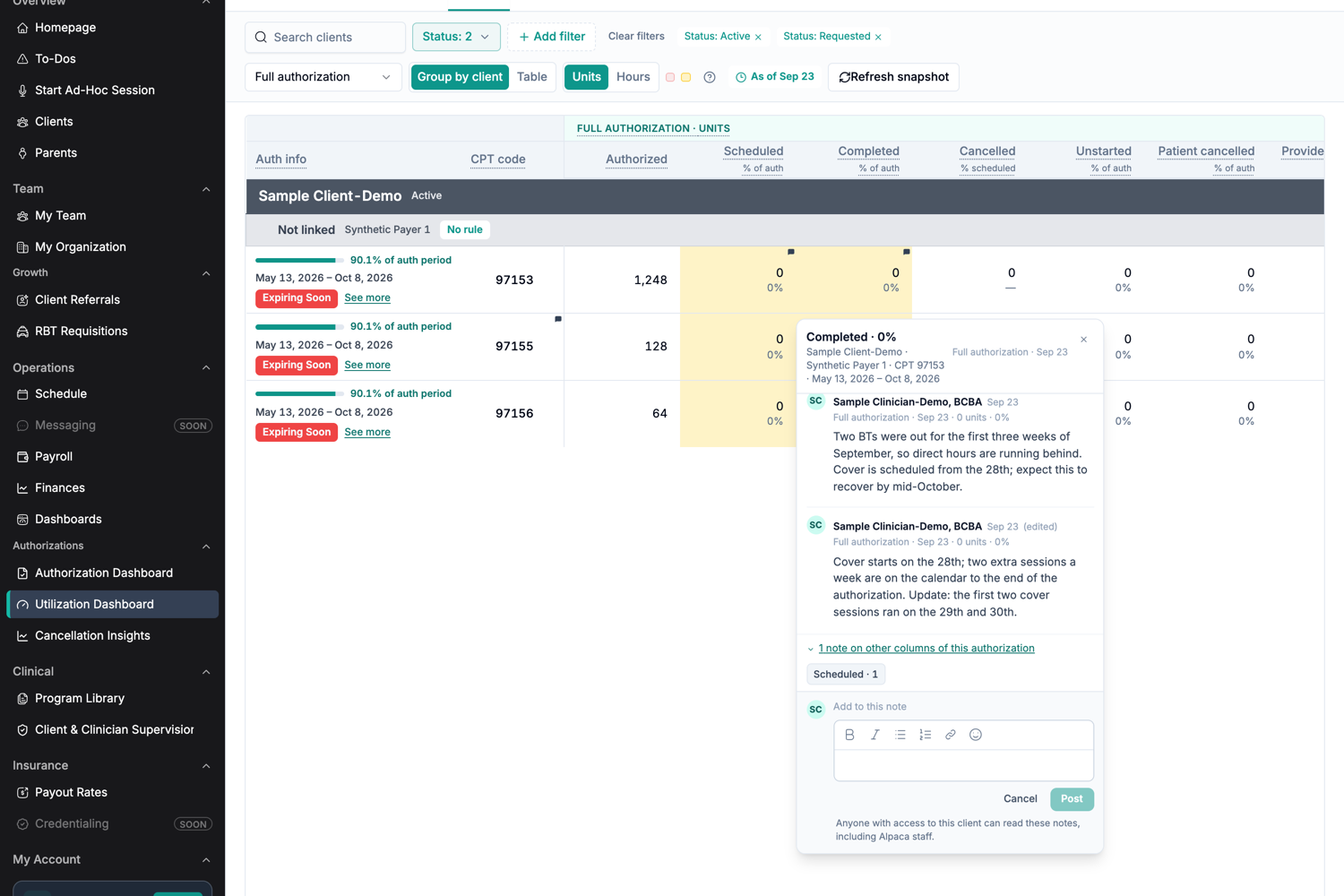
Shows the other-columns section expanded with a Scheduled note chip.
Select a column to switch to its notes without closing the card.
If you've already started typing a note, your draft is preserved when you switch columns.
Add a note about the entire CPT line item
Sometimes your explanation is about the CPT code as a whole rather than a particular utilization metric.
In that case, select the note control in the row's CPT code cell.
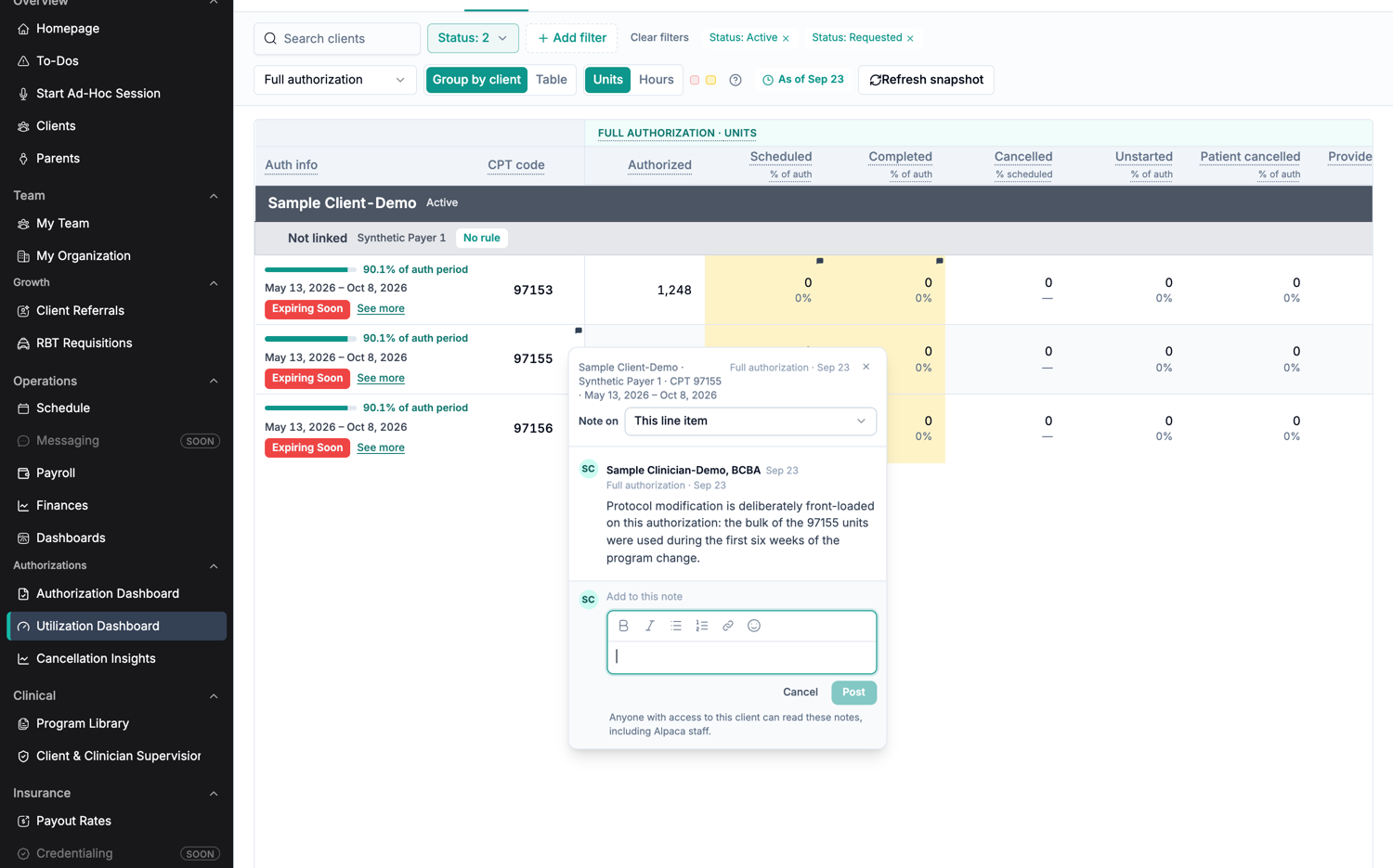
Shows the line-item note card with the "This line item" selector.
The note card opens with:
Note on · This line item
Leave This line item selected to attach your note to the CPT code as a whole.
You can also use the selector to attach the note to one of the Utilization columns currently displayed on the grid.
Edit or delete a note
You can edit or delete notes that you wrote.
Hover over your note and select the ⋯ menu.

Shows the note actions menu with Edit and Delete.
Edit a note
Select Edit.
Make your changes, then select Save.
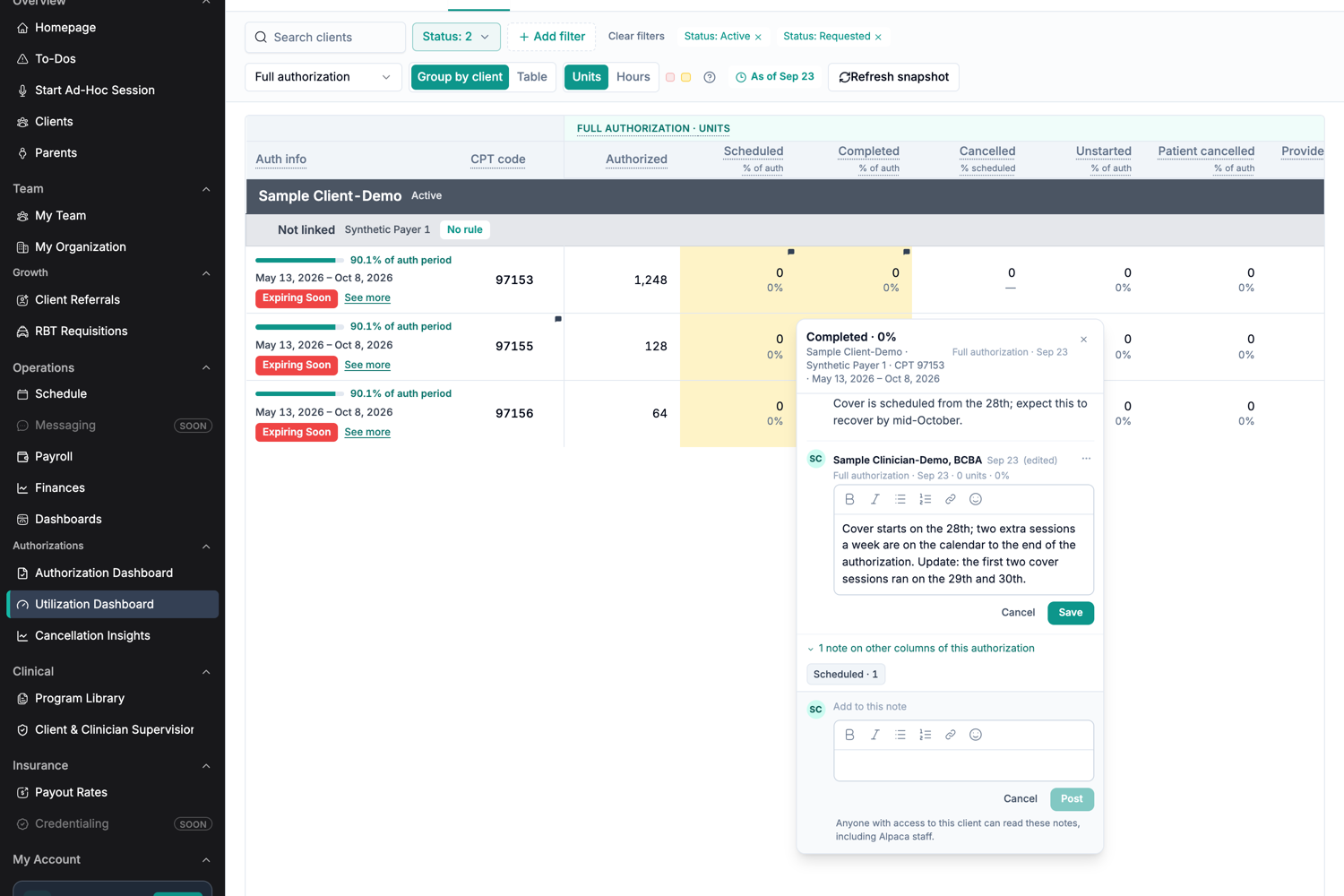
Shows a note being edited inline with Cancel and Save controls.
Edited notes display (edited) next to their date. Hover over the label to see when the note was edited.
Delete a note
Select Delete from the ⋯ menu.
Alpaca asks you to confirm before removing it.
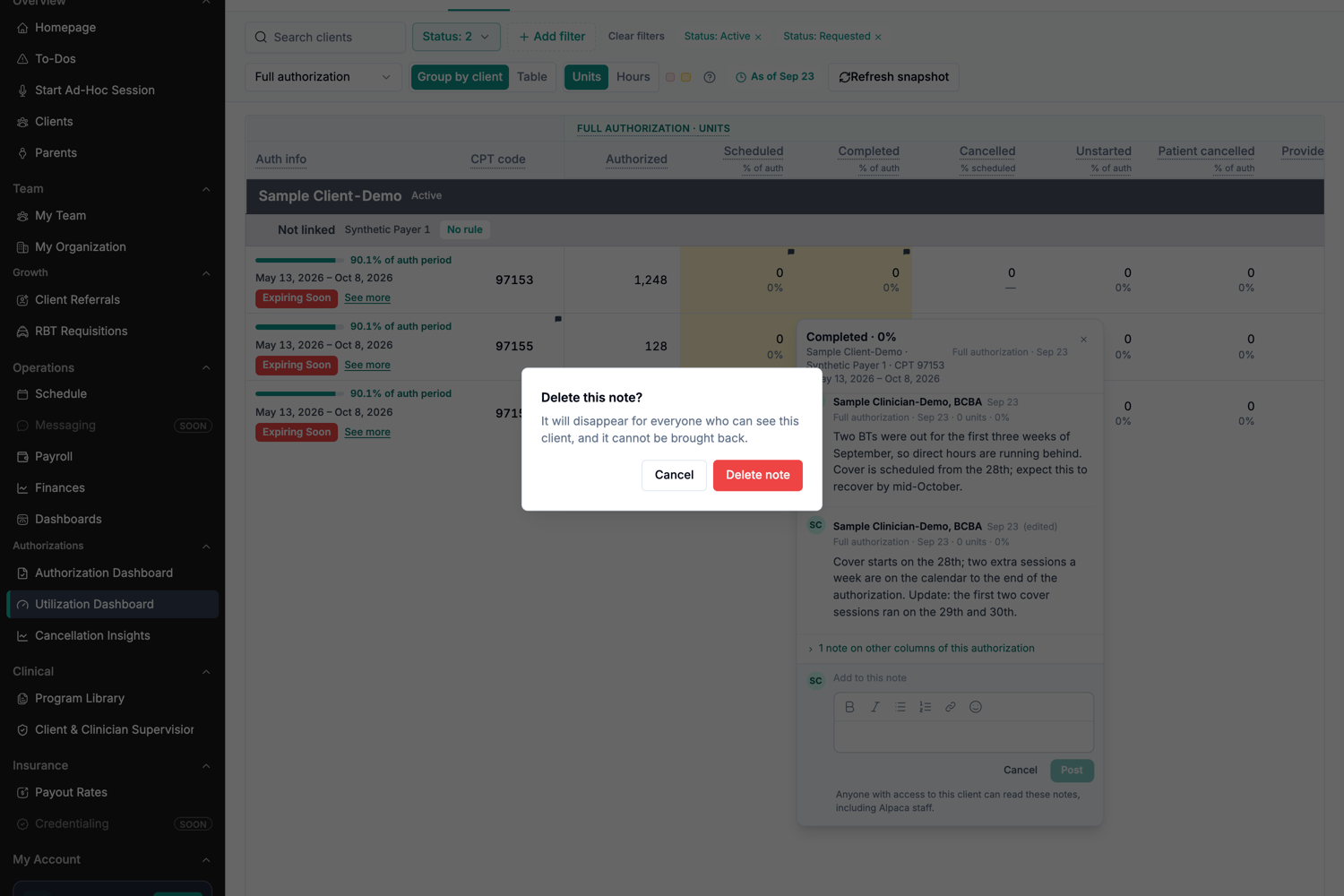
Shows the confirmation dialog displayed before deleting a note.
Select Delete note to confirm.
Deleted notes disappear from the notes thread and cannot be restored through Alpaca.
Note: You can only edit or delete your own notes. Administrators and other users cannot modify a note written by someone else.
Using notes from a client's Insurance tab
You can also view and add authorization notes from the client's Insurance tab.
This is where clinicians, Lead RBTs, and other users with client-record access can work with notes if they don't have access to the Utilization dashboard.
Open the client and select Insurance.
See which authorizations have notes
Each authorization card with notes displays an N notes indicator next to its dates and authorization type.
The indicator remains visible even when the authorization card is collapsed.
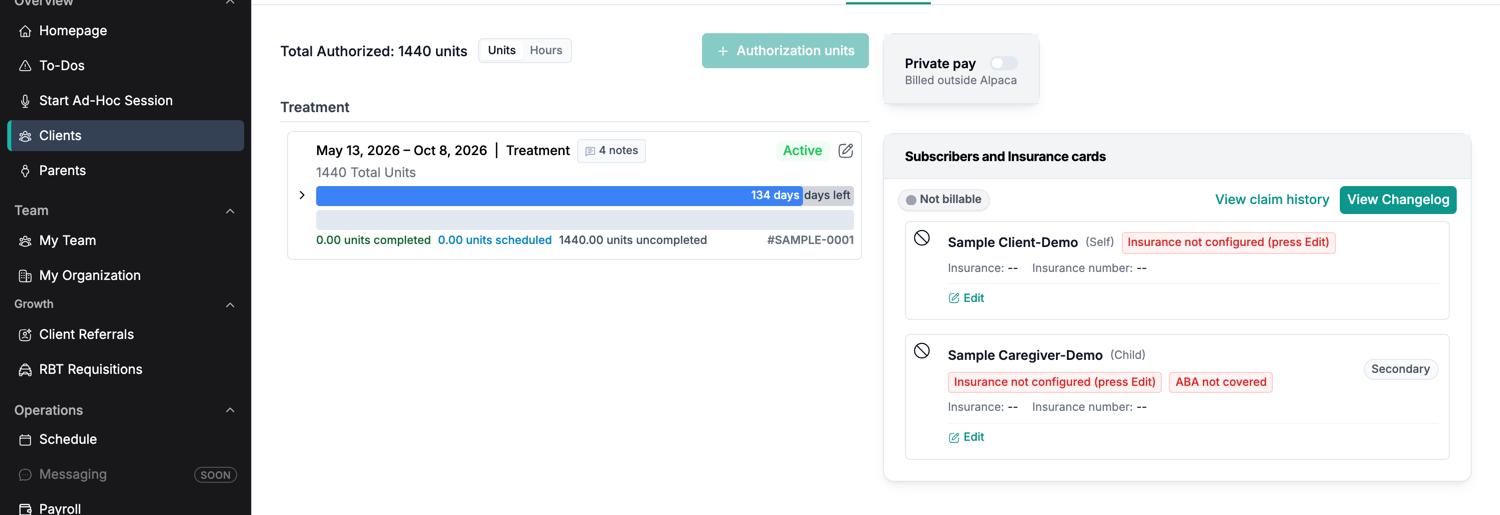
Shows a collapsed authorization card with "4 notes" displayed in the title row.
Expand the authorization to see its CPT codes.
Each CPT block displays its own note count. If a CPT code doesn't have notes yet, hover over it to reveal a +.
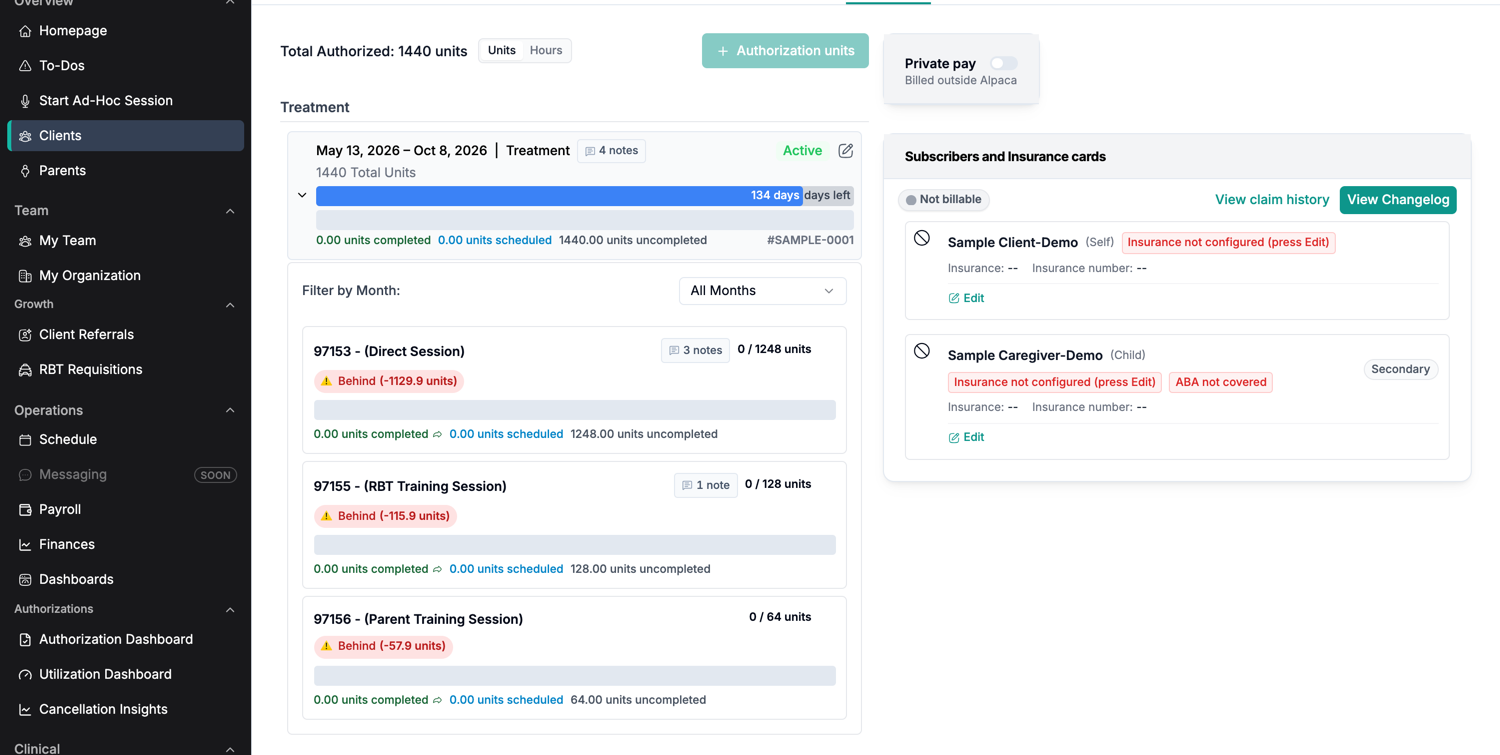
Shows an expanded authorization card with note counts on individual CPT blocks.
Read or add notes to a CPT code
Select the CPT code's N notes indicator or +.
The notes open directly underneath the CPT code's utilization numbers.

Shows a CPT block expanded with its notes thread and composer.
Each note is labeled with where it came from, such as:
Completed
Scheduled
This line item
Long notes are shortened to two lines. Select Show more to read the full note.
To add a note, enter it in the composer and select Post.
Notes created here are attached to the CPT code and are also available from the Utilization grid.
View all notes on an authorization
Select N notes in the authorization card's title row to see a combined view of every note across its CPT codes.
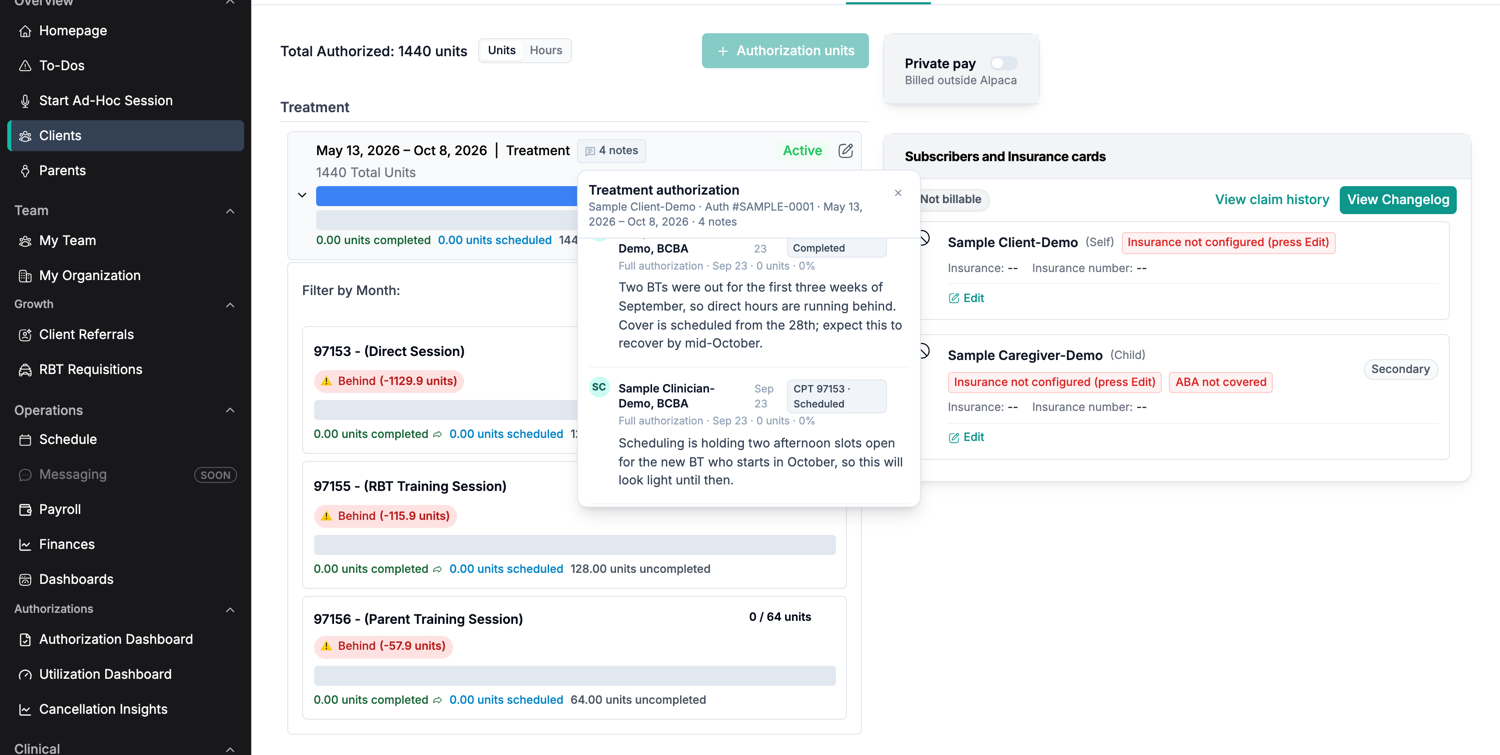
Shows the read-only authorization-level roll-up containing notes from multiple CPT codes.
Each note shows its CPT code and metric, such as:
CPT 97153 · Scheduled
This view is read-only.
To add a note, open the individual CPT code instead. Notes must be associated with a CPT code so they can also appear correctly on the Utilization grid.
How note context works
Utilization changes over time, so every note keeps a snapshot of what you were looking at when you posted it.
For example, suppose you write a note in August when a cell shows:
Full authorization · 62%
By November, that same cell might show:
Last 30 days · 18%
Your August note will still show the original Full authorization · 62% context.
This makes it clear what the number looked like when the explanation was written.
The context is captured when you select Post, so if you switch to another metric before posting, the note is associated with the metric you're viewing when you submit it.
Privacy and data
Authorization notes are part of the client's internal record.
Keep these points in mind when writing one:
Notes are stored within your organization and are never visible to another organization.
Anyone in your organization with access to the client can read their notes.
Notes are not shared with families.
Notes are not emailed or sent to outside services.
Opening a notes thread is recorded in the client's access log.
Creating, editing, and deleting notes are also recorded in the access log.
The access log records who accessed the notes, when, and which client was involved. It does not record the note text.
Editing a note keeps the previous version server-side, although previous versions cannot be viewed in Alpaca.
Deleted notes disappear from the product immediately but are retained in the database and cannot be restored through the product.
Important: Don't put anything in a note that shouldn't be visible to everyone in your organization who has access to the client.
Troubleshooting
What you see | What it means | What to do |
|---|---|---|
Notes unavailable | Note counts couldn't be loaded on the Utilization page. | Reload the page. Your notes are unaffected. |
Couldn't load these notes | The notes thread couldn't be loaded. | Close the card and open it again. |
Couldn't save this note. Try again. | Your note wasn't saved, but your draft is still there. | Select Post again. You don't need to retype it. |
Couldn't delete this note. Try again. | The note wasn't deleted. | Select Delete note again, or cancel and retry from the ⋯ menu. |
Loading notes… | The notes thread is still loading. | Wait for it to finish loading. |
N earlier notes above | The thread has scrolled to the newest notes. | Scroll up inside the thread to see earlier notes. |
No ⋯ menu on a note | Someone else wrote the note. | Add your own note to the thread instead. |
A Utilization note seems to be missing | Its metric column may be hidden. | Turn the column back on or view the note from the client's Insurance tab. |
No note control appears on a Utilization row | The row represents a requested authorization that hasn't been issued yet. | Add the note from the client's Insurance tab, if available, or wait until the authorization is approved. |
Current limitations
Hidden Utilization columns hide their notes on the grid. Turn the column back on to see them again. The notes remain available from the client's Insurance tab.
Only the author can edit or delete a note. Administrators cannot override this.
Deleted notes leave no visible history. There is no deleted-note placeholder or customer-facing recovery option.
Previous versions of edited notes aren't viewable. The note displays an (edited) indicator and timestamp instead.
Requested authorizations don't show note controls on the Utilization grid. If the request appears on the client's Insurance tab, you can add a note there.
There are no private notes.
Notes don't support @mentions or notifications.
Notes aren't searchable.
Alpaca doesn't automatically draft or suggest notes.