See your Alpaca schedule in your own calendar
Last updated: September 23, 2026
Alpaca can publish your sessions into the calendar app you already use — Google Calendar, Apple Calendar, Outlook, or whatever is on your phone. There are two ways to do it, and you can use both at once. Everything is set up from My Profile → External calendars, and there is a shortcut on the Schedule page for people who have not set anything up yet.
Three promises hold for both connections:
Only your working hours leave Alpaca. Every event is a fixed “Alpaca session” block with a start and an end. No client name, no service code, no address, no record number.
It updates one way by default. Your Alpaca schedule flows out to your calendar app. Blocking time in your calendar app does not change your Alpaca availability — unless you deliberately turn that around, one calendar at a time, in Choose calendars.
You can stop it yourself, immediately. Disconnecting Google deletes the calendar Alpaca created and gives up its access. Turning off a subscribe link breaks the link the moment you confirm.
Who can use it
Staff only. Parents and caregivers do not get this — the parent portal has its own schedule view, and a caregiver-facing calendar feed needs its own review.
The two connections are gated separately, so you may see one and not the other:
Subscribe link appears on your own profile once the feature is switched on for the platform. Nobody has to grant you anything.
Google Calendar additionally needs your clinic to allow it. If the card reads Unavailable with “Your clinic has not turned on Google Calendar sync, so this connection cannot be set up. An administrator controls it”, that is the clinic’s choice and an administrator has to change it.
The tab only ever appears on your own profile. Opening a colleague’s profile will not show it, and an administrator cannot set a connection up on somebody else’s behalf.
Start from the Schedule if you have not set anything up
If neither connection exists yet, the Schedule toolbar carries an Add to my calendar button. It opens a short chooser with both options, and a first-visit walkthrough points at it once.
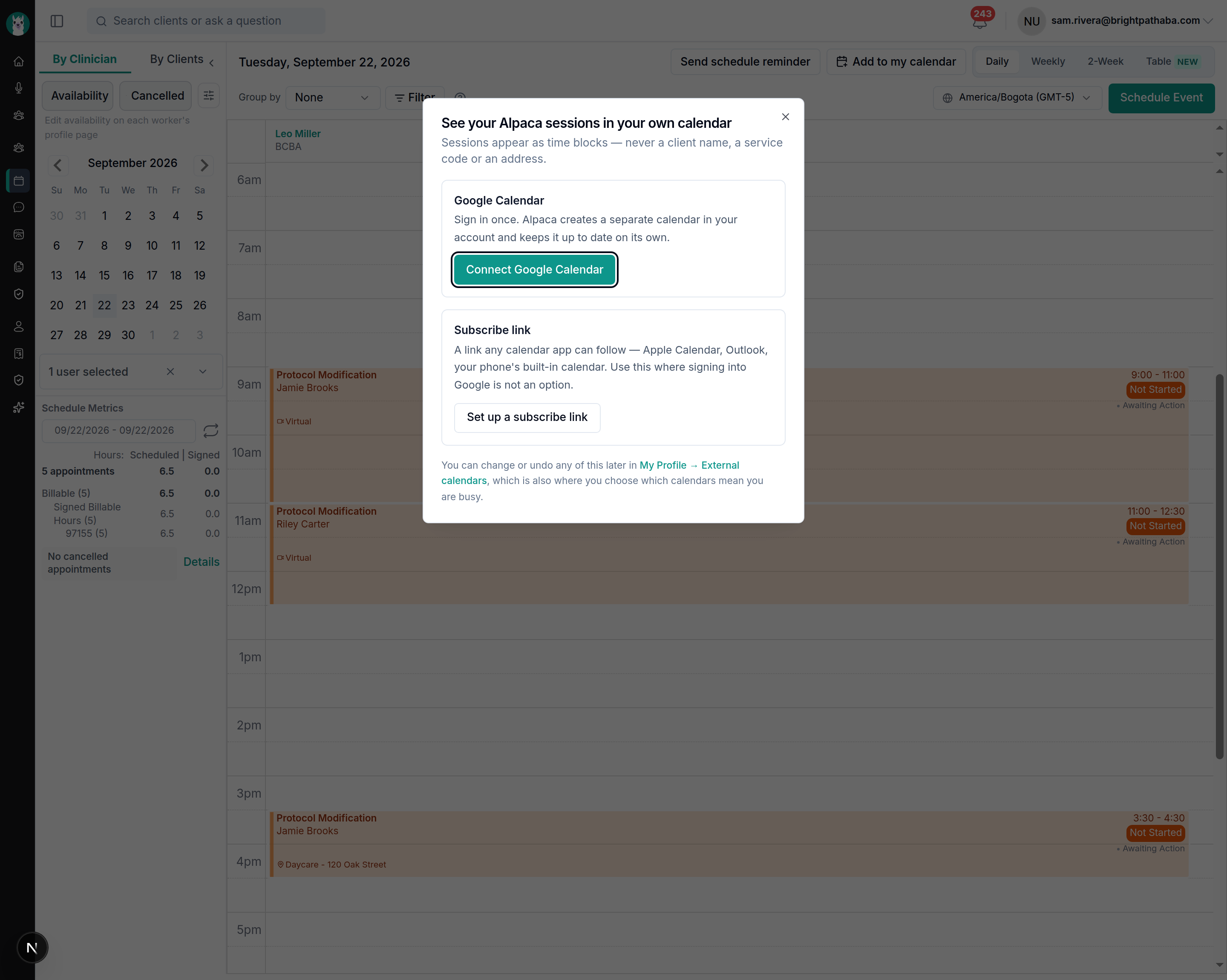
The button disappears once either connection exists. From then on, everything lives in My Profile → External calendars, which the chooser links to.
Connect Google Calendar
Open My Profile → External calendars.
On the Google Calendar card, select Connect Google Calendar.
Sign in to the Google account you want, and accept every permission. Leaving one unticked fails the setup.
You come back to Alpaca, the card reads Connected, and the Which calendars mean you are busy? picker opens by itself.
Alpaca creates a separate calendar inside that Google account and writes only to it. Your own calendars are never touched. Frequently the account people connect is a personal @gmail.com, which is why the clinic has to permit this rather than it being on by default.
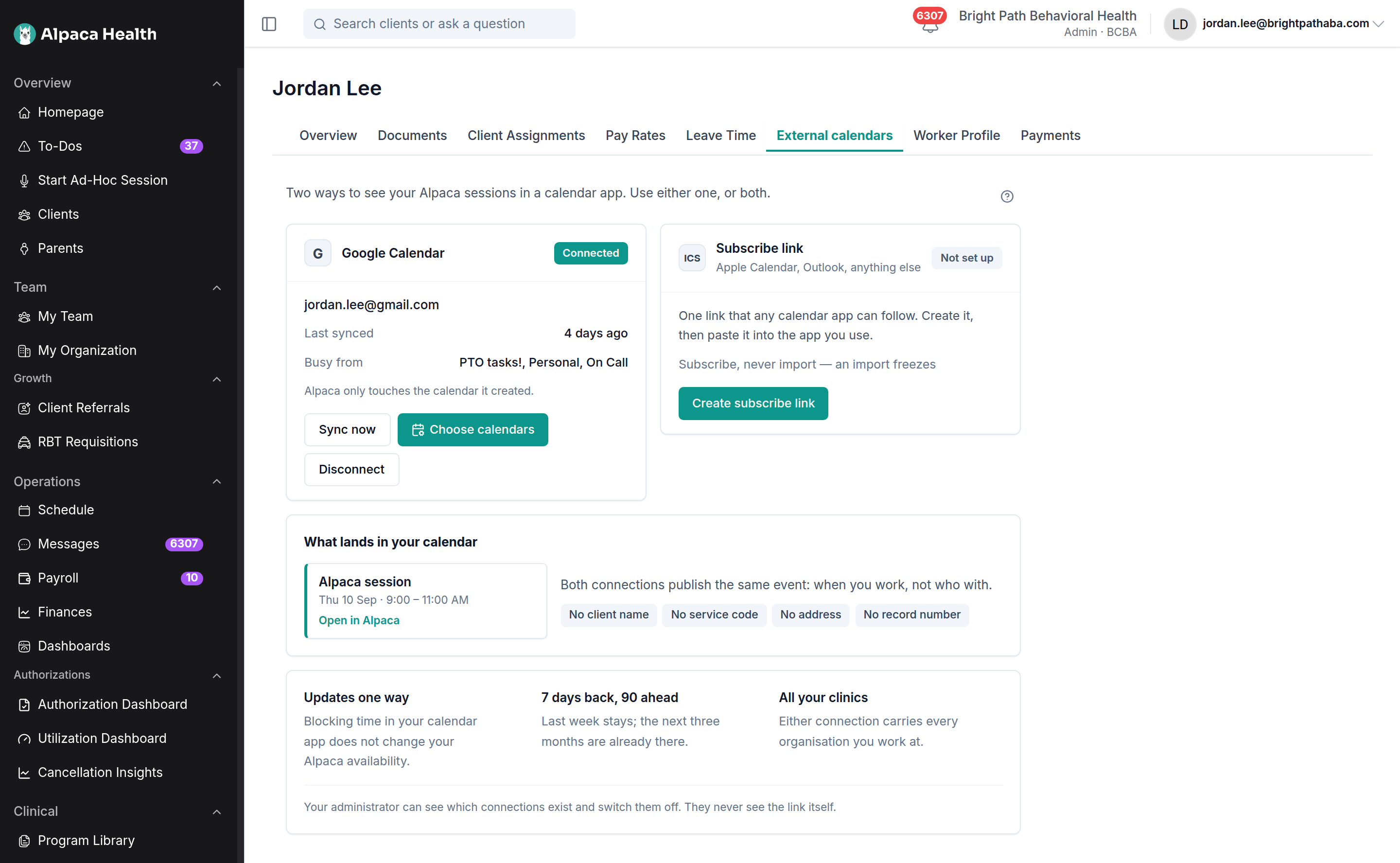
The card then shows the account, Last synced, and Busy from — the calendars being read back for busy time. Sync now forces a pass if you do not want to wait.
Choose which calendars mean you are busy
This is the step that stops Alpaca booking you over your own commitments, and it is the one people skip. Until you choose calendars, Busy from reads None chosen and Alpaca cannot see anything outside itself.

Tick the calendars that mean you are unavailable.
Give each one a short name under Show in Alpaca as. Its Google name is never saved, so this is the only name anyone at your clinic sees.
Pick a colour, which is how it draws on your schedule.
Alpaca reads only the start and end of events on these — never titles, guests or locations. Your Alpaca calendar is not in the list; counting it would make every session block its own slot.
You can watch up to 20 calendars.
Some calendars cannot be ticked at all. Google refuses to share busy time for calendars you only subscribe to — holiday feeds, shared calendars, anything added by link — so Alpaca disables those and says why, before you spend the choice.
Create a subscribe link
A subscribe link is one private URL that any calendar app can follow. Use it where signing into Google is not an option, or alongside Google — a laptop on Google and a phone on the link is a normal setup.
Open My Profile → External calendars.
On the Subscribe link card, select Create subscribe link.
Copy the link straight away. It is shown exactly once.
Select How to add it to a calendar app and follow the steps for your app.
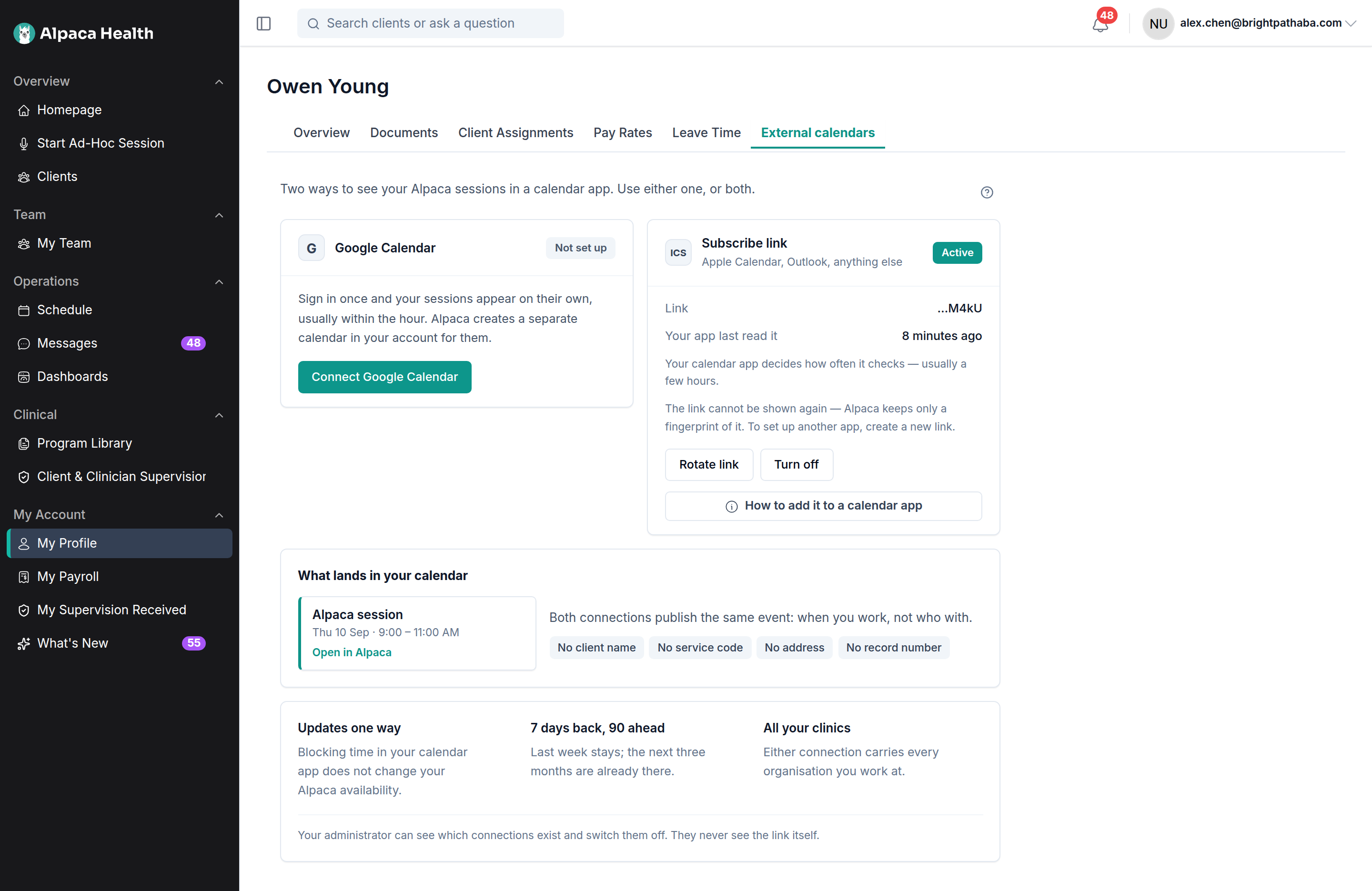
Afterwards the card shows only the last four characters of the link and when your calendar app last read it. Alpaca keeps a fingerprint of the link and nothing else, so it genuinely cannot be shown to you again — that is a property of how it is stored, not a missing button. To set up a second app, create a new link.
Subscribe, never import
Every app names this differently, and the wrong choice silently gives you a frozen copy that never updates again. Google calls it From URL, Apple calls it Subscription Calendar, Outlook labels the button Import even though it creates a live subscription — but Upload from file in Outlook really is a frozen copy.

You only do this once, on one device. On Google, adding it on the web syncs to the phone app by itself. On a Mac, choosing iCloud rather than On My Mac carries the subscription to your iPhone and iPad.
What makes this safe
The event carries no clinical information. A person glancing at your phone sees that you are working, not who with. This is true of both connections and is not configurable, which is what makes the feature safe to use on a personal device.
Google names are borrowed, never kept. Calendar names on a personal account routinely carry a partner’s name or a therapist’s name, so Alpaca fetches them to draw the picker and stores only the id and the short name you type.
Your administrator cannot read your link. They can see that a connection exists, when it was made and when it last ran, and they can switch it off. The link itself is never shown to them.
Rotating is immediate. If you think somebody else has your link, Rotate link breaks the old one the moment you confirm.
Disconnecting cleans up. Disconnecting Google deletes the calendar Alpaca created, along with the session blocks on it, and gives up Alpaca’s access to the account.
What it will not do
It will not change your Alpaca schedule. Moving or deleting a block in your calendar app changes nothing in Alpaca. The one exception is deliberate and narrow: calendars you tick in Choose calendars are read back as busy time.
It will not show the subscribe link again. Only a fingerprint is stored. Lost links are replaced, not recovered.
It will not publish more than a fixed window. You get the last 7 days and the next 90, not your whole history.
It will not watch a calendar Google refuses to share. Subscribed and shared calendars are disabled in the picker rather than accepted and quietly ignored.
It will not separate your clinics. If you work at more than one organisation that uses Alpaca, either connection carries all of them into one calendar.
Your data
What leaves Alpaca: session start and end times, a fixed “Alpaca session” title, and a link back into Alpaca. Nothing else.
What Alpaca reads back: on calendars you tick, the start and end of events — busy intervals only, never titles, guests or locations.
What is stored: for Google, the connection and the ids of the calendars you chose, plus the short names you typed. For a subscribe link, a fingerprint of the link. Google’s own calendar names are never stored.
Who can see what: your administrator sees that a connection exists, when it was made and when it last ran. They never see the link, the Google address, or the calendar ids.
Recover from common problems
What you see | What it means | What to do |
|---|---|---|
Your Google sign-in has expired. Anything rescheduled since then is wrong here — Alpaca is still correct. | The card reads Needs sign-in. Google revoked or expired Alpaca’s access, so your calendar has stopped updating. | Select Reconnect Google. It reuses the same calendar, so nothing is duplicated. Treat Alpaca as the source of truth until it is done. |
Some permissions were left unticked, so the calendar could not be set up. Try again and accept all of them. | A permission was declined on Google’s consent screen. | Connect again and accept every permission. |
You cancelled before granting access. Nothing was connected. | You backed out of Google’s consent screen. | Nothing to clean up. Start again when you are ready. |
Google granted access but the first calendar write failed. Try connecting again. | Access was given, but Alpaca could not create its calendar. | Connect again. If it keeps failing, contact support. |
That link had already been used. Start the connection again from this page. | A stale connect link — usually a reload or a back button. | Start from Connect Google Calendar again. |
Your clinic has not turned on Google Calendar sync, so this connection cannot be set up. An administrator controls it. | The card reads Unavailable. Your clinic has not opted in. | Ask an administrator. The subscribe link beside it works either way. |
Google will not share busy time for this calendar, so it cannot be watched. | A subscribed or shared calendar — a holiday feed, or anything added by link. | Nothing to fix. Tick one of your own calendars instead. |
None chosen under Busy from | No calendars are being watched, so Alpaca cannot see your outside commitments and can still book over them. | Select Choose calendars and tick the ones that mean you are busy. |
This Google account has no other calendars to watch. | The account has only the calendar Alpaca created. | Create a calendar in Google for your own commitments, then reopen the picker. |
Could not read your calendar list. If your Google sign-in has expired, reconnect it from the External calendars tab and try again. | The picker could not reach Google. | Check the card for Needs sign-in and reconnect. |
That is the maximum of 20. | The watched-calendar cap. Every extra calendar is another source that can blank out a working day. | Untick one you no longer need. |
Nothing has read this link yet. Calendar apps check every few hours. | The link is live but your calendar app has not fetched it. | Wait, or confirm the app subscribed rather than imported. |
Sessions in your calendar app never change | The app imported the link instead of subscribing to it. | Delete that calendar in the app and add the link again, choosing subscribe / From URL / Subscription Calendar. |
Every shift appears twice | An old subscription was left in place when a new link was added. | Delete the old calendar in your calendar app. Your app owns those copies; Alpaca cannot remove them. |
For administrators
My Organization → External calendars is one page for every way a staff schedule leaves Alpaca. It needs the permission that also lets you suspend users, and it acts on the organization you are currently working in.

Allow Google sync is the clinic’s consent. Until it is on, nobody here can connect. Turning it off stops all syncing within a few minutes, including for people already connected — but it deletes nothing, keeps Alpaca’s access, and resumes if you switch it back on.
Connected accounts lists every Google account publishing this clinic’s schedule, when it connected and when it last synced. Stop syncing deletes the calendar Alpaca created in that account and gives up its access — the right action when somebody leaves. If they also work at another clinic that uses Alpaca, that clinic’s sync keeps working.
Subscribe links lists every personal feed, its last four characters, and when it was last read. Revoke breaks it immediately and permanently. Events already copied into their calendar stay there; their calendar app owns those.
Rows carry names, timestamps and the connection’s state. They never carry the token, the calendar id, or the Google address — a clinic needs to know a channel exists and be able to stop it, not who somebody’s mail provider says they are.
Suspended staff are included in both tables, because a connection that outlives someone’s access is exactly what this page exists to find.
Current limitations
One window. The last 7 days and the next 90. It is not a full schedule archive.
Up to 20 watched calendars per connection.
Busy time is Google-only. Reading your outside commitments back into Alpaca works through the Google connection. A subscribe link publishes out and reads nothing back.
One calendar for every clinic. Multi-org staff cannot split their organisations into separate calendars.
The subscribe link is a bearer URL. Anyone holding it can see when you work, without signing in. Treat it like a password.