2.3 Complete your profile & credentials
Last updated: July 23, 2026
This article walks you through your user profile page — where you manage your personal information, credentials, availability, and emergency contacts in Alpaca.
It's written for clinicians configuring their own account or admins configuring their team. Admin-only tabs (Pay Rates, Leave Time, Worker Profile) are mentioned briefly at the end; they're covered in their own KB articles.
Opening your profile
The fastest ways to get there:
For clinicians and RBTs: Sidebar → My Profile
For admins: Sidebar → My Team → Click team member name to open profile page
You'll land on the Overview tab, which is what this article covers.
Basic Info
The Basic Info card is where most of your personal details live. Click Edit to open the side drawer.
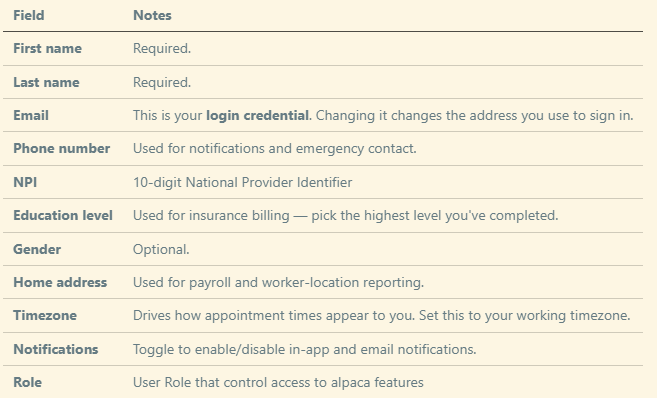
Read-only fields
A few fields on the Basic Info card are display-only and can't be edited from this drawer:
- SSN — masked as ***-**-####. If you have a Salsa-synced payroll profile, your legal name, SSN, date of birth, work locations, and tax setup are pulled from Salsa and shown here for reference.
- Payroll data — appears only if you're enrolled in payroll. Managed in Salsa, not here.
NPI (important!)
Your NPI (National Provider Identifier) is a 10-digit number assigned by CMS that identifies you as a healthcare provider for billing purposes.
Where to enter it:
1. Open User Information → Edit → NPI field. Enter exactly 10 digits. The form will reject anything shorter, longer, or non-numeric.
2. You can additionally store your NPI as a credential entry in the Certifications & Licenses card (see below) along with effective and expiration dates.
⚠ An incorrect or missing NPI will cause insurance claims to be denied. Double-check the digits before saving.
If you don't know your NPI, you can look it up in the public NPPES NPI Registry
Certifications & Licenses
The Certifications & Licenses card is where you record the credentials that determine what services you can deliver and bill for. Click Add to create a new entry.
Supported credential types:
- BCBA — Board Certified Behavior Analyst
- BCaBA — Board Certified Assistant Behavior Analyst
- RBT — Registered Behavior Technician
- State LBA — State-issued Licensed Behavior Analyst
- CPR
- First Aid
- NPI
For each entry, fill in:
- Type (from the list above)
- Kind — License or Certification
- Status — Active, Expired, or Suspended
- Identifier — the credential number (e.g., your BACB ID)
- Effective date and Expiration date
- Jurisdiction — the state or issuing body, where applicable
Keep these entries up to date — expirations affect what appointments you can be assigned to.
The older single Clinical Role field on the Basic Info card is being phased out. Use Certifications & Licenses instead, so the system can track credential types, IDs, and expiration dates together.
Availability
The Availability card controls when scheduling treats you as available. Click Edit to open the drawer.
You have two options:
- Open availability — you're considered available at all times. This is the default if you don't set specific times.
- Weekly recurring availability — pick the days and time ranges you're available each week. The card shows a visual calendar preview.
This feeds the scheduler, so keep it current — outdated availability is a common source of double-booking and missed appointments.
Emergency Contacts
Add one or more emergency contacts on the Emergency Contacts card. For each contact:
- First name
- Last name
- Phone number
You can add as many contacts as you need.
Additional Information
The Additional Information card (sometimes called Preferences) shows a few extra fields used for matching and reporting:
- Home address (display — edit it from Basic Info)
- Gender (display — edit it from Basic Info)
- Hours available — the number of clinical hours per week you can take on. Used for capacity planning.
Calendar Consent
If your organization has Google Calendar sync enabled, you'll see a Connect Calendar card on your own profile (not on other users' profiles). Click Connect Calendar to link your Google account so Alpaca appointments sync to your personal calendar.
If you don't see this card, calendar sync isn't enabled for your organization.
Role
Your Admin Role and Clinical Role determine what you can see and do in Alpaca. You can view your roles in Basic Info, but only an administrator can change them.
For the full list of roles and their permissions, see the dedicated KB article:
Other tabs (quick reference)
The Overview tab covers everything in this article. The other tabs you may see on your profile:
- Documents — files shared with or by you.
- Client Assignments — clients you're currently assigned to.
- Pay Rates — your billable, training, and admin rates, plus your compensation structure. Editable only by admins.
- Leave Time — your PTO accruals, usage, and balance (only visible if your organization tracks leave time).
- Worker Profile — admin-only Salsa worker view.
Each of these has its own KB article — search the knowledge base for details.
Who can edit what
- You can edit your own profile — Basic Info, Certifications, Availability, Emergency Contacts, Additional Information, and Calendar Consent.
- Your Role can only be changed by an admin with the right permission. Reach out to your administrator if your role needs to be updated.
- Payroll fields (Salsa-synced data, pay rates, payroll exclusions) are managed by admins and appear here as read-only references.
If you spot something wrong on your profile that you can't edit, ask your administrator or post in your internal Alpaca support channel.