Scheduling and Conducting Sessions in Alpaca
Last updated: October 21, 2025
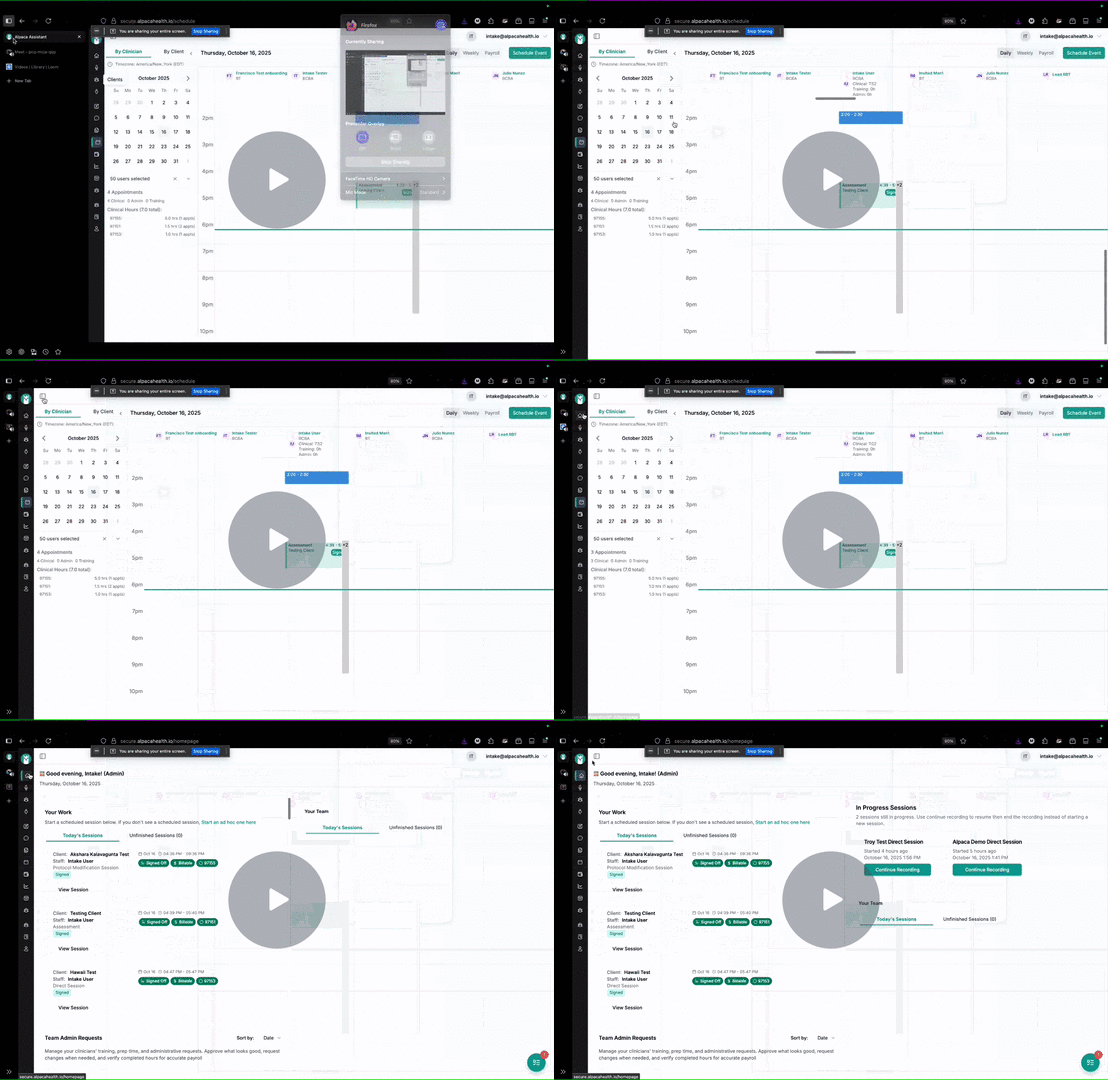
How to Book and Conduct Client Assessments Efficiently 📅 - Watch Video
Objective
This guide outlines the steps to book an appointment for a client assessment, conduct the assessment, and finalize the session notes.
Key Steps
1. Accessing the Client Schedule 0:01
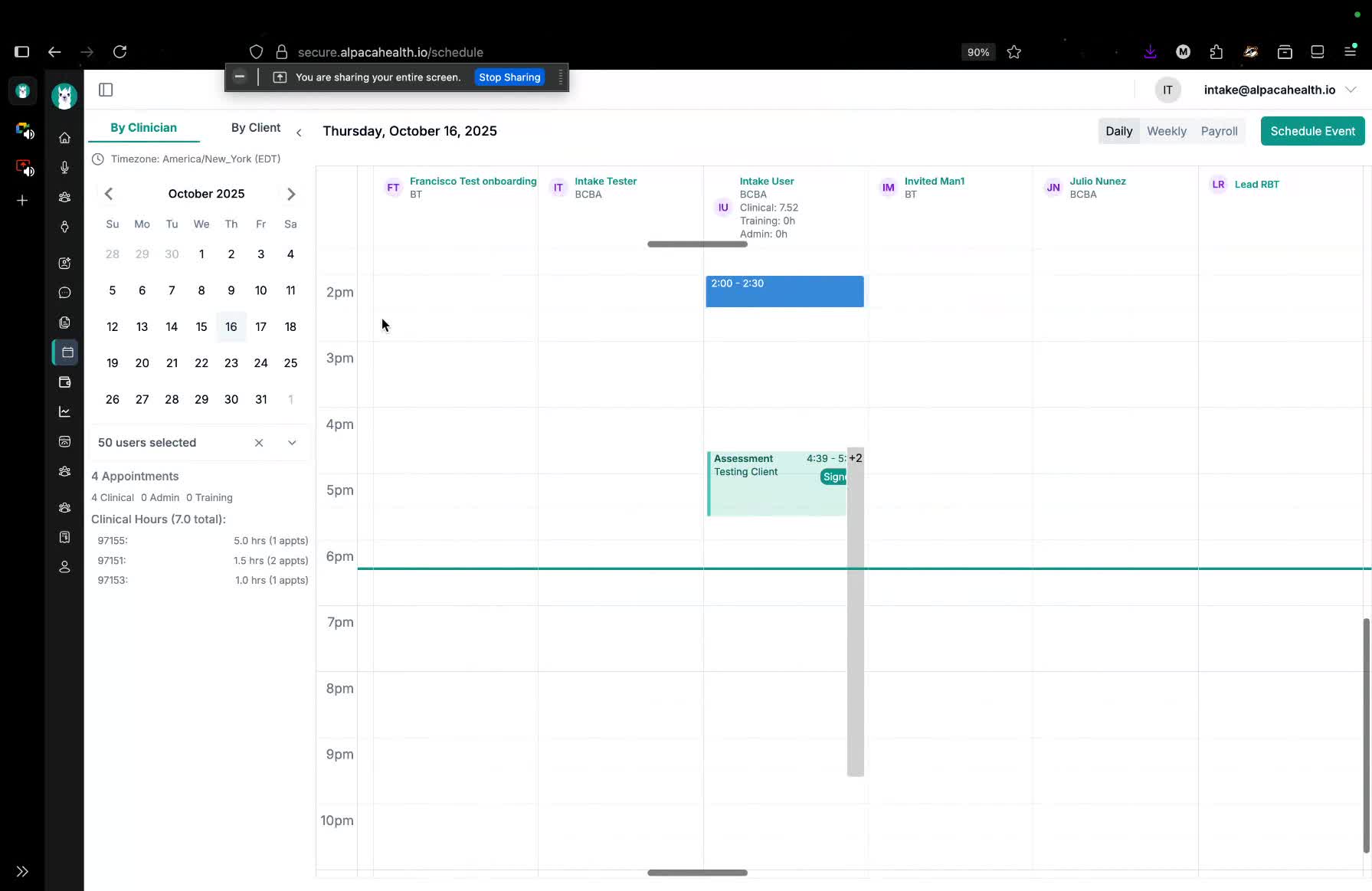
Navigate to the client management system.
Locate the new client (e.g., 'testing client').
Go to the schedule section.
2. Booking the Appointment 0:29
Select the appropriate clinician (e.g., 'intake user').
Choose the date and time for the appointment (e.g., today).
Ensure the billing and clinic settings are correct.
3. Selecting Appointment Details 1:09
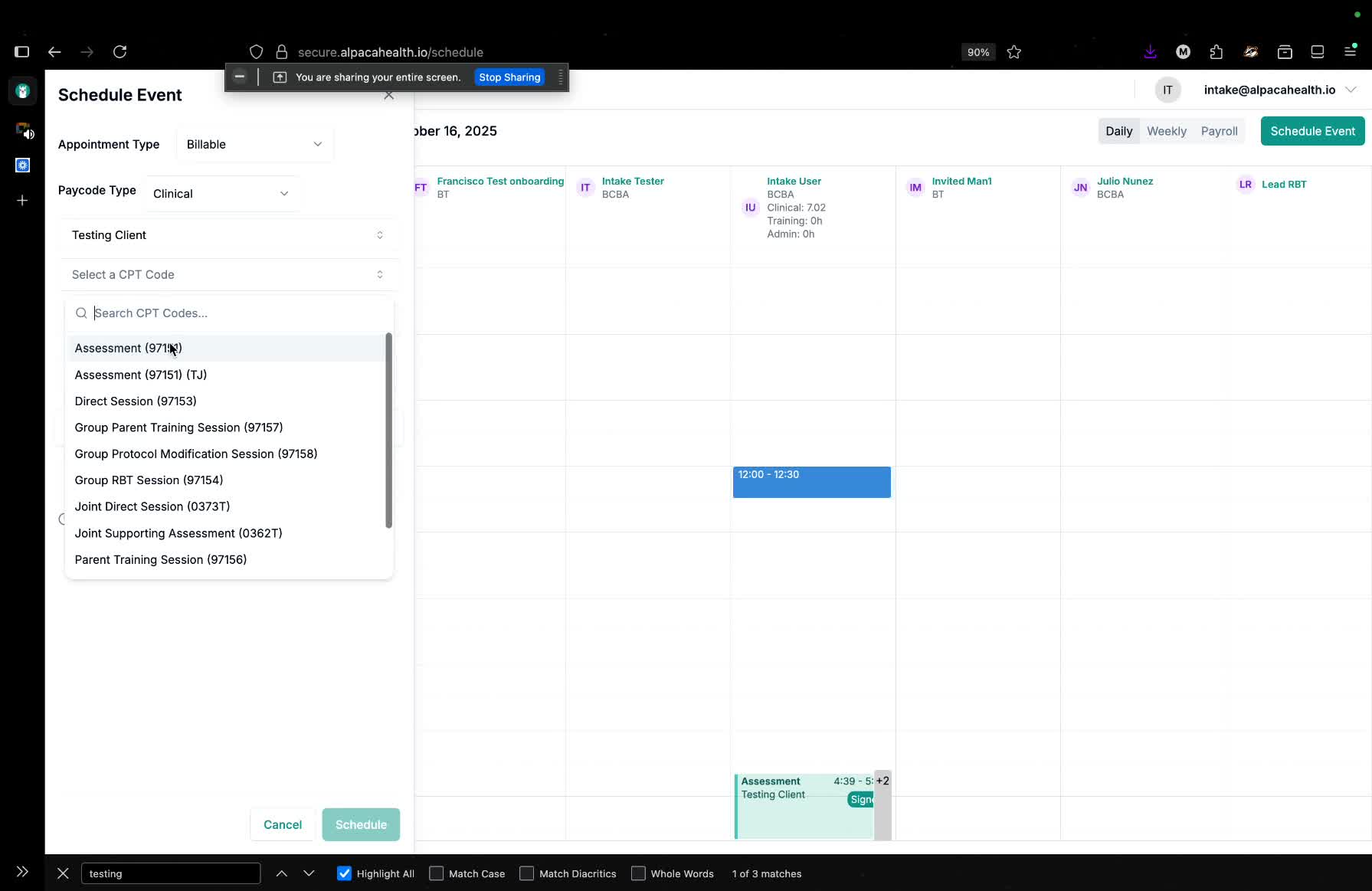
Choose the client from the dropdown (e.g., 'testing client').
Select the appointment type (e.g., 'assessment' with code 97151).
Choose the appointment location: either in-person or virtual.
4. Setting Up Virtual Meetings 1:16
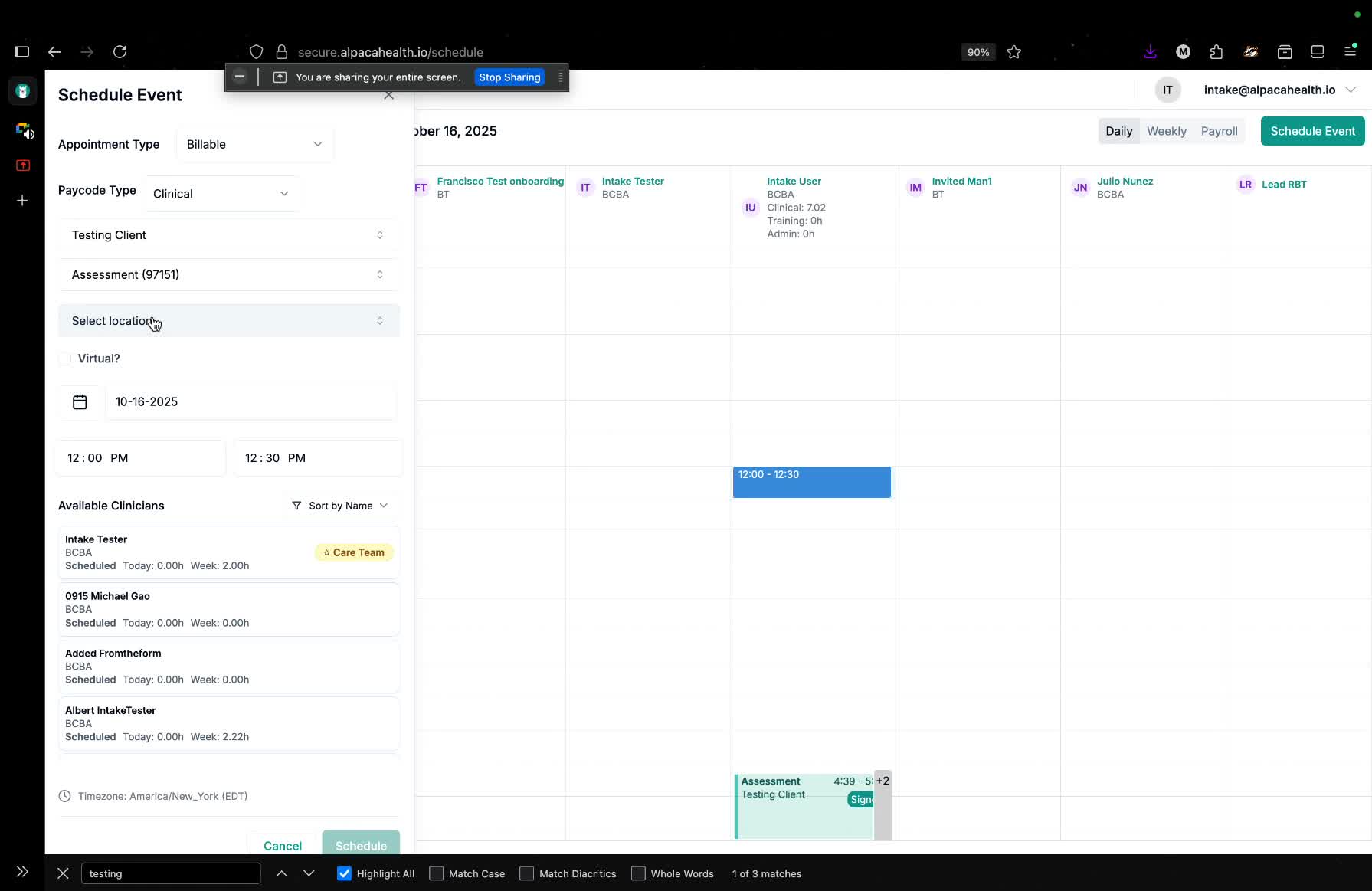
For virtual meetings, select the 'virtual' option.
Enter the meeting link (e.g., Google Meet, Zoom, Microsoft Teams).
5. Notifying Clients 1:51
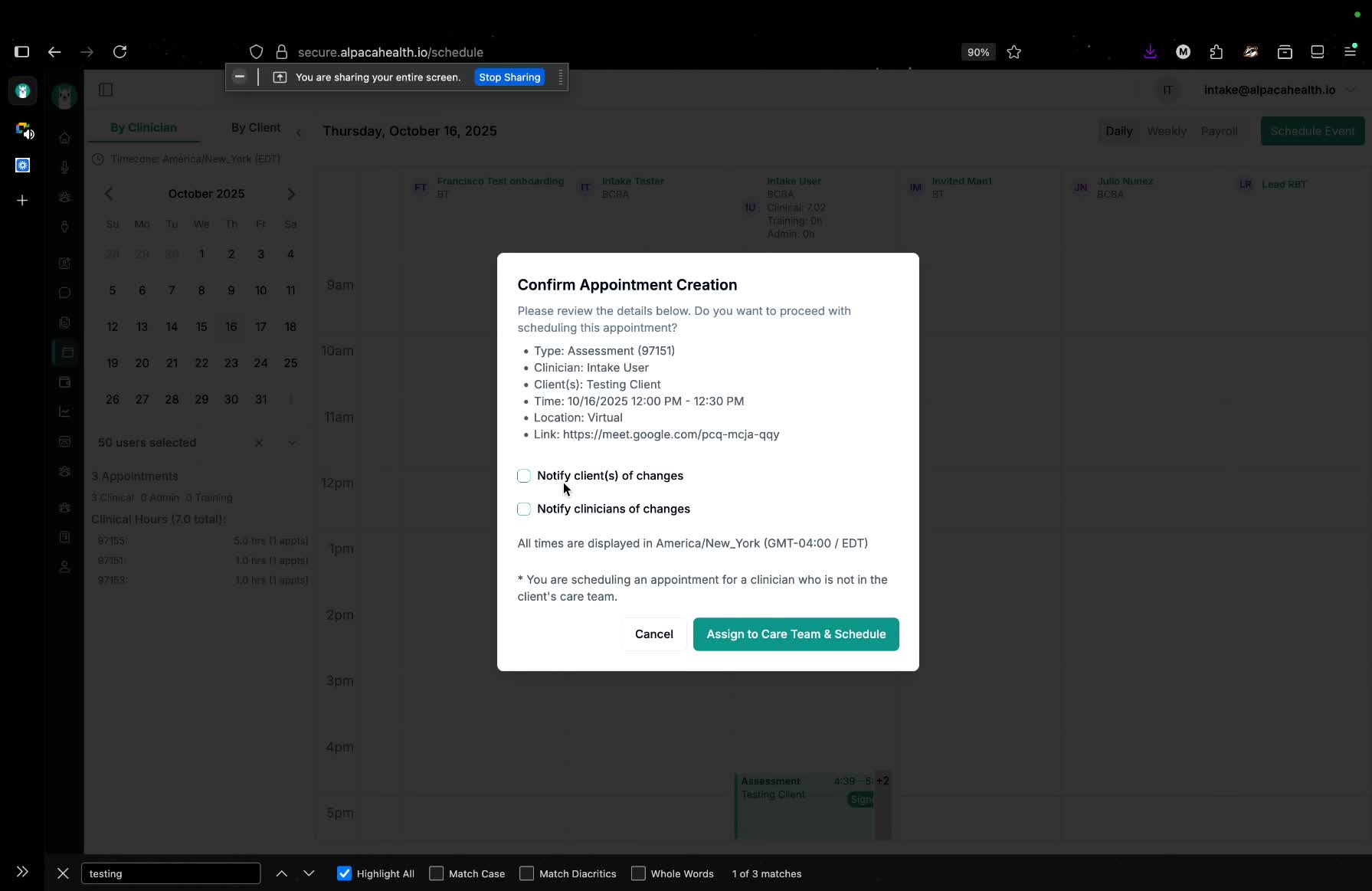
Optionally, notify clients and caregivers via email about the appointment.
6. Starting the Appointment 2:16
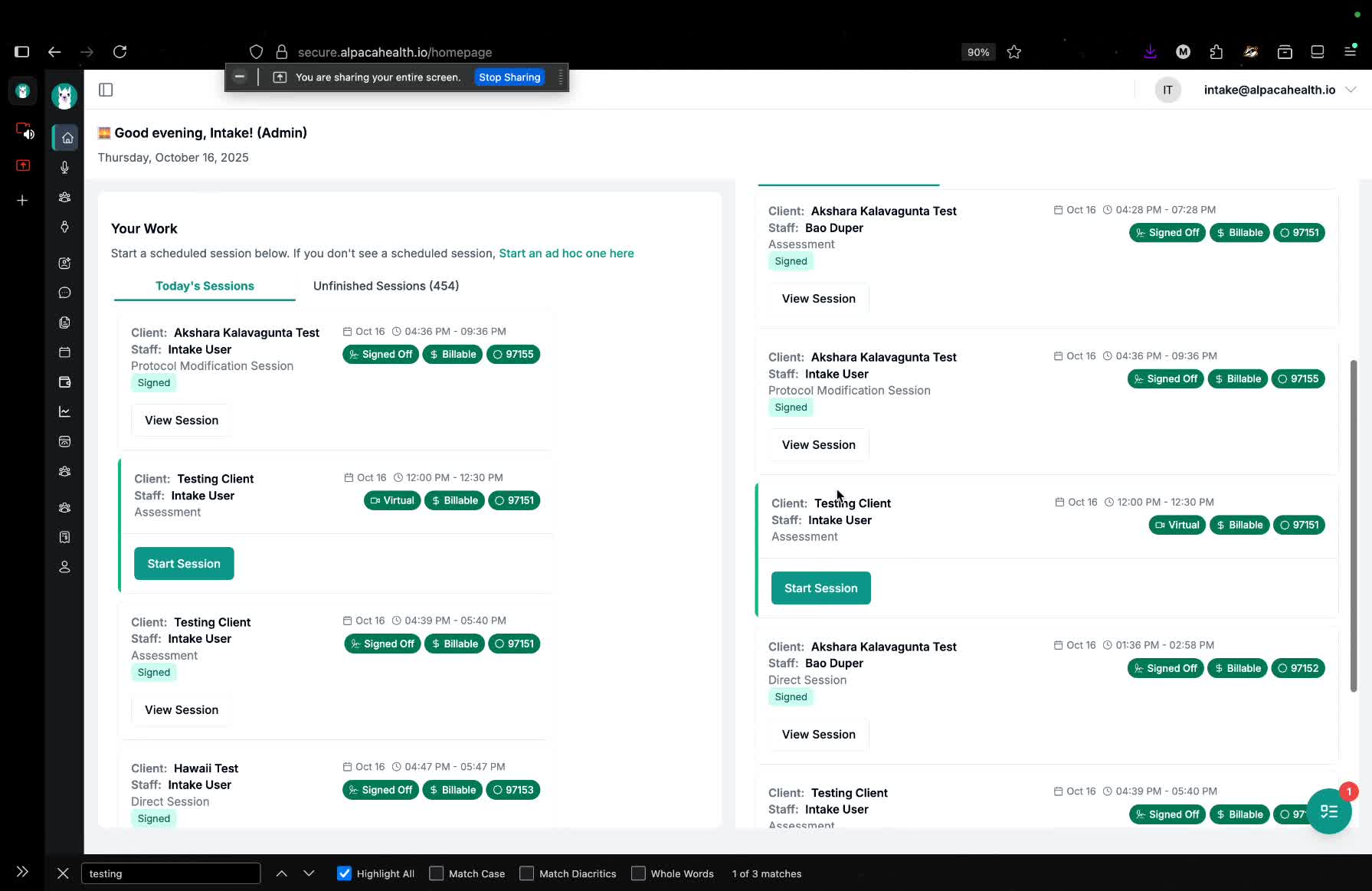
Begin the appointment from the home page or schedule.
7. Conducting the Assessment 3:02
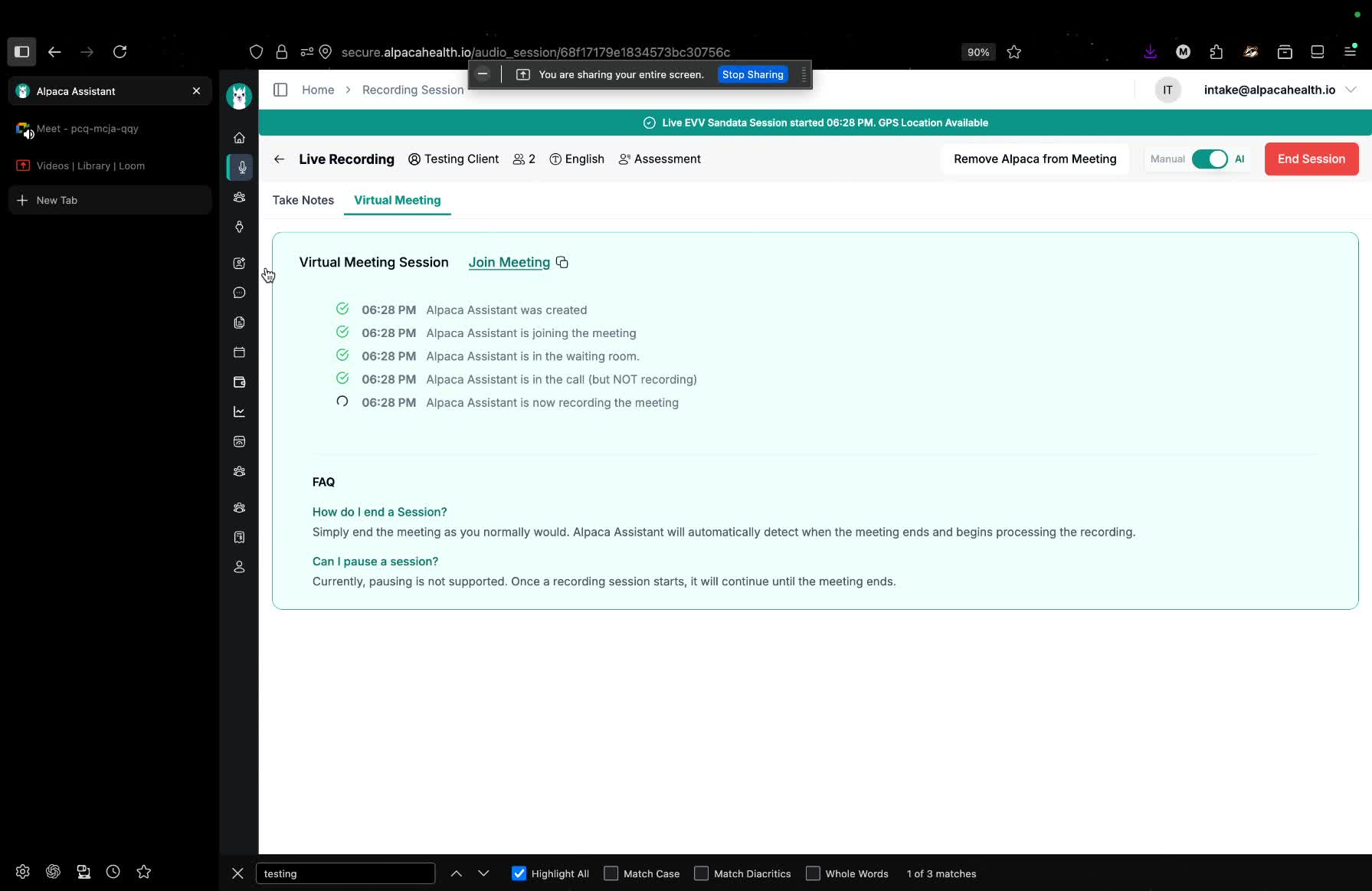
Engage with the client during the telehealth session.
Take notes as necessary.
8. Managing Session Notes 3:35
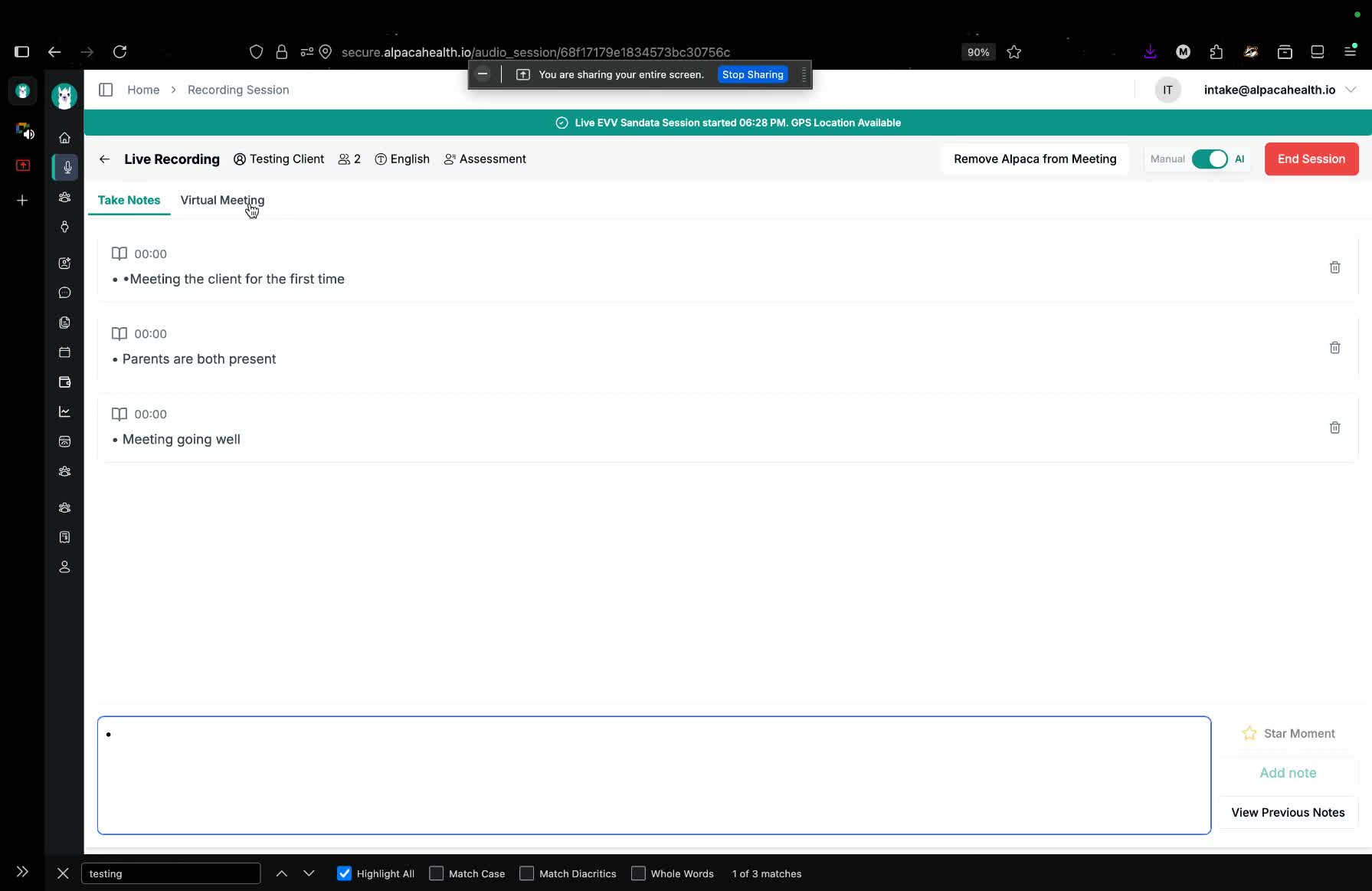
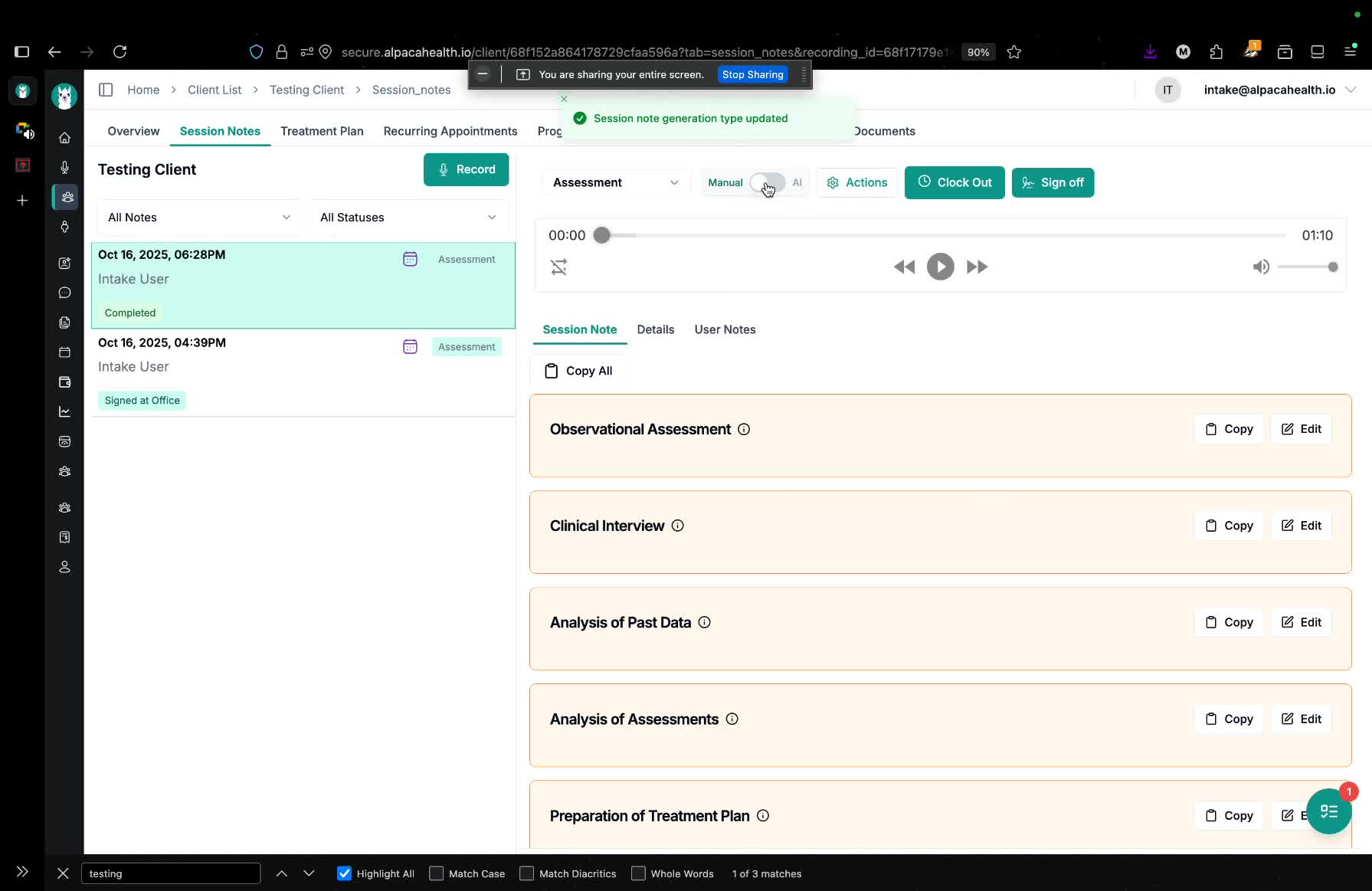
Decide whether to use AI-generated notes or manual notes.
AI-generated notes are recommended for efficiency.
9. Clocking Out of the Session 4:14
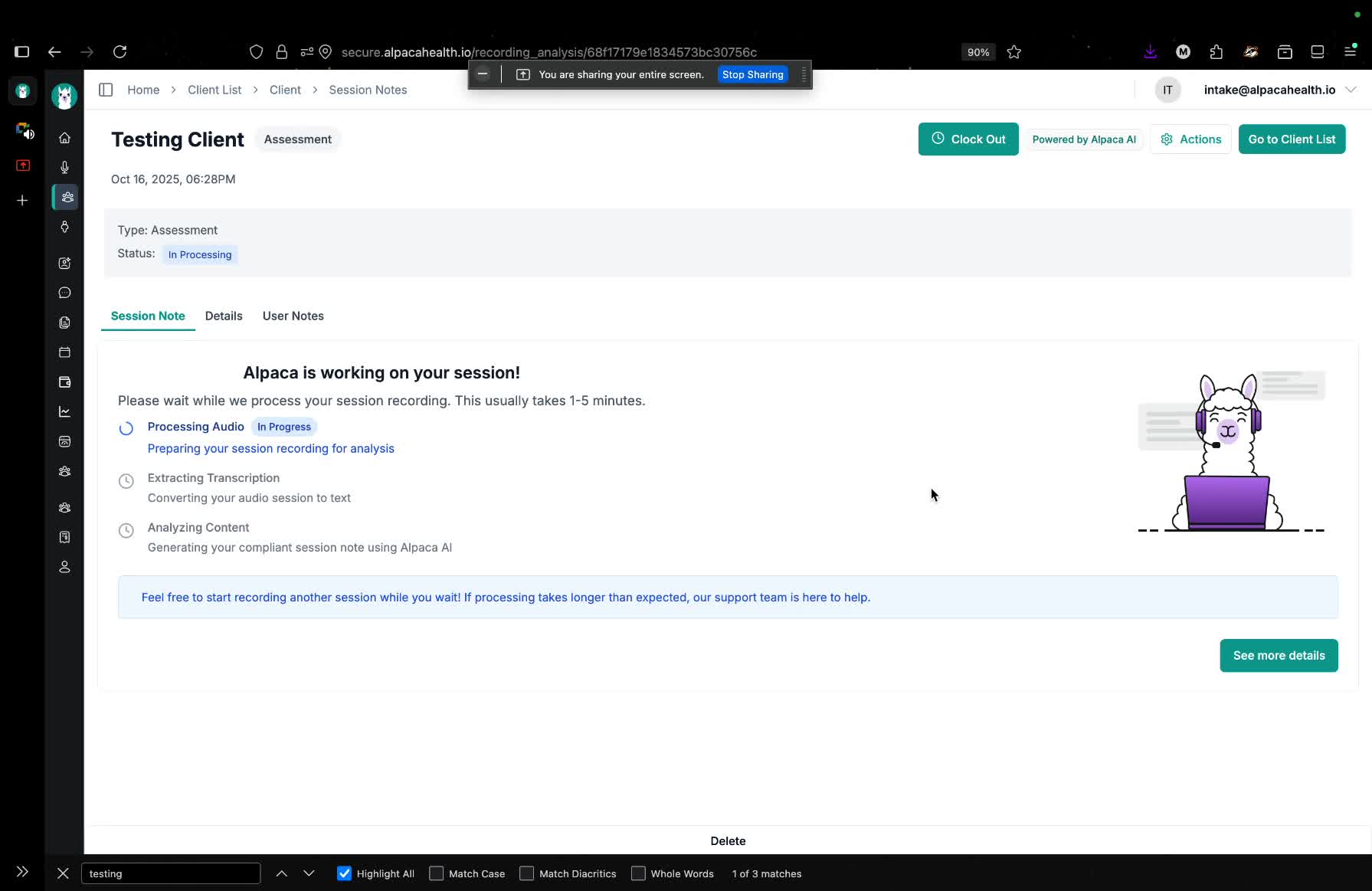
If applicable (e.g., for Colorado Medicaid), clock out after completing the session notes.
10. Finalizing Session Notes 5:06
Review and edit the session notes as needed.
Choose between AI-generated or manual notes for finalization.
11. Signing Off on the Session 5:40
Confirm appointment details (time, location, user).
Click 'verify time' to finalize the session.
12. Confirmation of Completion 6:26
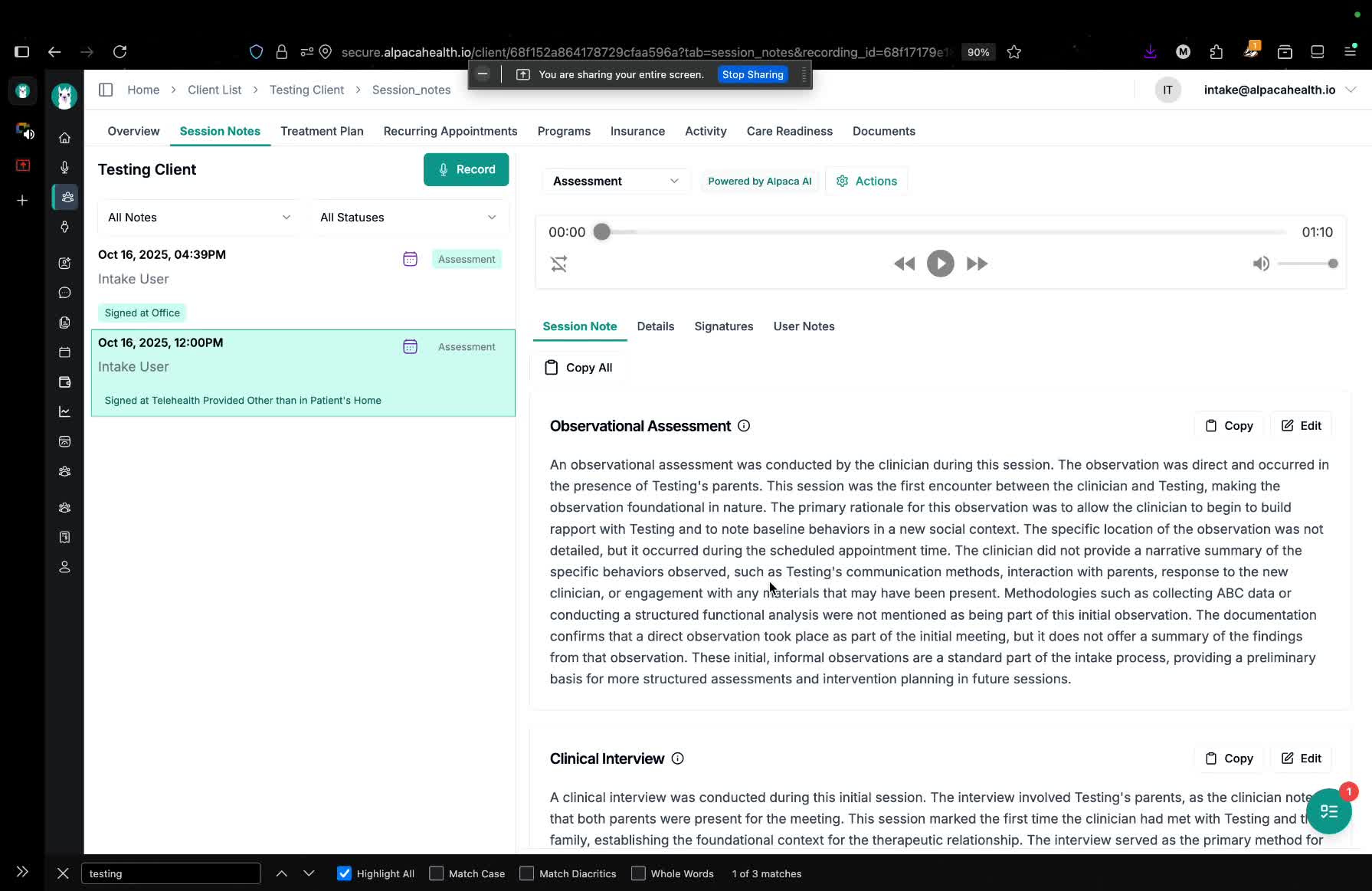
Ensure all details are correct and sign off.
The session note will be ready for billing in the next payout cycle.
Cautionary Notes
Ensure all client information is kept confidential.
Double-check appointment details before finalizing to avoid errors.
Tips for Efficiency
Use AI-generated notes to save time on documentation.
Familiarize yourself with the scheduling system to navigate quickly.