Using Your Homepage
Last updated: September 24, 2026
Your homepage is your home base in Alpaca. It is the first screen you see when you log in, and it pulls together what matters today (your sessions, anything that needs finishing, and the tasks that keep your clinic running) so you can get to your daily work without hunting through menus. This guide walks through each part of the homepage and how to use it.
How to get there: The homepage is the first screen you land on after you log in. You can return to it any time from the left-hand navigation.

Your homepage adapts to your role and to what is actually happening in your clinic. Buttons and cards appear only when they apply to you and there is something to act on, and empty areas hide themselves. So your homepage may not show every section described here, and it may look different from a coworker's.
The top of your home base
At the very top you will see a greeting with your name and your role, along with today's full date (weekday, month, day, and year). Just below the greeting, Alpaca surfaces a few "act now" buttons when they apply to you. If none apply, the space stays clean.
Depending on your role and what is happening in your clinic, you may see:
New patient referrals. A green button telling you how many new patient referrals are waiting (for example, "3 new patient referrals awaiting"). Click it to open your referrals page and welcome the new patients. This appears when you have permission to view referrals and at least one referral is waiting.
Assessments booked by parents. A teal button ("View N Assessments booked by parents") that opens a pop-up titled Upcoming Assessment Appointments. It lists each assessment a parent booked through the parent portal, with the client name, date, and time, plus a View Meeting Link button for virtual visits. To change an appointment, use the link to your schedule. This appears when you have permission to view upcoming assessments and there is at least one booked.
Clients behind on supervision. A red button ("N clients behind on supervision") that opens your supervision dashboard. This appears for clinic leaders (admins and directors) when at least one client is behind this month, and only when the client supervision dashboard is turned on for your clinic.
Payroll reminders
If you help run payroll, you may also see two payroll helpers near the top.
Finish your payroll tax setup. A card with a progress ring (showing how many setup items are done out of the total) and colored pills that group items by who owns them: need you, with Alpaca, and done. As the copy explains, Alpaca cannot file your payroll taxes until the items that need you are done, and there is no hard deadline, but sooner is safer since some states take a few days to process. Click Finish setup to jump straight to the tax notices tab. This appears when you have permission to view payroll, the feature is enabled for your clinic, and at least one item still needs you.
Payroll deadline banner. A banner naming your next payroll deadline. When there is more than two days left it is blue; inside the final two days it turns amber and counts down the hours. For clinic leaders it reminds you to approve non-billable requests and confirm your team has signed clinical sessions and verified non-billable ones. For team members it reminds you to make sure your sessions are signed and your non-billable time is approved by an admin and verified by you. It shows in the roughly week leading up to a deadline, and only when Salsa payroll is enabled for your clinic.
A quick video tour
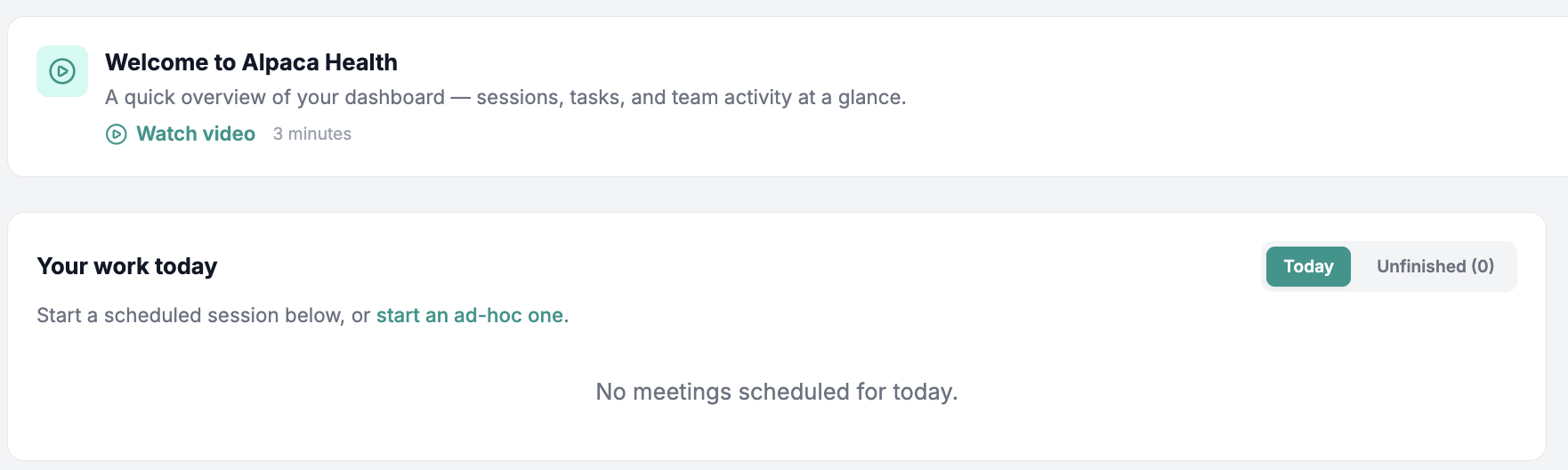
You may see a short Welcome to Alpaca Health banner with a roughly three-minute video overview of your dashboard. Click Watch video to view it, or dismiss the banner with the X and it stays out of your way.
Getting Started checklist
If you are still setting up, a Getting Started card appears with a "X of Y completed" counter and a short list of setup tasks. It disappears on its own once everything is done.
[SCREENSHOT: the Getting Started card for a clinic admin showing the completed counter and the three setup rows, one with a "Missing: EIN, Filing Address" sub-label]
What you see depends on your role:
If you own or run the clinic (admin or director), the tasks are Add Your Team Members, Complete Organization Setup (if anything is missing, it lists what, for example "Missing: EIN, Filing Address, Bank Account"), and Complete Payroll Setup. These check themselves off automatically as your real setup data comes in, so you do not tick them by hand. Click any row to go to the right page to finish it.
If you are a team member (for example an RBT or BCBA), the tasks are Get Assigned to Clients and Complete Payroll Setup. These also complete automatically once you have at least one assigned client and your payroll setup is finished. Click a row to go there directly.
If you are a new clinical hire who hasn't been marked started yet, you see a different Getting started checklist instead: your account, payroll setup (when your clinic runs payroll in Alpaca), onboarding documents, and your background check.
Your Work
This is the heart of your day. The Your Work card shows your own sessions and gives you two tabs:
Today's Sessions lists the appointments on your calendar for today.
Unfinished Sessions (N) lists sessions you have started but not yet completed or signed. The number in the tab is your count of unfinished work.
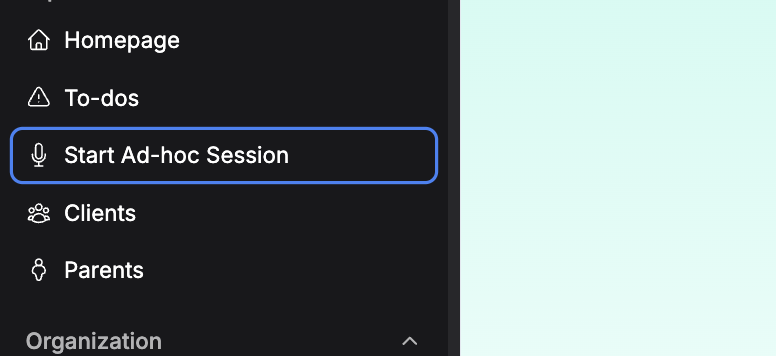
To start a scheduled session, use the session card for that appointment. If a session you want is not on the list, use the Start an ad hoc one here link near the top of the card to begin one on the fly.
If today has nothing on it, you will see "No meetings scheduled for today." If your unfinished list is clear, you will see "No unfinished sessions to complete."
Your admin requests
Below your sessions is a section for non-billable and administrative appointments (things like training, prep time, and cancellation requests).
If you approve requests for your team, it is titled Team Admin Requests, and you can approve what looks good, request changes, and verify completed hours for accurate payroll.
If it is just your own admin time, it is titled Your Admin Requests, where you track your admin appointments and verify your final hours once the work is done.
Use the Sort by menu (top right of the section) to order the list by Date, Team Member, or Client. When there is nothing pending, you will see "No pending requests."
In Progress Sessions
If you have recordings you paused partway through, an In Progress Sessions row appears with a card for each one. Each card shows the client (or "Group RBT Session" with a client count), when it started, and a button to pick up where you left off: Continue Recording for an individual session, or Continue Group Session for a group. Use these to resume and then end the recording, rather than starting a brand new session for the same visit. You can scroll the row sideways when there are several.
Your Team
If you have permission to see your team's work, a Your Team card appears with the same two tabs as your own work: Today's Sessions and Unfinished Sessions (N). This gives clinic leaders a quick read on what the whole team has on today and what still needs finishing, without leaving the homepage. If you do not have that permission, you will not see this card.

Your Todo List
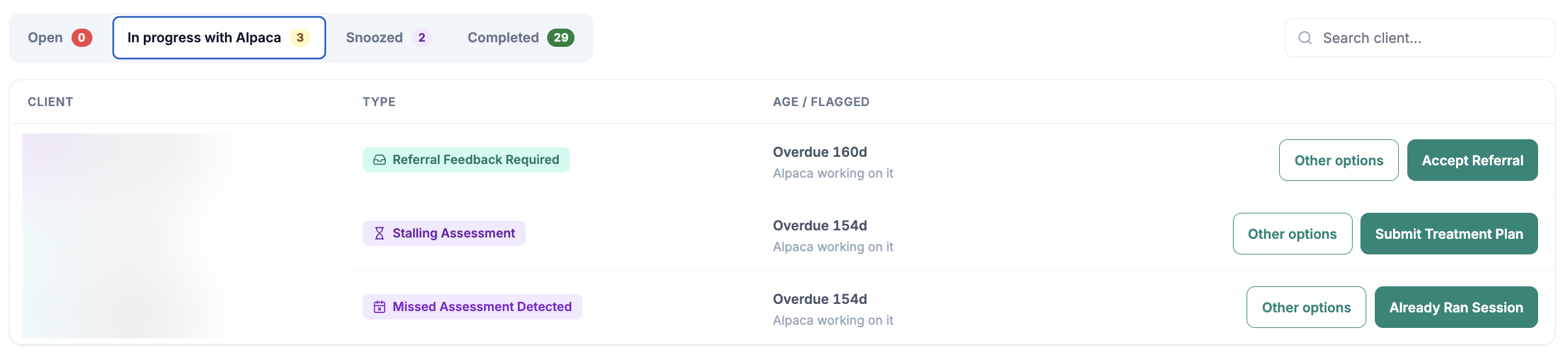
In the bottom-right corner of every screen is a round floating button with a checklist icon. A red badge on it shows how many open items you have. Click it to open your Todo List in a small panel you can expand or minimize. Hovering over the button shows a quick count of To Do, In Progress, and Snoozed items. This is where your action items live, so you can work them from anywhere without losing your place. (For how to work through these, see the To-dos guide.)
Frequently asked questions
Why does my homepage look different from a coworker's?
The homepage adapts to your role and to what is actually happening in your clinic. Buttons and cards for referrals, assessments, supervision, payroll, and team activity appear only when they apply to you and there is something to act on. Empty areas hide themselves so you only see what is relevant.
Do I need to check things off the Getting Started list myself?
Usually not. Most items complete automatically as your real setup data comes in (for example, once you have an assigned client or finish payroll setup). The whole card disappears once everything is done.
Where do I start or finish a session?
From the Your Work card. Use Today's Sessions to start what is scheduled, Unfinished Sessions to finish what is open, and the In Progress Sessions row to resume a paused recording.
What is the button in the bottom-right corner?
That is your Todo List. The red number is how many items are open. Click it any time to see and work through your tasks.
I see a message that this feature is not enabled. What should I do?
The homepage is turned on account by account. If it is not on for you yet, you may see a message asking you to contact support. Reach out to Alpaca support if you think it should be on for you.