Messaging (Currently in Private Beta)
Last updated: September 10, 2026
Please contact us at support@alpacahalth.io to enable this feature for your organization.
Messaging brings conversations about your clients into Alpaca — alongside their schedule, their notes and their billing — instead of scattering them across personal texts and email.
Open Messages from the sidebar.
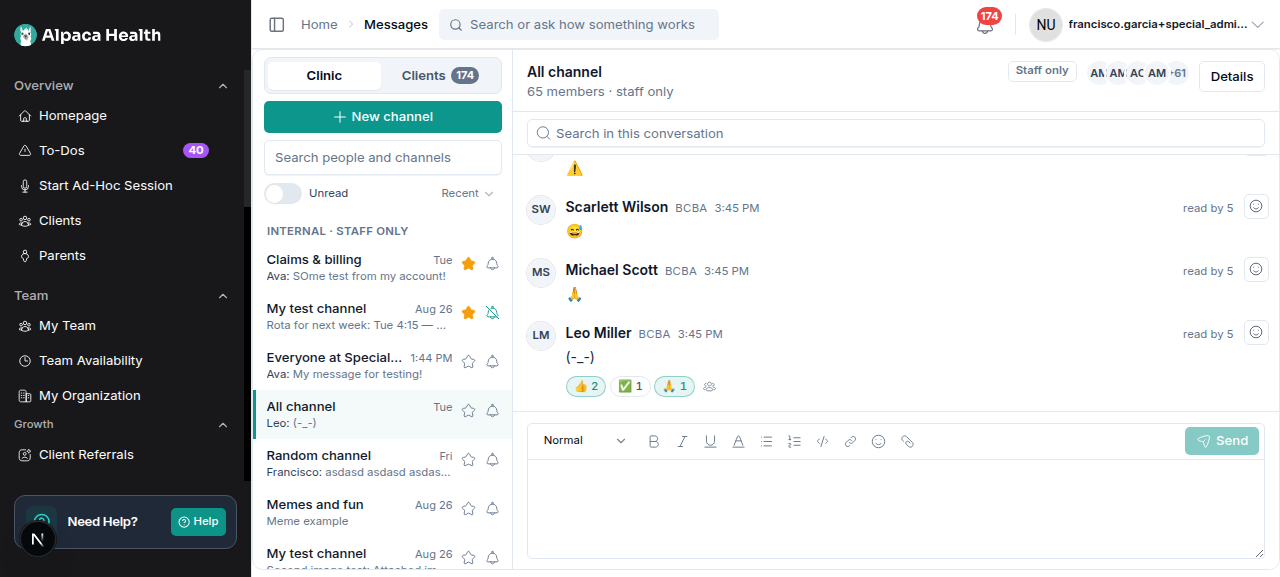
The two tabs
Clinic — staff only
Conversations between colleagues. Families never see these.
Channels you create for a team, a topic or a shift — "Claims & billing", "Thursday home visits".
Everyone at the clinic — one channel containing all active staff. It's created for you and nobody can be added to, removed from, or leave it.
Clients — one client at a time
Each client can have two channels:
Channel | Who is in it |
|---|---|
Care team | Everyone on that client's care team, plus the family |
Supervisor | The supervising clinician, clinic admins, plus the family |
Both include the family. Anything you write in a client channel is written to the family as well as to your colleagues.
RBTs and BTs don't see Supervisor channels. Not greyed out — genuinely absent from the list. If you're an RBT you'll see only the Care team row for your clients.
Who's in a channel, and why you can't edit it
This is the single most useful thing to understand about Messaging.
Client-channel membership follows the care team automatically. It isn't a list someone maintains — it's worked out fresh every time the channel is opened, from who is actually assigned to that client right now.
So:
Reassign a client's RBT and the channel updates itself. No one has to remember.
Client channels have no Add, Remove or Leave. There's nothing to edit, because the care team is the membership. If someone should be in the channel, put them on the care team.
Someone who leaves a client's care team loses the history, including their past reactions and read receipts. That's intended: access follows assignment.
Channels you create yourself are the exception — those have an explicit member list you control.
Creating and managing a clinic channel
On the Clinic tab, click New channel, name it, and pick colleagues from the roster.
Anyone who can open Messages can create a channel — there's no separate permission.
Open Details on a channel to:
see and filter everyone in it;
add or remove people (your own channels only);
archive it when it's finished.
Archiving moves a channel to an Archived group for everyone. The history stays readable and searchable, but nobody can post — including reactions. It's reversible.
Client channels and Everyone at the clinic can't be archived.
Writing a message
The composer supports rich text — bold, italic, lists, links, code — and attachments via the paperclip. Attachments stay in Alpaca; they're never sent out by text or email.
Editing and unsending
You can edit or unsend your own message for about an hour after sending it, from the ⋯ menu on the row. An edited message is marked (edited) so the thread stays honest.
Unsending removes the message for everyone, along with its reactions.
Bear in mind that in a client channel the family may already have read it. Corrections are usually better sent as a new message.
Read receipts
Under each message you'll see read by N. Click it to see exactly who has opened it and who hasn't — including the family. "Nobody on the care team has opened this yet" is usually the more useful half.
Reactions
React to any message with an emoji instead of replying. Hover a message and click the smiley at the top-right of the row.
The emoji picker, open on a message
👍 | ❤ | ✅ | 👀 | 🎉 | 😂 |
🙏 | 👏 | 🔥 | 💯 | 😮 | 😢 |
Your own reactions are outlined. Click a chip again to remove yours; everyone else's stay.
Click the people icon at the end of the row to see who reacted and with what.
The Reactions dialog listing each person and their emoji
A family member's reaction is labelled Parent, so you can always tell a caregiver from a colleague.
A reaction never notifies anyone. It sends no text or email, doesn't mark the channel unread, doesn't move it in your list, and doesn't appear in search. It's an acknowledgement, not a reply — if a family needs an answer, send a message.
A word of judgement. A reaction has no words, so the reader supplies the meaning. On a message about a child's difficult day, ✅ can read as "we've handled it" when you meant "seen". Reactions are ideal for logistics; for anything clinical or distressing, write a sentence.
On a phone the smiley is always visible, since there's nothing to hover with.
Keeping your list manageable
Control | What it does |
|---|---|
Pin (star) | Holds a channel at the top of your list |
Mute (bell) | Drops it from your bell and sidebar totals — the channel keeps its own unread count |
Unread toggle | Shows only channels with something new |
Sort | Recent activity, or alphabetical |
Archive | Ends a staff channel without deleting it |
Muting is per person. Muting a channel doesn't mute it for anyone else, and it never stops a family being notified.
Finding things
Within a conversation — the search box at the top of the thread filters that thread.
Across everything — the search box above the channel list searches channel names, people and message text across every channel you can see.
Search only ever returns what you already have access to.
What families actually receive
When you post in a client channel, the family is notified — but the notification never contains what you wrote.
A family gets an email and, if the clinic has their mobile number, a text saying only that there's a new message, which child it's about, and a link to their portal.
A notification may say | It never says |
|---|---|
Your clinic's name | The message text |
The child's first name | Whether there's an attachment |
Who sent it | Surname, date of birth, any ID |
A link to the portal | Any clinical detail |
The link opens their portal and asks them to sign in — it isn't a shortcut past the login.
We won't re-notify the same family about the same conversation for 15 minutes, so a back-and-forth doesn't become a stream of alerts. Someone actively reading the thread may get nothing at all.
Delivery chips
Under a message you send to a family, a small chip reports what happened to the notification — delivered, failed, or not sent, with the reason. That's how you find out a family's number is wrong without waiting for them to mention it.
"Not sent" has real reasons behind it: the family has texted STOP, there's no number on file, the clinic has notifications turned off, or the person was already reading the thread.
If a family replies to the text
They can't. The number can't receive messages, and a family who texts back gets one automatic reply pointing them at the portal. Families reply in the portal, and their reply appears in the channel like any other message.
Automated cards in client channels
Transactional emails the platform already sends a family — payment receipts, reschedule notices, balance reminders — also appear in that client's channels as a card, tagged Emailed to family, with a Preview email action that opens exactly what was sent, read-only.
Schedule changes appear the same way, with an Open schedule action.
Cards look deliberately different from a person's message — a square icon instead of a round avatar — so a scanning eye separates automation from people without reading a word.
The point is that the client channel becomes a complete record of clinic→family communication, so nobody has to ask "did the family get told?".
Automated cards can't be edited, resent, or reacted to.
Sending a week's schedule
Rather than typing each family's week by hand, use the schedule reminder composer.
Pick a week — Alpaca reports what it found ("3 appointments found").
It generates a draft into an editable field. It's a message, not a form: rewrite any line you like. Edited drafts are marked Generated · edited.
A side list shows every appointment it pulled, each with a checkbox — untick one to leave it out — and flags anything that changed this week, so you notice Thursday moved before the family does.
Regenerating is always something you ask for. Changing the week never silently overwrites your edits.
You can run this for one family or many. A multi-family run still sends one message into each family's own Care team channel — never a broadcast, never a group with two families in it. Clients with no appointments are listed and unticked rather than hidden, because the absence is usually the thing worth noticing.
Addresses are always included: the full street address for a clinic appointment, "Home visit" for a home one.
Live updates
Threads update themselves. New messages, reactions and read receipts appear without a refresh. If the live connection drops, Alpaca falls back to checking periodically, so the worst case is a short delay rather than a stale screen.
Messaging from a client's chart
You don't have to go to the hub. A client's page has a Messages tab with the same conversations and the same composer, and their overview has a Send message button.
Troubleshooting
"A colleague can't see a client channel." Check the care team on the client's record. Membership follows assignment — adding them to the care team adds them to the channel.
"I can't see a Supervisor channel." RBTs and BTs don't have Supervisor channels. That's by design, not a fault.
"There's no composer / the smiley is missing." The channel is archived, or the channel type is turned off for your organization. History stays readable; nothing new can be posted.
"A family says they never got the message." Open the message and read the delivery chip. It will say whether the notification was delivered, failed, or was never attempted — and why. Their messages are always in the portal regardless.
"A message shows no reactions after I search." Search results render the same rows as the thread. If something looks off, clear the search to return to the live thread.
Questions we get asked
Can families see clinic channels? No. The Clinic tab is staff-only.
Can I remove someone from a client channel? No — change their care-team assignment instead. That's the only source of truth.
Does muting stop the family being notified? No. Mute only affects your own unread counts.
Can I delete a message permanently? You can unsend your own message for about an hour. After that, contact your administrator — messages are part of the client record.
Does anything I do here go to the family automatically? Only posting a message in a client channel. Reactions, mutes, pins, archiving and reading do not.