Receiving Referrals from Alpaca
Last updated: August 26, 2026
How Alpaca routes referrals to your organization by coverage area, and how to manage the volume and order in which you take them on.
When a family completes an intake with Alpaca Health, Alpaca routes that referral to provider organizations whose service area matches where the family lives. This guide shows you where those referrals arrive, how Alpaca decides which ones reach you (territories, regions, and coverage), and how to control how many you take on and in what order (referral capacity and prioritization).
Before you begin: Sign in to the Alpaca Health admin portal at secure.alpacahealth.io. You need an administrative role (such as Alpaca Admin, Admin, or Intake Manager) to review and act on referrals. If you manage multiple roles, open your account menu in the top-right corner, choose Switch roles, and select an admin role before continuing.
Open your organization's referrals
Step 1. In the left sidebar, find the "Organization" heading and click Referrals. It sits just below the "Alpaca Assistant" group of links. If the sidebar is collapsed to icons only, click the expand control at the very top-left first.
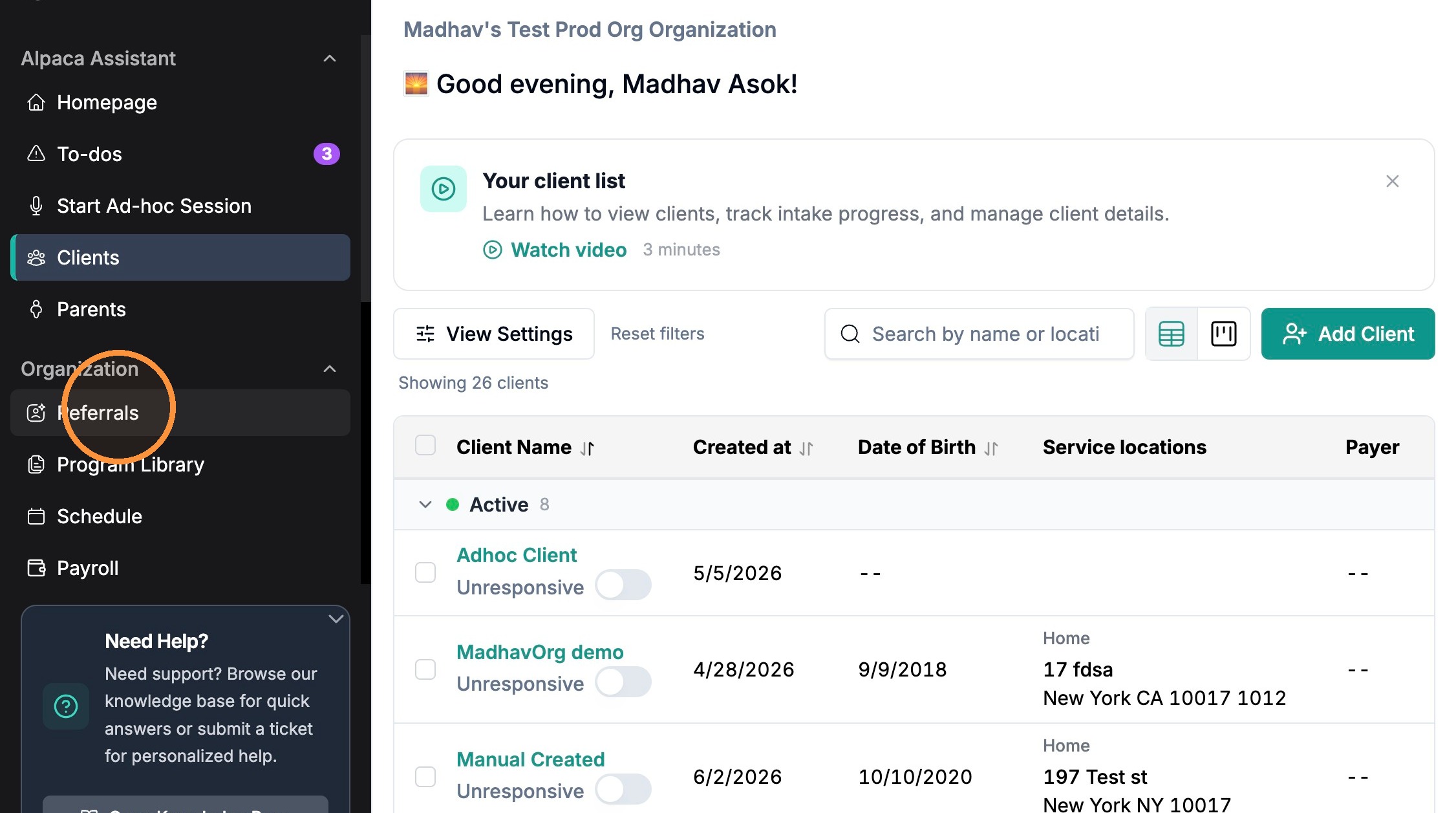
The left sidebar. Under "Organization," click "Referrals" (circled).
Step 2. Review the Organization Referrals page. This page lists every referral your organization has received and is where all of the steps below take place.
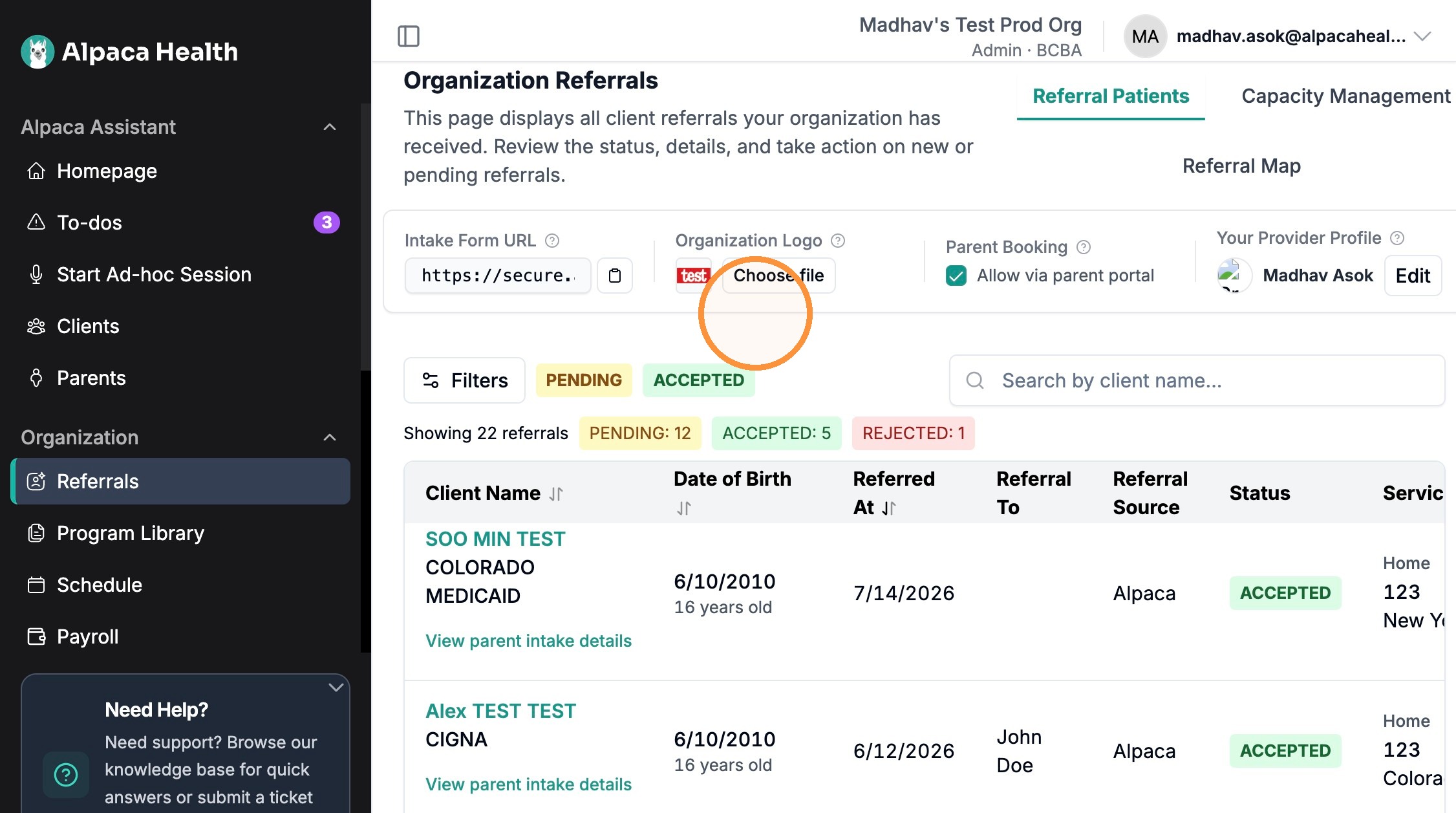
The Organization Referrals page. Note the three views in the top-right: "Referral Patients," "Capacity Management," and "Referral Map."
Get oriented before you dig in:
Referral Patients — the default view; a table of every referral with its status, source, and service location.
Capacity Management — where you review how many referrals your organization can take on.
Referral Map — a geographic view of your referrals across your coverage area.
The settings row across the top (Intake Form URL, Organization Logo, Parent Booking, Your Provider Profile) controls how families find and see your organization.
NOTE: The three views are tabs/links in the top-right of this page. You will switch between "Referral Patients" and the other two views throughout this guide.
Part 1 — Territories, regions, and coverage
Your organization only receives referrals that fall inside its service area. On your intake form a family enters their home ZIP code; Alpaca matches that location against your coverage and routes qualifying referrals to you. Each referral then carries the family's service location, so you can see exactly where care is needed before you commit.
See where each referral is located
Step 1. On the Referral Patients view, scroll the table to the right until you reach the "Service Locations" column. Each row shows that client's service address — street, city, state, and ZIP (for example, "Home / 123 / Colorado Springs, CO 10017").

The referrals table scrolled to the "Service Locations" column, showing each family's city, state, and ZIP.
TIP: Use the Service Locations column to confirm a new referral is somewhere your team can actually serve before you accept it.
View your referrals on a map
Step 1. In the top-right of the Organization Referrals page, click Referral Map. This switches from the table to a geographic view so you can see how incoming referrals are spread across your territory — helping you spot clusters and outliers relative to the regions you cover.
How a family's location is captured
Families reach your organization through the "Intake Form URL" shown at the top of the Referrals page. On that public form, the parent must enter a home ZIP code.
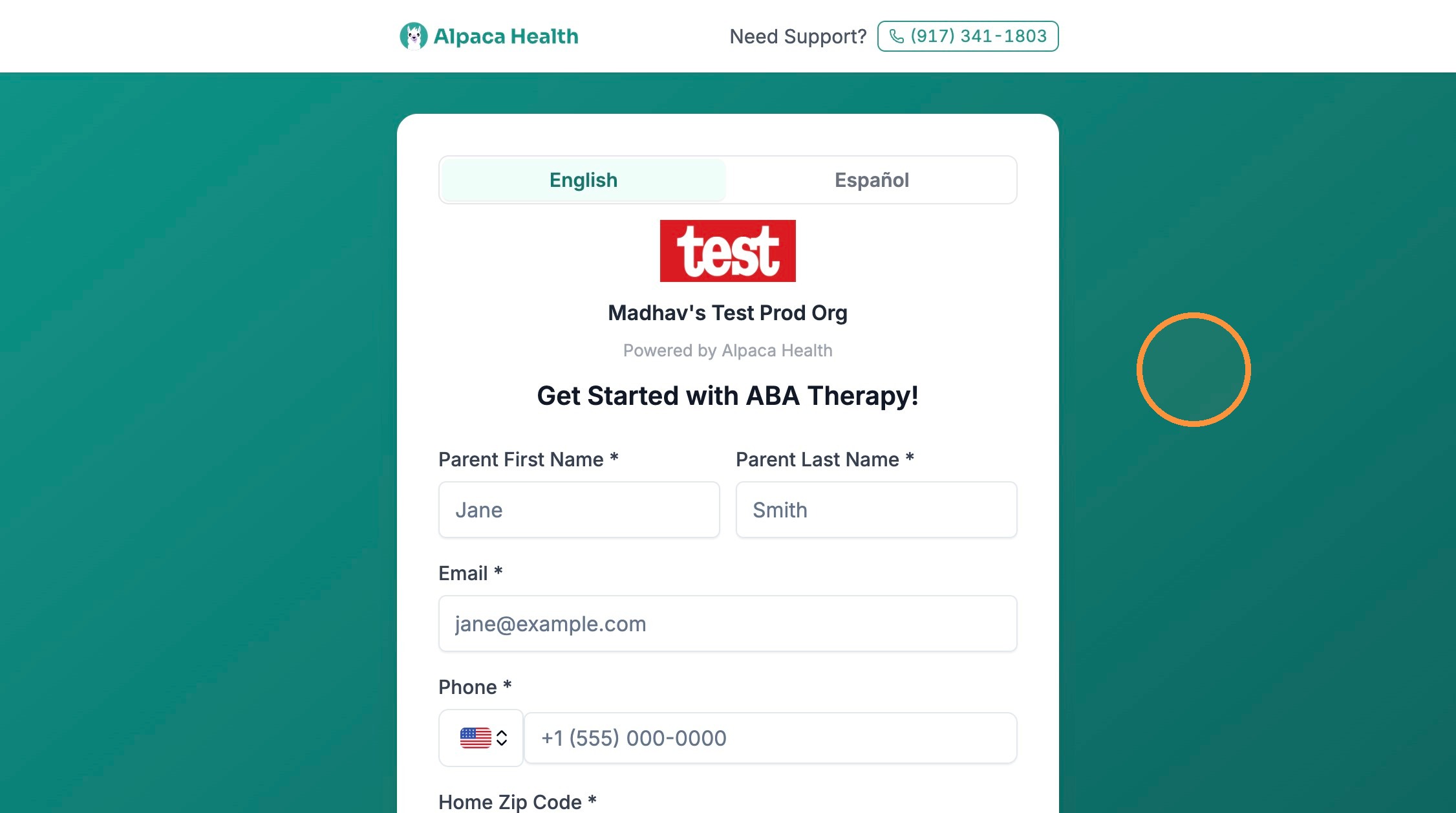
Your public intake form. The "Home Zip Code" field (bottom) is what Alpaca uses to match a family to your coverage area.
Step 1. Confirm the intake form asks for the family's ZIP code. That ZIP is what determines whether a referral falls within your coverage, so an accurate ZIP is essential for correct routing.
WARNING: Don't confuse two similarly named things. "Service Location" is the specific address where a single client receives therapy (shown on referrals and chosen again when you schedule an assessment). Your coverage area is the broader region that decides which referrals ever reach you in the first place — it is not set per client.
Part 2 — Referral capacity and prioritization
Every referral arrives as "Pending." Accepting one commits your organization to that family and adds them to your caseload — so accepting and declining is how you actively manage capacity: take on what you can serve well, and pass on what you can't. Alpaca also sets a shared expectation for how quickly accepted cases should get started.
Open the Capacity Management view
Step 1. In the top-right of the Organization Referrals page, next to "Referral Patients," click Capacity Management. This view is where you review your organization's referral capacity and how new cases are prioritized. Return to "Referral Patients" whenever you want the full list back.
Filter the list to what needs a decision
Step 1. On the Referral Patients view, click Filters (above the table, on the left). The "Filter Referrals" dialog opens.
Step 2. Check the statuses you want to see — ACCEPTED, REJECTED, PENDING, CANCELLED — then click Apply Filters. To decide what to take on next, show only PENDING referrals; those are the ones still awaiting your decision.
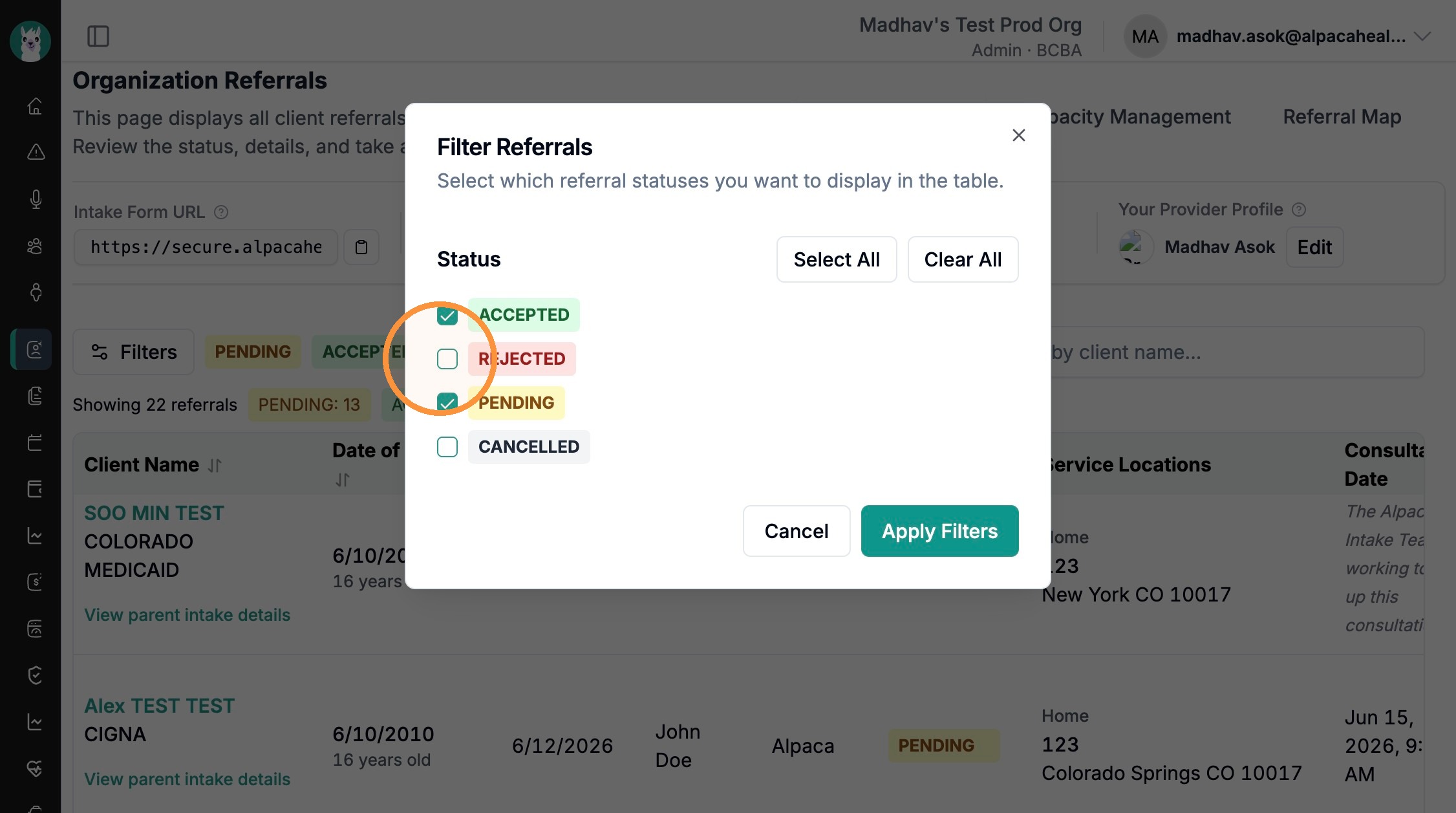
The "Filter Referrals" dialog. Turn statuses on or off, then click "Apply Filters."
TIP: The list header shows live counts — for example "PENDING: 13, ACCEPTED: 4, REJECTED: 1" — so you can gauge your queue at a glance without opening every row.
Accept, decline, or flag a pending referral
Step 1. In the referrals table, scroll right to the "Actions" column. For any PENDING referral you'll see: Start Consult (opens the intake call guide), a green Accept button, a red Deny button, and an "Unresponsive" toggle. Rows that are already accepted, rejected, or cancelled show "No actions."

The "Actions" column on a pending referral: Start Consult, Accept, Deny, and the "Unresponsive" toggle.
What each control does:
Accept — take the referral on (see the warning below about your caseload).
Deny — decline the referral (this is permanent; see below).
Start Consult — open the intake call guide to talk with the family before you decide.
Unresponsive — flag a family you have not been able to reach, without accepting or declining yet.
What happens when you accept
Step 1. Click Accept (in the list) or Accept Referral (top-right of a consultation). A confirmation appears titled "Accept Referral & Schedule Assessment."
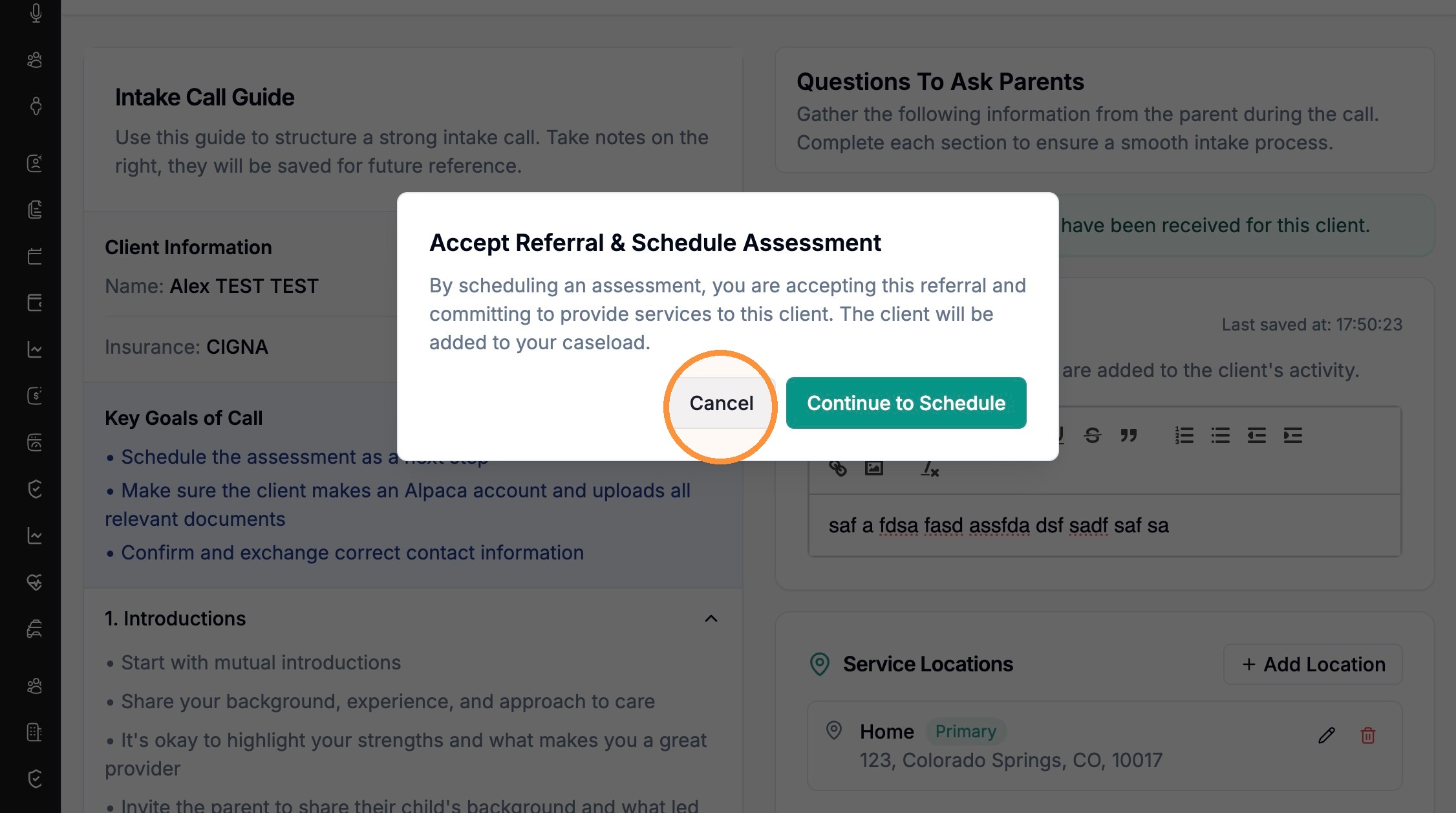
The accept confirmation. Accepting commits you to the client and adds them to your caseload.
Step 2. Read the confirmation, then click Continue to Schedule to proceed, or Cancel to back out. The dialog states: "By scheduling an assessment, you are accepting this referral and committing to provide services to this client. The client will be added to your caseload."
WARNING: Accepting is a real capacity commitment — the family is added to your caseload the moment you continue. Only accept what your team has room to serve.
What happens when you decline
Step 1. Click Deny (in the list) or Decline Referral (top-right of a consultation). A confirmation appears titled "Decline This Referral?"
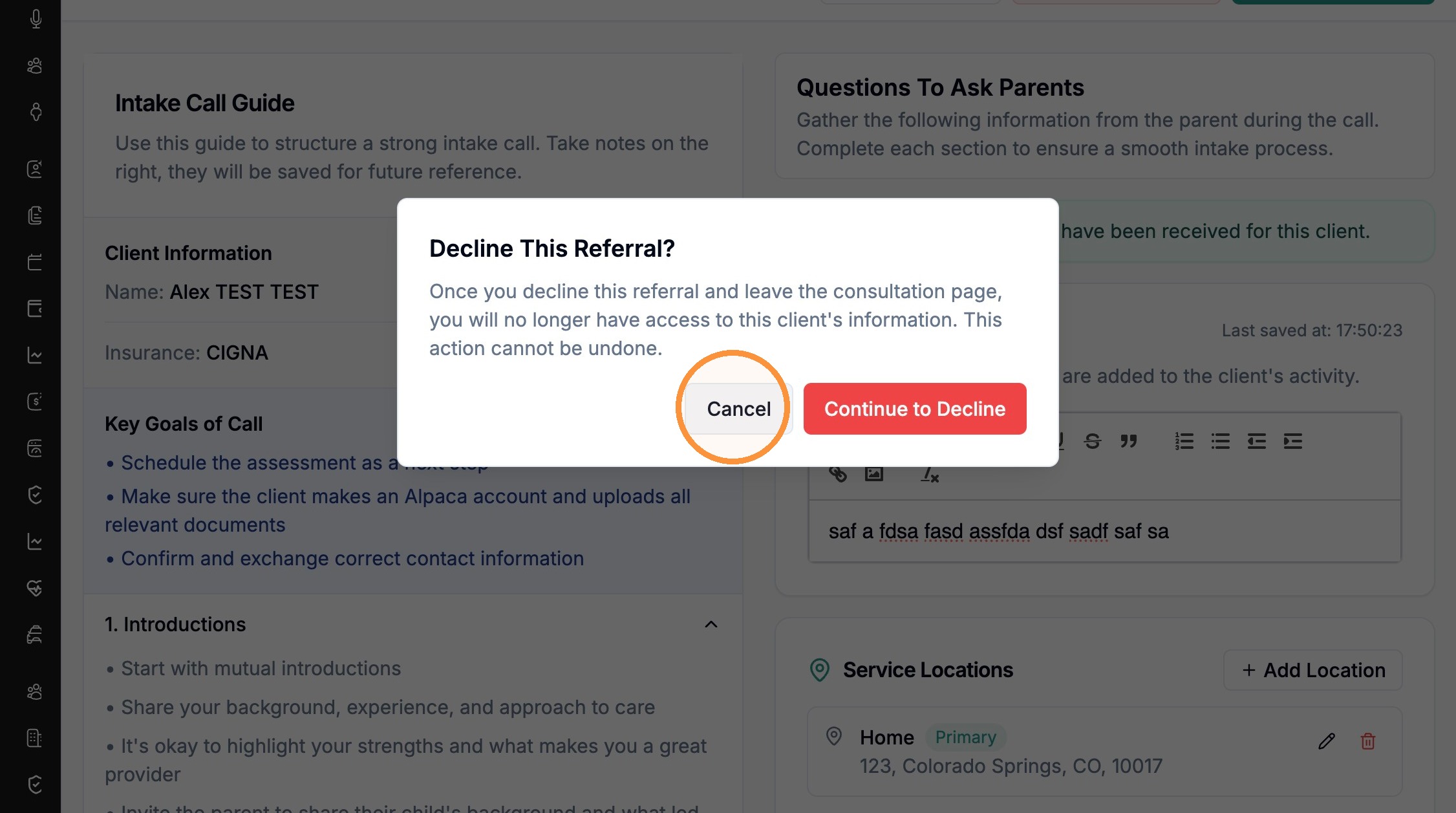
The decline confirmation. Declining is permanent and removes your access to the family.
Step 2. Read the warning, then click Continue to Decline to confirm, or Cancel to keep the referral. The dialog warns: "Once you decline this referral and leave the consultation page, you will no longer have access to this client's information. This action cannot be undone."
WARNING: Declining cannot be undone, and you lose access to the family's information. Only decline when you are certain you can't take the case.
Prioritization: the two-week turnaround expectation
Capacity isn't only about how many referrals you accept — it's also about how quickly you start the ones you do accept.
Step 1. When you accept a referral and open the Schedule Assessment window, read the reminder banner. It says: "Our referral partners trust us to get cases started, with the assessment scheduled in 2 weeks of the first contact, if parents agree."
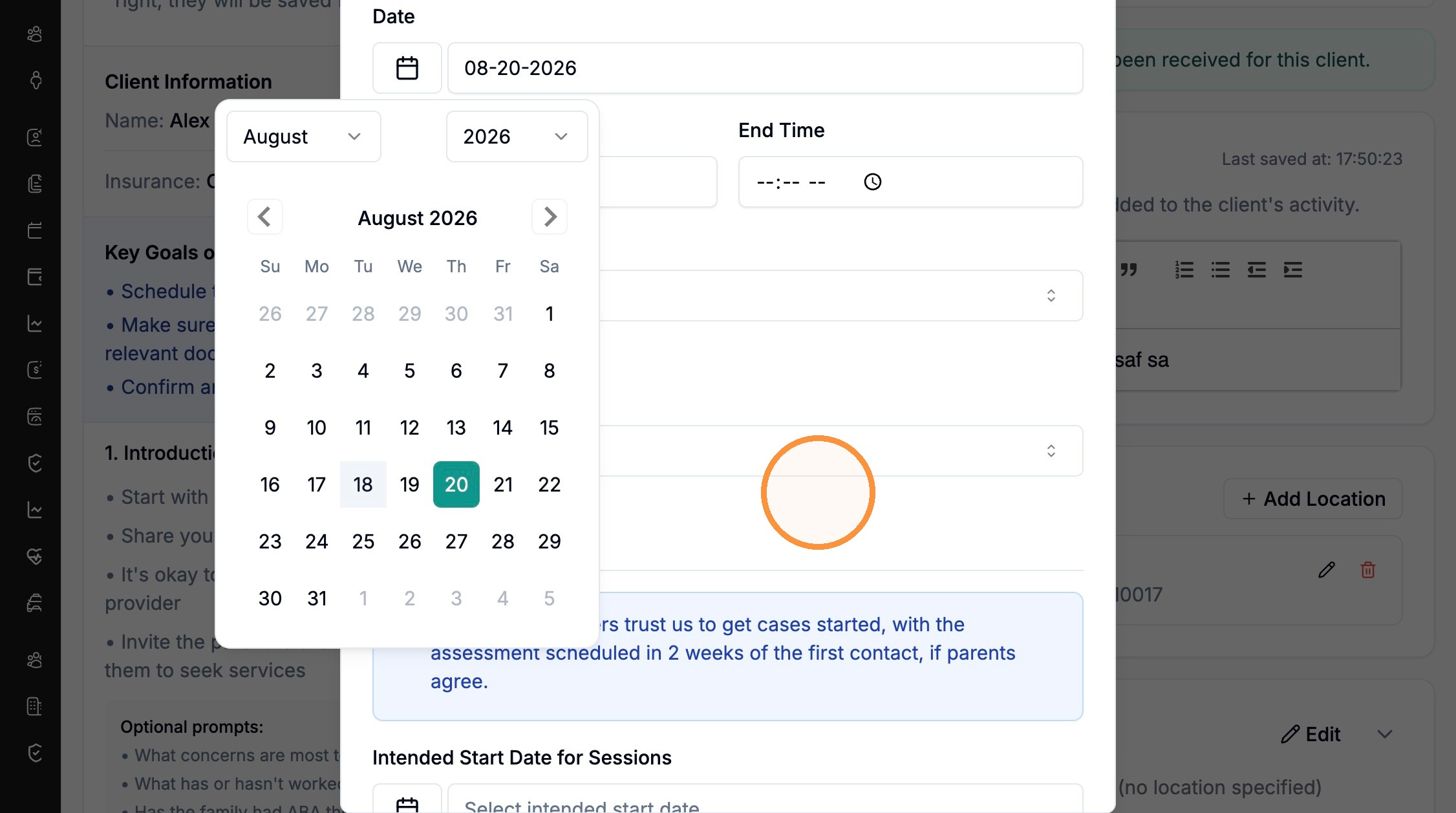
The Schedule Assessment window. The blue banner sets the shared expectation: schedule the assessment within about two weeks of first contact.
NOTE: Prioritize scheduling accepted assessments within roughly two weeks of first contact. This is the standard Alpaca expectation for referral partners, and consistently meeting it keeps your referral flow healthy.
Quick recap
Open referrals from the left sidebar: under "Organization," click Referrals.
Coverage: Alpaca routes referrals to you by the family's home ZIP code. Check the "Service Locations" column to confirm location, and use the "Referral Map" view to see referrals across your territory.
Capacity: use "Capacity Management," the status Filters, and the Accept / Deny / Unresponsive actions to control how many referrals you take on.
Accepting adds a family to your caseload; declining is permanent. Aim to schedule accepted assessments within about two weeks of first contact.
Frequently asked questions
Q: Why am I not receiving referrals for a family I know needs services?
A: Alpaca routes referrals by the home ZIP code a family enters on your intake form and matches it against your coverage area. If a family's ZIP falls outside the regions you cover, their referral won't reach you. Confirm the family's location in the "Service Locations" column, and use the "Referral Map" view to check how your coverage area lines up with where referrals are coming from.
Q: What's the difference between a "Service Location" and my coverage area?
A: A Service Location is the specific address where a single client receives therapy — it appears on each referral and you choose it again when scheduling an assessment. Your coverage area is the broader region that decides which referrals ever reach you in the first place. The Service Location is set per client; coverage is not.
Q: Can I undo declining a referral if I change my mind?
A: No. Declining is permanent. Once you decline a referral and leave the consultation page, you lose access to that client's information and the action cannot be undone. If you're unsure whether you have capacity, use Start Consult to talk with the family first, or flag them with the Unresponsive toggle — rather than declining before you're certain.